In this guide, I'll go through the 10 best Hubstaff alternatives in 2026 and tell you who each one suits and what it costs.
TL;DR
Reflow is the best Hubstaff alternative in 2026 for operations teams that need more than a record of hours. Reflow captures work time, active time, and productive time automatically, with no manual entry anywhere in the system, then goes two layers further: it maps how work moves across systems step by step and ranks the workflows worth automating. Once an automation goes live, Reflow measures what it returned.
Clockify and Jibble are the two free-forever options: Clockify's free plan stops at five users but has a long paid ladder above it; Jibble's has no user cap and adds Face Recognition and Geofencing for frontline teams.
Timely, DeskTime, and Toggl Track track time automatically and differ mainly on screenshots: Timely and Toggl Track publish policies against them. DeskTime includes them on its Premium tier, along with app and document title tracking.
Time Doctor, Apploye, and eMonitor combine time tracking with screenshot-based monitoring and productivity analytics: Everhour takes a different route and puts its timer, budgets, and invoicing inside Asana, ClickUp, Jira, and the other project management tools a team already works in.
What are the best Hubstaff alternatives in 2026?
The best Hubstaff alternative in 2026 is Reflow, for operations teams that want fully automated workforce and workflow intelligence with no manual time entry.
Clockify and Time Doctor come next: Clockify for a free timer with a deep paid ladder, Time Doctor for workforce analytics with screenshots and peer benchmarks.
Here's the full shortlist of vendors:
Tool | Use case | Price |
Reflow | Workforce and workflow intelligence with fully automated capture: work time and productivity recognized without manual entry, where time goes per workflow, which steps to automate, and the ROI afterwards. No integrations. | Custom pricing (book a demo). |
Clockify | Timer, Timesheet, Kiosk, and Auto tracker, with a paid ladder that reaches invoicing, scheduling, SSO, and audit logs. | Free for up to 5 users; paid from $3.99/seat/month (annual). |
Time Doctor | Workforce analytics with screenshots, productivity ratings, Benchmarks AI, and payroll. | From $6.67/user/month (annual). |
Timely | The Memory tracker records work into a private timeline and AI drafts the timesheet for one-click approval. | From $9/user/month (yearly). |
DeskTime | Tracking runs from power-on, with URL, app, and document title tracking and productivity calculations. | From $6.42/user/month (annual). |
Toggl Track | Timer-first tracking with Calendar View, customizable reports, and a published no-screenshot policy. | Free plan; paid from $9/license/month. |
Everhour | Time tracking embedded in Asana, ClickUp, Jira, Linear, and other PM tools, with budgets and invoicing. | Free for up to 5 seats; Team at $8.50/seat/month (yearly, 5-seat minimum). |
Apploye | Screenshot and video monitoring plus timesheets, payroll, and invoicing for remote and hybrid teams. | Free for up to 10 users; paid from $4.50/user/month (annual). |
eMonitor | One monitoring agent across Windows, macOS, Linux, and Chromebook, with attendance, DLP alerts, and employee-facing dashboards. | From $3.90/user/month (annual). |
Jibble | Free time and attendance for unlimited users, with Face Recognition, Geofencing, and Kiosk clock-in. | Free forever for unlimited users; paid upgrades quoted in-app. |
#1: Reflow
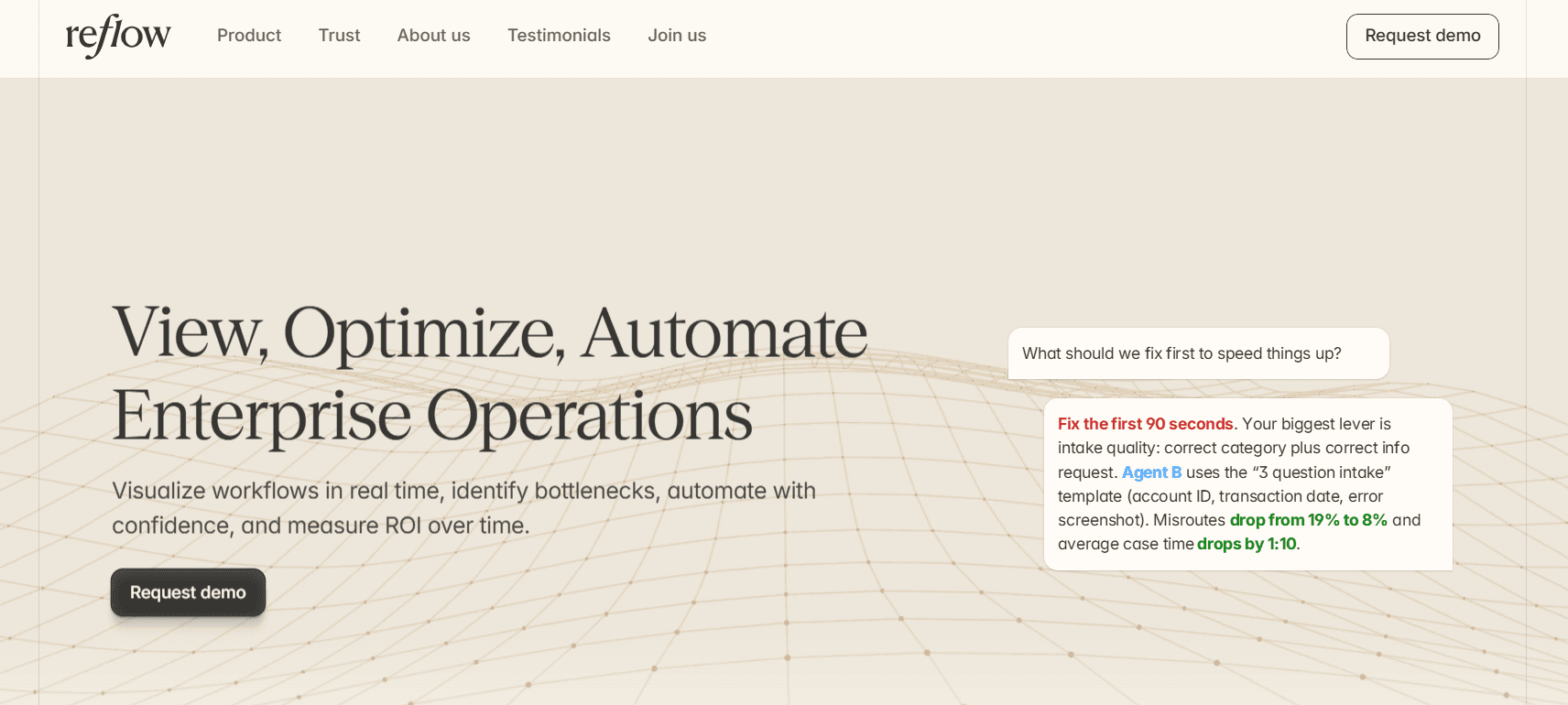
Reflow is the best Hubstaff alternative in 2026 for enterprise operations teams that have outgrown hours logged.
Our platform covers what a time tracker covers (work time, active time, productive time, and productivity trends across teams), with one difference at the base: none of it is entered by hand.
On top of that layer, it answers two questions a timesheet can't:
Which steps inside a workflow are worth automating.
What the automation returned once it went live.
Disclosure: Yes, Reflow is our platform. I'll still make the case for why it belongs at the top of a Hubstaff alternatives list, and I'll be equally clear about the jobs it doesn't do.
The way our workforce and workflow intelligence platform works is that it watches operational work as it happens, records every step taken, skipped, repeated, or delayed, and turns the result into a readout per workflow:
How many times it ran.
How long a run takes on average.
The average deviation per run.
How many hours a month automation could recover.
Nobody has to start a timer or fill in a timesheet, and there's no big integration project before the first real insight.
A native Mac and Windows agent does the capture, and machine learning does the labeling. Reflow also doesn't do per-hour invoicing, scheduling, or HR planning.
We designed it as a platform that can help enterprises visualize workflows in real-time, identify operational bottlenecks, and save money in the long term.
Let's go over the features that make Reflow a strong alternative to Hubstaff:
See the anatomy of the workflow, not the hours against it
Reflow maps each step of a workflow in the order it happened and attaches the time spent to every part of the sequence, including the steps that were skipped or repeated.
Let’s take a complex task, such as a refund request process.
A traditional timesheet for that team would show roughly 500 hours logged on refunds in the month.
Reflow's readout for the same process shows 4,820 runs at an average of 6 minutes 10 seconds each, 1 minute 5 seconds of average deviation, and 87.1 hours a month of potential savings.
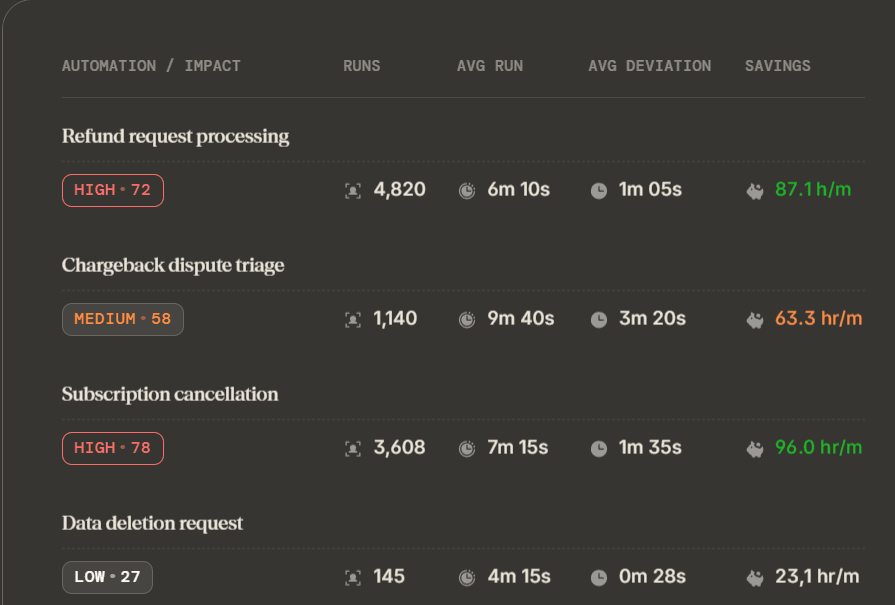
The first number tells you refunds are expensive. The second tells you where the expense is.
This will also help you put a cost on each unit of work.
Our platform breaks operational time down by customer, task, and project, which gives you the unit economics of the work, not one aggregate hours figure.
For example, chargeback dispute triage might run 1,140 times a month at 9 minutes 40 seconds a case, with an average deviation of 3 minutes 20 seconds per run.

Once you apply the loaded cost of the analyst handling those cases, you have the true cost of a chargeback, and that is the figure finance wants when the question of automating the triage comes up.
Know when work drifts from the SOP
Reflow compares the steps an SOP expects against the steps each run took. Drift and inconsistency show up as data while the work is happening, not in an audit months later.
For a data deletion request with a regulatory deadline attached, that means seeing the runs where a verification step was skipped, or the same lookup was repeated three times, before a customer or a regulator finds them.
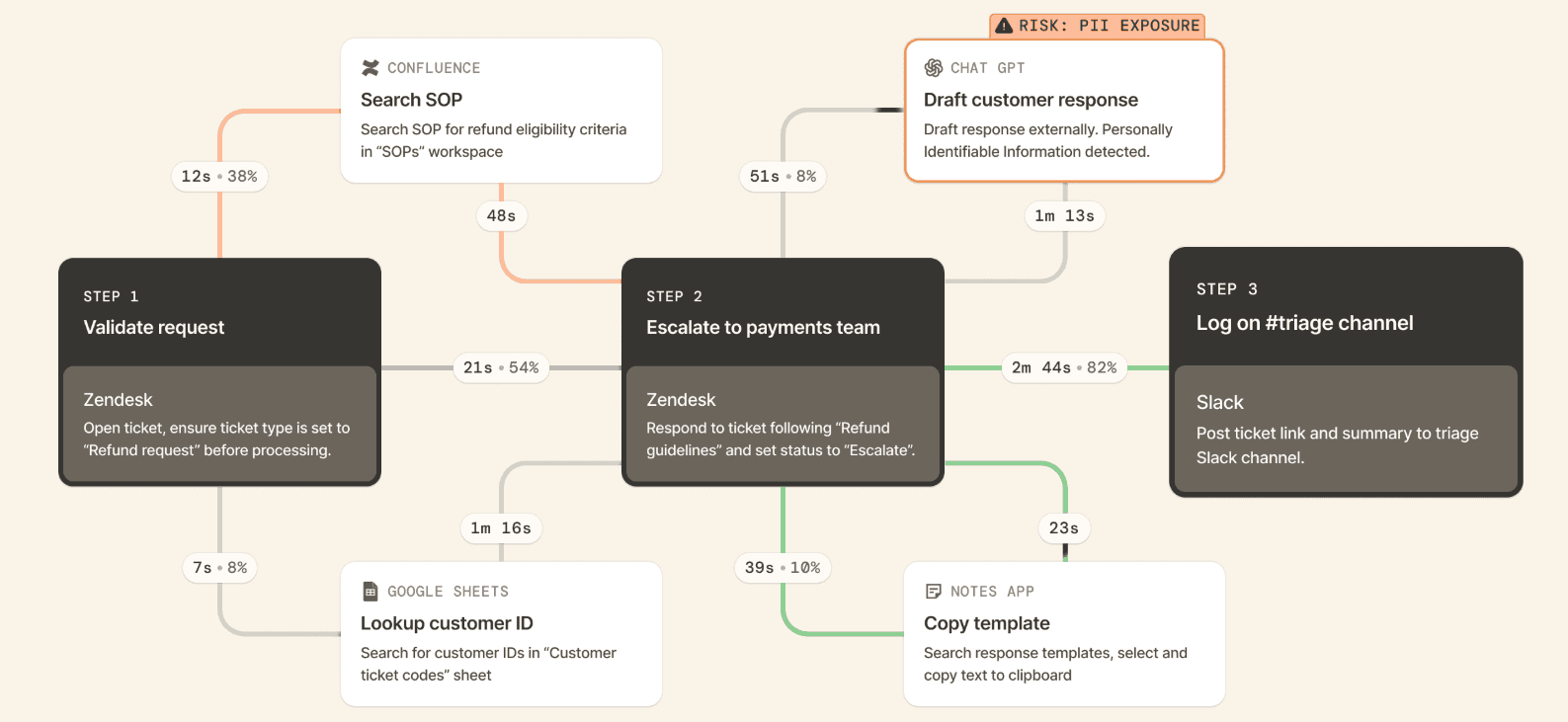
Team leads can use the same view to check whether the procedure they wrote is the procedure the team follows.
See what you can automate, then measure whether it paid off
Reflow ranks workflows by automation opportunity and names the specific steps to automate.
Our workflow intelligence platform then keeps measuring the workflow after the change, so the ROI is observed, not projected.
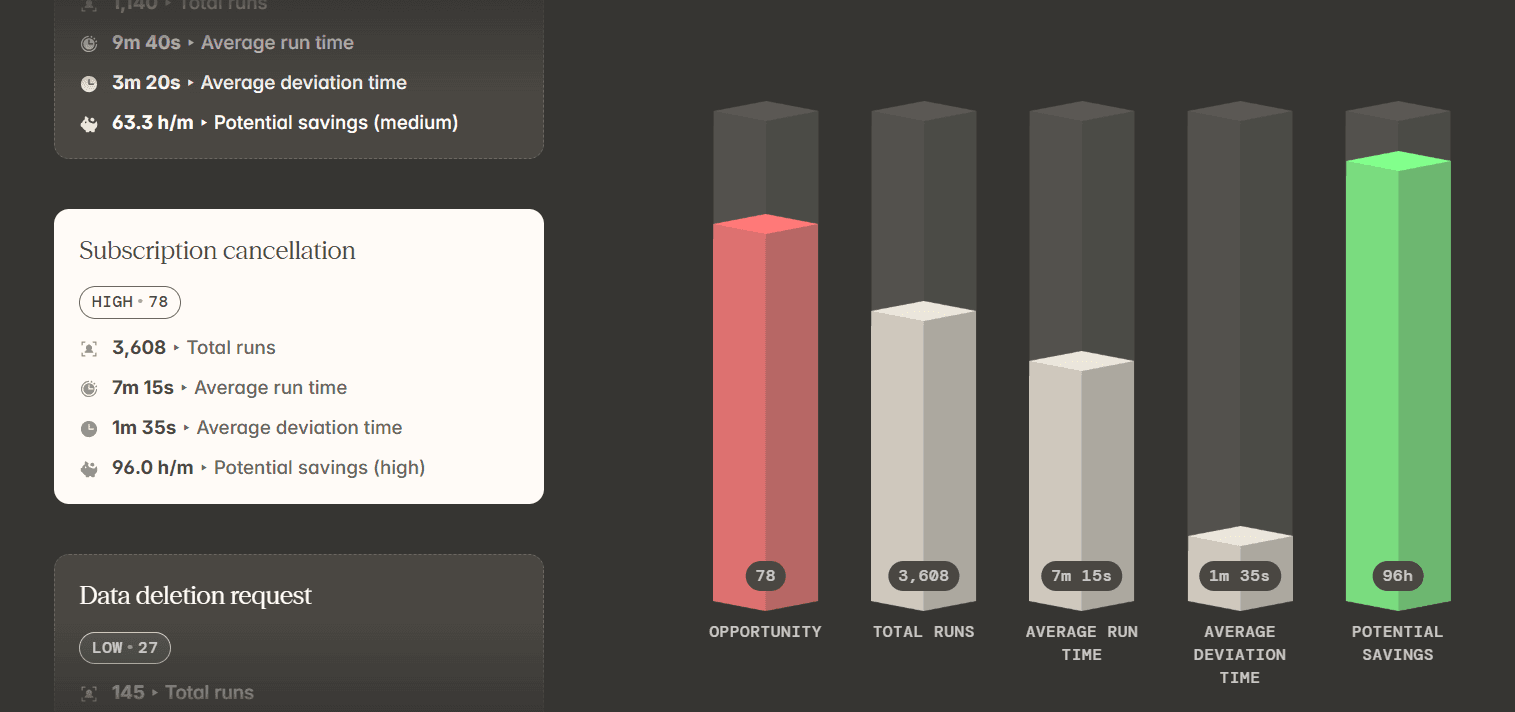
A typical recommendation reads like this: a workflow spends 52% of its time on repeatable steps (lookup, copy-paste, and updating multiple systems), so automate "lookup + populate + update" for the Refund Requests SOP.
The projected result is those steps completed in 25 seconds, 1 minute 40 seconds saved per case, and missed-field errors eliminated.
After the automation goes live, Reflow keeps reporting on that workflow, and you can see what improved and what didn't before deciding what to automate next.
The automation itself can run on Reflow too, so the platform that found the opportunity is the one that acts on it and then measures the result.
After all, AI can't improve what organizations don't understand.
💡 At Reflow, all data is encrypted in transit and at rest using industry-leading standards. We collect information through a privacy-first approach with strict access permissions. Learn more about our compliance and security controls in our Trust Centre.
Capture everything automatically, with nothing entered by hand
Reflow's native Mac and Windows agent records work at the level of each interaction, and machine learning classifies what it sees as productive or not, by project and by type of work, without anyone labeling it.
There is no start button, no stop button, and no backfilling a forgotten afternoon, because manual entry isn't allowed anywhere in the system.
The comparison we use internally is an Apple Watch: it makes sense of motion data without being told whether you're walking or swimming, and Reflow does the same with interaction data.
In the parallel trials we run alongside a customer's existing tracker, the accuracy difference has come in at 50 to 80%.
The same agent does the task mining that feeds the workflow layer, with a human in the loop where a judgment call is needed.
That base layer, workforce intelligence, is what our time tracker is built to provide:
How many people you have.
How they work.
Average work time.
Active time.
Session time.
Productive time.
Where productivity is trending.
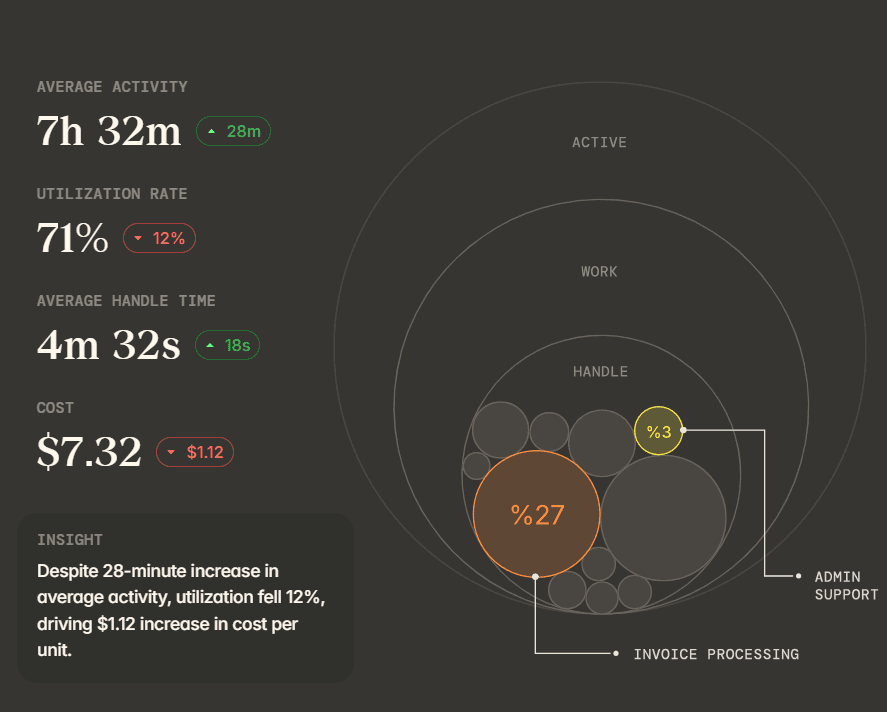
Reflow gives workforce managers all of it, then builds the two layers above it, workflow intelligence and workflow automation, on the same data.
How is Reflow different from Hubstaff?
Reflow is not a time tracker that manages the workforce around it.
Our AI-native workflow intelligence platform observes the workflow itself, step by step, and tells you which steps to automate and what the automation returns once it goes live.
It also covers the layer a traditional time tracker covers (work time, active time, productive time, and productivity trends) with one difference: nothing is entered by hand.
In all fairness, Hubstaff is a good fit for a lot of teams.
If you run a remote or hybrid team and need hours logged against projects and clients, timesheets approved, and the approved time paid out through Payoneer, Wise, PayPal, or Deel, Hubstaff handles all of that in one place.
If you invoice customers on hourly work, plan schedules and absences in the same tool, or want HR features next to the timer, Hubstaff has those too, and they're jobs we deliberately leave to other software.
Agencies billing by the hour, BPOs working to SLAs, staffing firms, and field teams that need GPS-stamped clock-ins are the operations Hubstaff was designed around, and it does that job well.
Reflow was built around a different question: what happens inside the work, and which parts of it a machine should be doing.
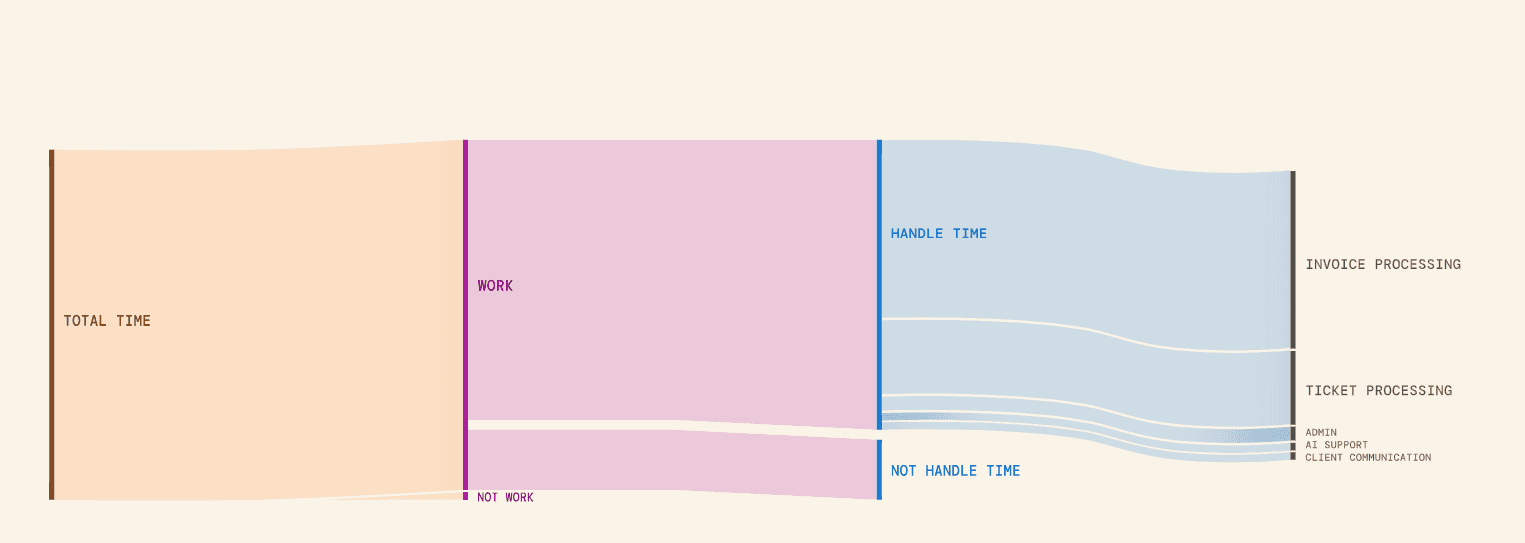
The way we think about it is a pyramid.
Workforce intelligence is the base: if the team isn't working the way you assumed, anything you optimize above it is filling a leaky bucket.
Workflow intelligence is the middle: the map of how work runs, where it deviates, where people get blocked, and where the errors are.
Workflow automation is the top, and it only makes sense once the first two are in place.
Traditional time trackers operate on the base layer, while Reflow covers all three in one platform.
Our platform measures the workflow, not just the person.
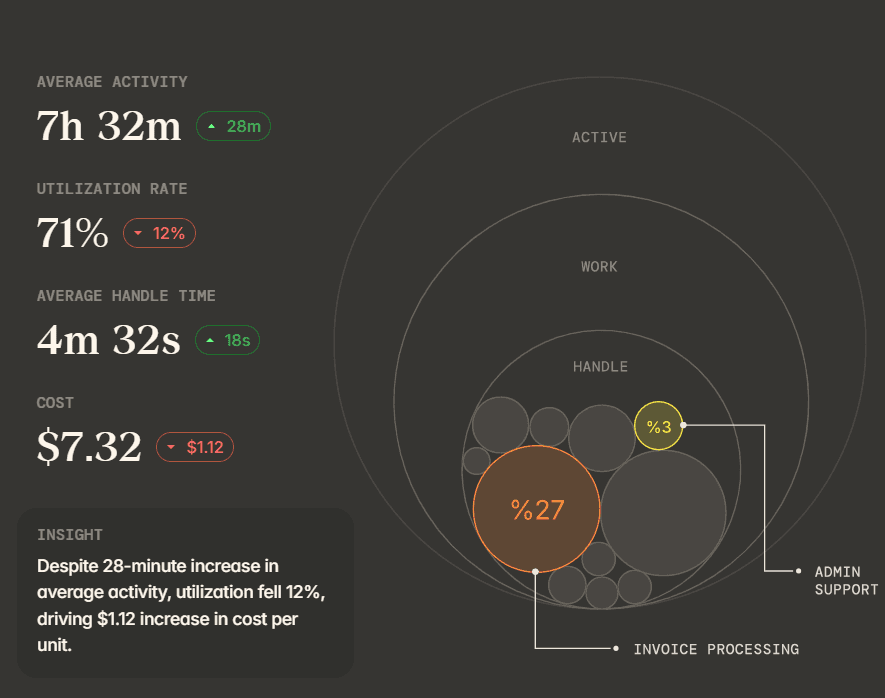
That means every process gets its own readout of total runs, average run time, average deviation, and the hours a month automation could recover, alongside productivity, utilization, and handle time figures that are recognized automatically, with no manual entry behind any of it.
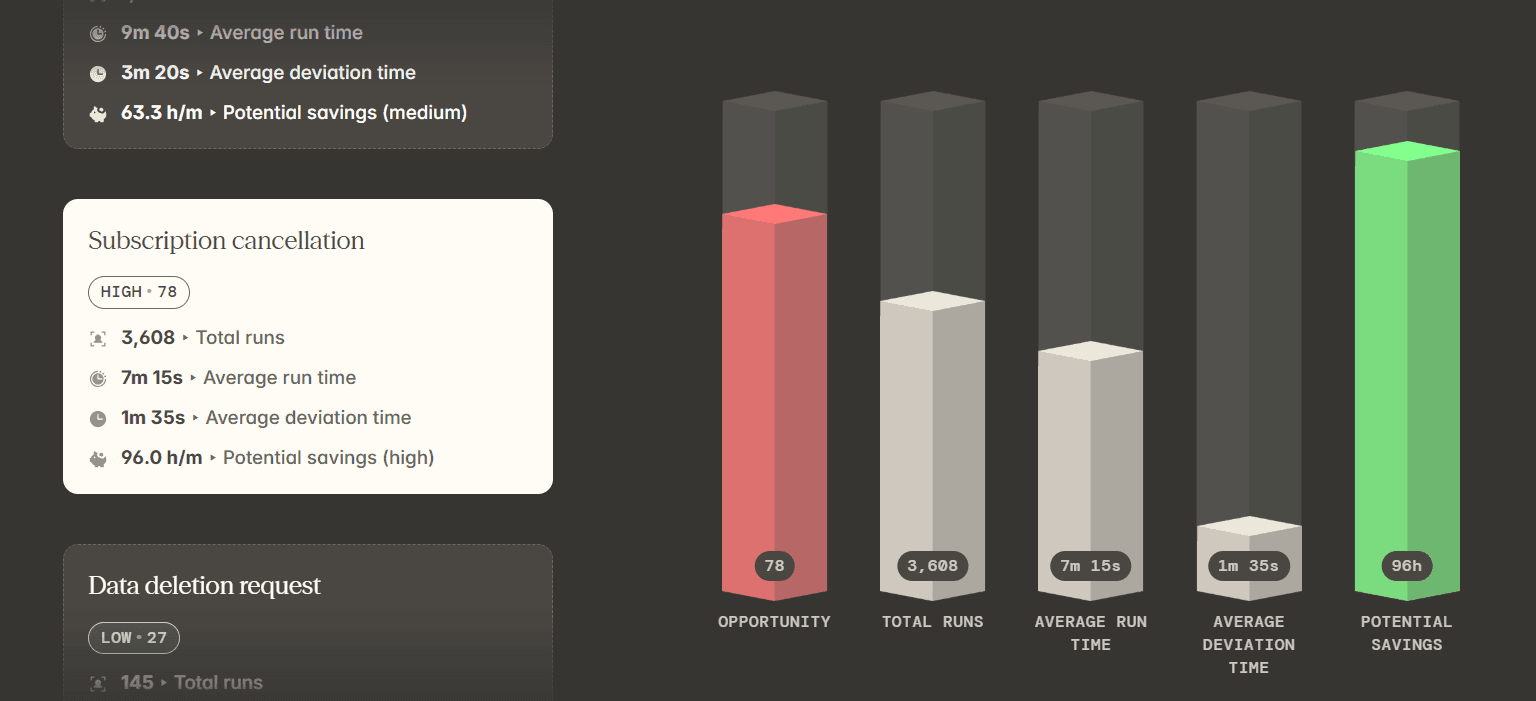
The output is an automation decision, a ranked list of what to automate and a measured return once it ships, and because Reflow doesn't need to integrate with your tools, teams can see a first readout within days.
The automation itself can run on Reflow as well, so the platform that found the opportunity is the one that acts on it.
And since nothing needs integrating, Reflow can run in parallel with your current tracker during the trial, so you can compare the two datasets before changing anything.
Reflow pricing
Reflow doesn't publish pricing. However, you can request a demo, and we’ll get back to you shortly.
💡 Setup is white-glove, which means that our team configures the platform with minimal time from yours, and a trial can run in parallel with whatever tracker you use now so the data can be compared directly.
What’s more, if you're mid-contract elsewhere, we'll match the terms of that contract for the first period.
Reflow pros and cons
✅ Fully automated capture through a native Mac and Windows agent; manual time entry isn't allowed anywhere.
✅ Shows each step of a workflow, including the ones skipped or repeated, not just the total hours against it.
✅ Ranks workflows by automation opportunity and puts a monthly hours-saved figure on each.
✅ Checks SOP adherence run by run.
✅ Keeps measuring after an automation goes live; the ROI is observed.
✅ No integrations and no engineering time, with white-glove setup and a parallel trial against your current tracker.
✅ SOC 2 Type 2, HIPAA, GDPR, and CPRA/CCPA, plus SSO and OAuth login, in the base plans, with configurable collection and aggregated or anonymized views.
❌ Not for per-hour billing, invoicing, scheduling, or HR and resource planning.
❌ Pricing isn't published.
#1: Reflow
Reflow is the best Hubstaff alternative in 2026 for enterprise operations teams that have outgrown hours logged.
Our platform covers what a time tracker covers (work time, active time, productive time, and productivity trends across teams), with one difference at the base: none of it is entered by hand.
On top of that layer, it answers two questions a timesheet can't:
Which steps inside a workflow are worth automating.
What the automation returned once it went live.

Disclosure: Yes, Reflow is our platform. I'll still make the case for why it belongs at the top of a Hubstaff alternatives list, and I'll be equally clear about the jobs it doesn't do.
The way our workforce and workflow intelligence platform works is that it watches operational work as it happens, records every step taken, skipped, repeated, or delayed, and turns the result into a readout per workflow:
How many times it ran.
How long a run takes on average.
The average deviation per run.
How many hours a month automation could recover.
Nobody has to start a timer or fill in a timesheet, and there's no big integration project before the first real insight.
A native Mac and Windows agent does the capture, and machine learning does the labeling. Reflow also doesn't do per-hour invoicing, scheduling, or HR planning.
We designed it as a platform that can help enterprises visualize workflows in real-time, identify operational bottlenecks, and save money in the long term.
Let's go over the features that make Reflow a strong alternative to Hubstaff:
See the anatomy of the workflow, not the hours against it
Reflow maps each step of a workflow in the order it happened and attaches the time spent to every part of the sequence, including the steps that were skipped or repeated.
Let’s take a complex task, such as a refund request process.
A traditional timesheet for that team would show roughly 500 hours logged on refunds in the month.
Reflow's readout for the same process shows 4,820 runs at an average of 6 minutes 10 seconds each, 1 minute 5 seconds of average deviation, and 87.1 hours a month of potential savings.

The first number tells you refunds are expensive. The second tells you where the expense is.
This will also help you put a cost on each unit of work.
Our platform breaks operational time down by customer, task, and project, which gives you the unit economics of the work, not one aggregate hours figure.

For example, chargeback dispute triage might run 1,140 times a month at 9 minutes 40 seconds a case, with an average deviation of 3 minutes 20 seconds per run.

Once you apply the loaded cost of the analyst handling those cases, you have the true cost of a chargeback, and that is the figure finance wants when the question of automating the triage comes up.
Know when work drifts from the SOP
Reflow compares the steps an SOP expects against the steps each run took. Drift and inconsistency show up as data while the work is happening, not in an audit months later.
For a data deletion request with a regulatory deadline attached, that means seeing the runs where a verification step was skipped, or the same lookup was repeated three times, before a customer or a regulator finds them.

Team leads can use the same view to check whether the procedure they wrote is the procedure the team follows.
See what you can automate, then measure whether it paid off
Reflow ranks workflows by automation opportunity and names the specific steps to automate.
Our workflow intelligence platform then keeps measuring the workflow after the change, so the ROI is observed, not projected.

A typical recommendation reads like this: a workflow spends 52% of its time on repeatable steps (lookup, copy-paste, and updating multiple systems), so automate "lookup + populate + update" for the Refund Requests SOP.
The projected result is those steps completed in 25 seconds, 1 minute 40 seconds saved per case, and missed-field errors eliminated.
After the automation goes live, Reflow keeps reporting on that workflow, and you can see what improved and what didn't before deciding what to automate next.
The automation itself can run on Reflow too, so the platform that found the opportunity is the one that acts on it and then measures the result.
After all, AI can't improve what organizations don't understand.
💡 At Reflow, all data is encrypted in transit and at rest using industry-leading standards. We collect information through a privacy-first approach with strict access permissions. Learn more about our compliance and security controls in our Trust Centre.
Capture everything automatically, with nothing entered by hand
Reflow's native Mac and Windows agent records work at the level of each interaction, and machine learning classifies what it sees as productive or not, by project and by type of work, without anyone labeling it.
There is no start button, no stop button, and no backfilling a forgotten afternoon, because manual entry isn't allowed anywhere in the system.
The comparison we use internally is an Apple Watch: it makes sense of motion data without being told whether you're walking or swimming, and Reflow does the same with interaction data.
In the parallel trials we run alongside a customer's existing tracker, the accuracy difference has come in at 50 to 80%.
The same agent does the task mining that feeds the workflow layer, with a human in the loop where a judgment call is needed.
That base layer, workforce intelligence, is what our time tracker is built to provide:
How many people you have.
How they work.
Average work time.
Active time.
Session time.
Productive time.
Where productivity is trending.

Reflow gives workforce managers all of it, then builds the two layers above it, workflow intelligence and workflow automation, on the same data.
How is Reflow different from Hubstaff?
Reflow is not a time tracker that manages the workforce around it.
Our AI-native workflow intelligence platform observes the workflow itself, step by step, and tells you which steps to automate and what the automation returns once it goes live.
It also covers the layer a traditional time tracker covers (work time, active time, productive time, and productivity trends) with one difference: nothing is entered by hand.
In all fairness, Hubstaff is a good fit for a lot of teams.
If you run a remote or hybrid team and need hours logged against projects and clients, timesheets approved, and the approved time paid out through Payoneer, Wise, PayPal, or Deel, Hubstaff handles all of that in one place.
If you invoice customers on hourly work, plan schedules and absences in the same tool, or want HR features next to the timer, Hubstaff has those too, and they're jobs we deliberately leave to other software.
Agencies billing by the hour, BPOs working to SLAs, staffing firms, and field teams that need GPS-stamped clock-ins are the operations Hubstaff was designed around, and it does that job well.
Reflow was built around a different question: what happens inside the work, and which parts of it a machine should be doing.

The way we think about it is a pyramid.
Workforce intelligence is the base: if the team isn't working the way you assumed, anything you optimize above it is filling a leaky bucket.
Workflow intelligence is the middle: the map of how work runs, where it deviates, where people get blocked, and where the errors are.
Workflow automation is the top, and it only makes sense once the first two are in place.
Traditional time trackers operate on the base layer, while Reflow covers all three in one platform.
Our platform measures the workflow, not just the person.
That means every process gets its own readout of total runs, average run time, average deviation, and the hours a month automation could recover, alongside productivity, utilization, and handle time figures that are recognized automatically, with no manual entry behind any of it.

The output is an automation decision, a ranked list of what to automate and a measured return once it ships, and because Reflow doesn't need to integrate with your tools, teams can see a first readout within days.
The automation itself can run on Reflow as well, so the platform that found the opportunity is the one that acts on it.
And since nothing needs integrating, Reflow can run in parallel with your current tracker during the trial, so you can compare the two datasets before changing anything.
Reflow pricing
Reflow doesn't publish pricing. However, you can request a demo, and we’ll get back to you shortly.
💡 Setup is white-glove, which means that our team configures the platform with minimal time from yours, and a trial can run in parallel with whatever tracker you use now so the data can be compared directly.
What’s more, if you're mid-contract elsewhere, we'll match the terms of that contract for the first period.
Reflow pros and cons
✅ Fully automated capture through a native Mac and Windows agent; manual time entry isn't allowed anywhere.
✅ Shows each step of a workflow, including the ones skipped or repeated, not just the total hours against it.
✅ Ranks workflows by automation opportunity and puts a monthly hours-saved figure on each.
✅ Checks SOP adherence run by run.
✅ Keeps measuring after an automation goes live; the ROI is observed.
✅ No integrations and no engineering time, with white-glove setup and a parallel trial against your current tracker.
✅ SOC 2 Type 2, HIPAA, GDPR, and CPRA/CCPA, plus SSO and OAuth login, in the base plans, with configurable collection and aggregated or anonymized views.
❌ Not for per-hour billing, invoicing, scheduling, or HR and resource planning.
❌ Pricing isn't published.
#2: Clockify
Best for: Small teams that want a free timer and timesheet for up to five people, with room to add invoicing, scheduling, and SSO later.
Similar to: Toggl Track, Jibble.
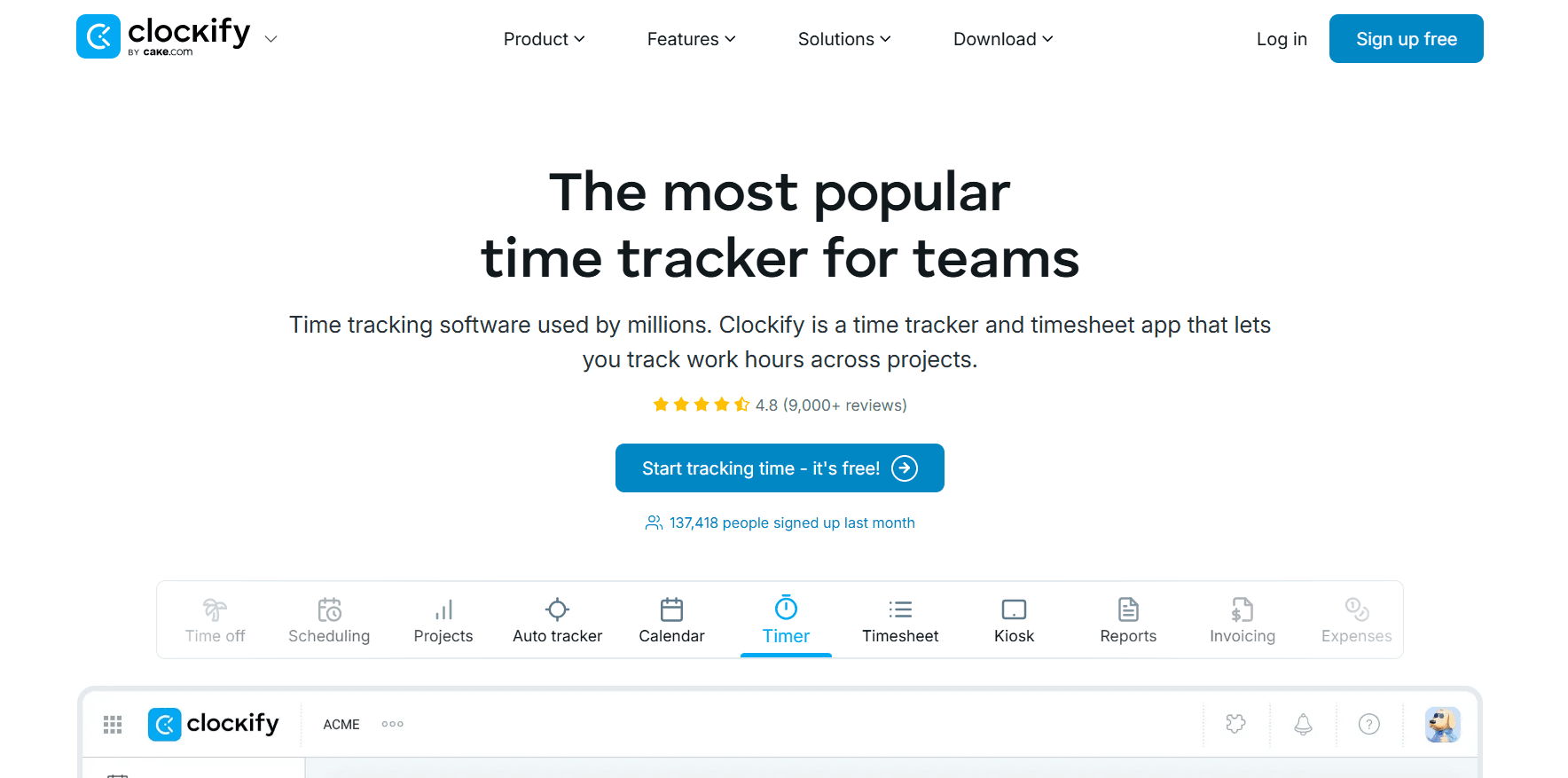
Clockify is where a lot of teams start with time tracking.
The free plan includes the Timer, the weekly Timesheet, the Auto tracker, and reports, for up to five users.
Features
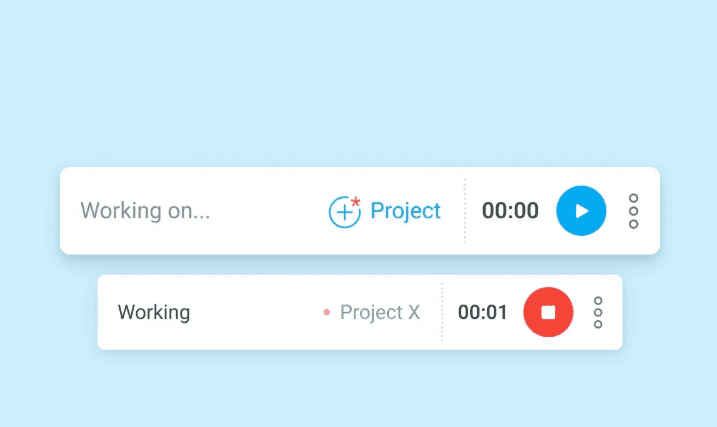
Five ways to record time: a live Timer, a weekly Timesheet grid, a Calendar for planning the day in blocks, an Auto tracker that logs which apps and sites were open, and a Kiosk so a whole team can clock in on one tablet.
Rates and profit: billable rates from Basic, task-level rates and rounding from Standard, and labor cost against revenue from Pro.
Scheduling and time off: shift and assignment scheduling with forecasting on Pro; time off, attendance, and overtime from Standard.
Invoicing and approvals: invoices built from billable hours (recurring invoices included), a timesheet approval flow, and the option to lock past periods, all from Standard, with a QuickBooks connection.
Pricing
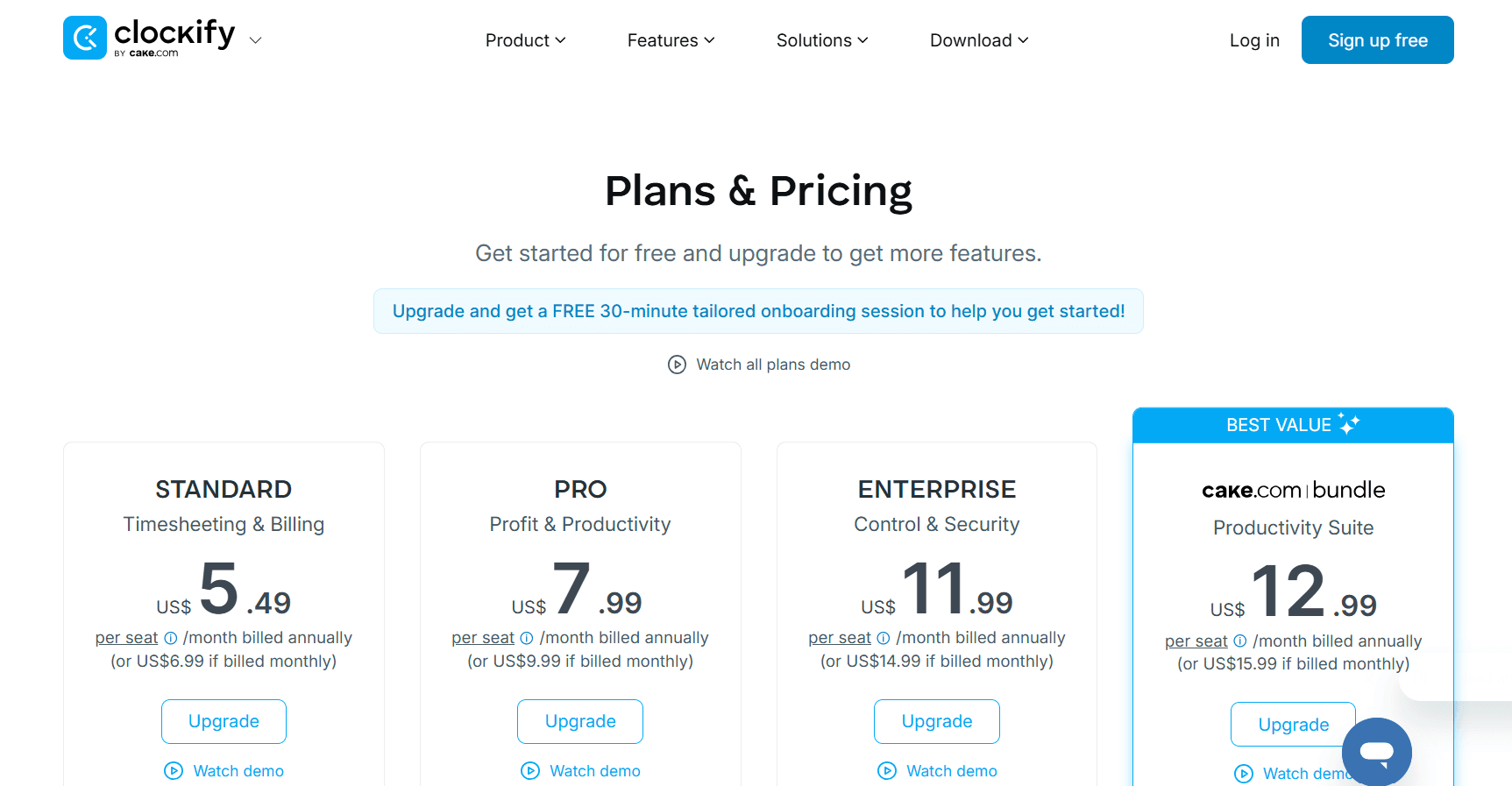
Up to five people can use Clockify for nothing, and the paid tiers run from $3.99 to $11.99 per seat per month on annual billing.
Free: $0 for up to 5 users, with unlimited tracking, the Timer, Timesheet, Auto tracker, Calendar, a Pomodoro timer, idle detection, tracking integrations, team activity, and reports.
Basic: $3.99 per seat per month billed annually ($4.99 monthly), adding time entry for others, Kiosk, billable rates, bulk edit, time audit, required fields, project templates, and imports.
Standard: $5.49 billed annually ($6.99 monthly), adding time off, invoicing and recurring invoices, approval, locked time, attendance and overtime, targets and reminders, a manager role, and the QuickBooks integration.
Pro: $7.99 billed annually ($9.99 monthly), adding activity monitoring, scheduling, forecasting, expenses, labor cost and profit, budgets and estimates, custom fields, GPS tracking, screenshots, alerts, and email reports.
Enterprise: $11.99 billed annually ($14.99 monthly), adding SSO, a custom subdomain, SCIM provisioning, control accounts, and an audit log.
CAKE Bundle: $12.99 billed annually ($15.99 monthly) for Clockify's Enterprise features plus Pumble (team communication) and Plaky (project management).
Pros and cons
✅ One of the fullest free tiers in this comparison, with the Auto tracker and reports included.
✅ Each paid step is a small increment, and growing into invoicing doesn't mean a price jump.
✅ Human support around the clock on every plan.
❌ Scheduling, labor cost, and screenshots are Pro features, so a team that needs them starts at $7.99 per seat, not $3.99.
#3: Time Doctor
Best for: BPOs, contact centers, and distributed teams that want screenshots, productivity ratings, and peer benchmarks together.
Similar to: Apploye, DeskTime.
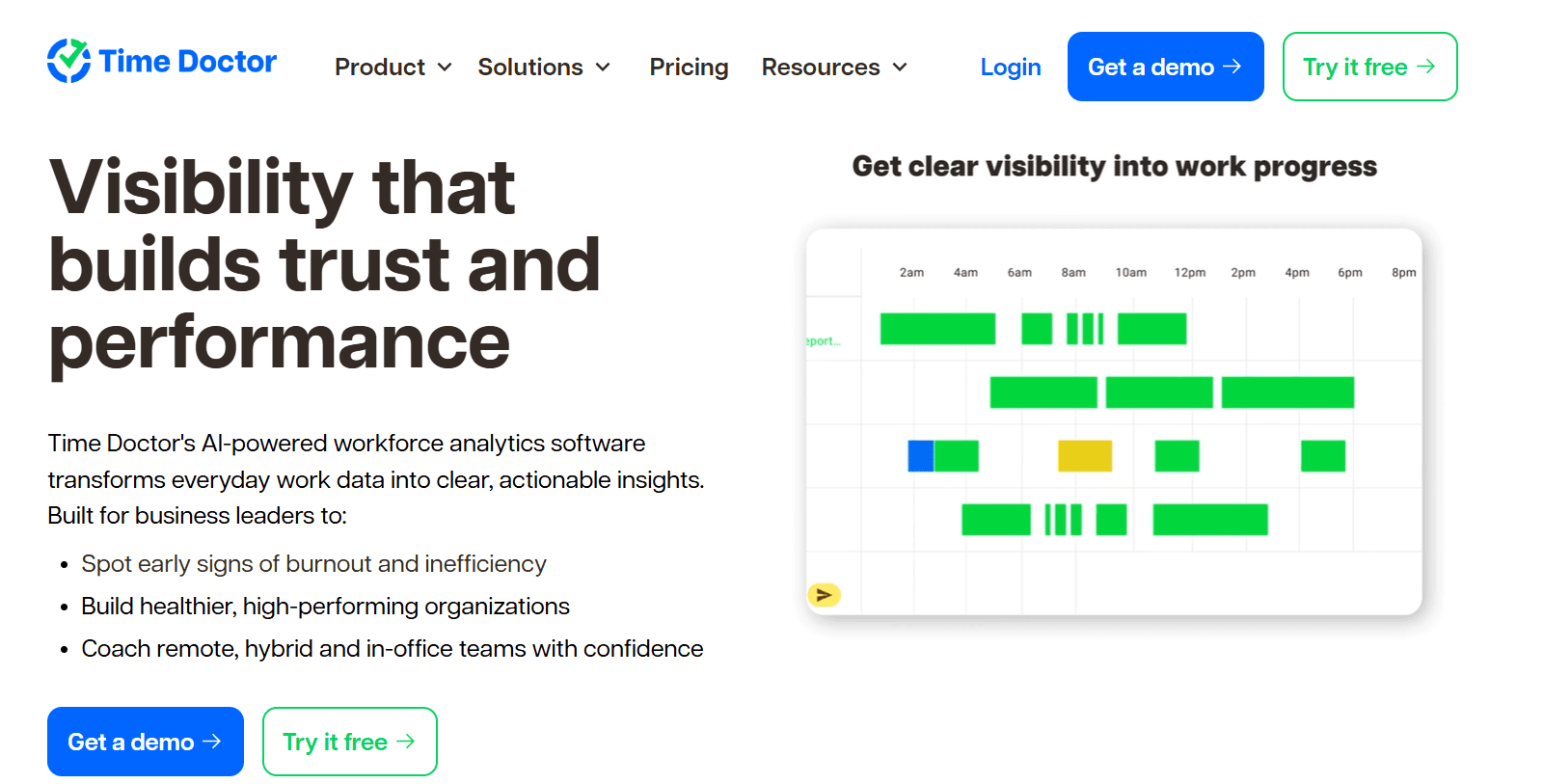
Time Doctor describes itself as workforce analytics, and the description fits.
The tracking runs automatically in the background, and most of the product is the reporting layer on top, from productivity ratings and app usage through to an executive dashboard.
Features
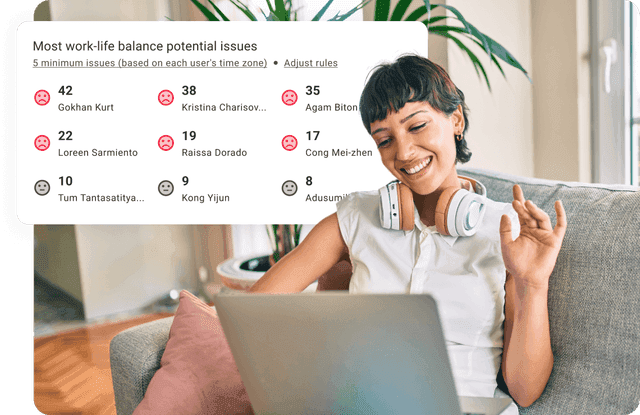
Benchmarks AI: puts a team's productivity figures next to AI-matched benchmarks from comparable teams elsewhere, which tells a manager whether a number is high or low for the sector. Premium, or a $3 add-on lower down.
Unusual Activity AI Report: studies keyboard and mouse patterns for input that doesn't look like a person, including mouse jigglers and keyboard simulators.
Web and app usage: time categorized by application and website, with productivity ratings you set yourself.
Attendance, schedules, and payroll: shift schedules, break and leave tracking, time approvals, and a payroll run, from Standard; native HRIS and payroll integrations are paid add-ons.
Pricing
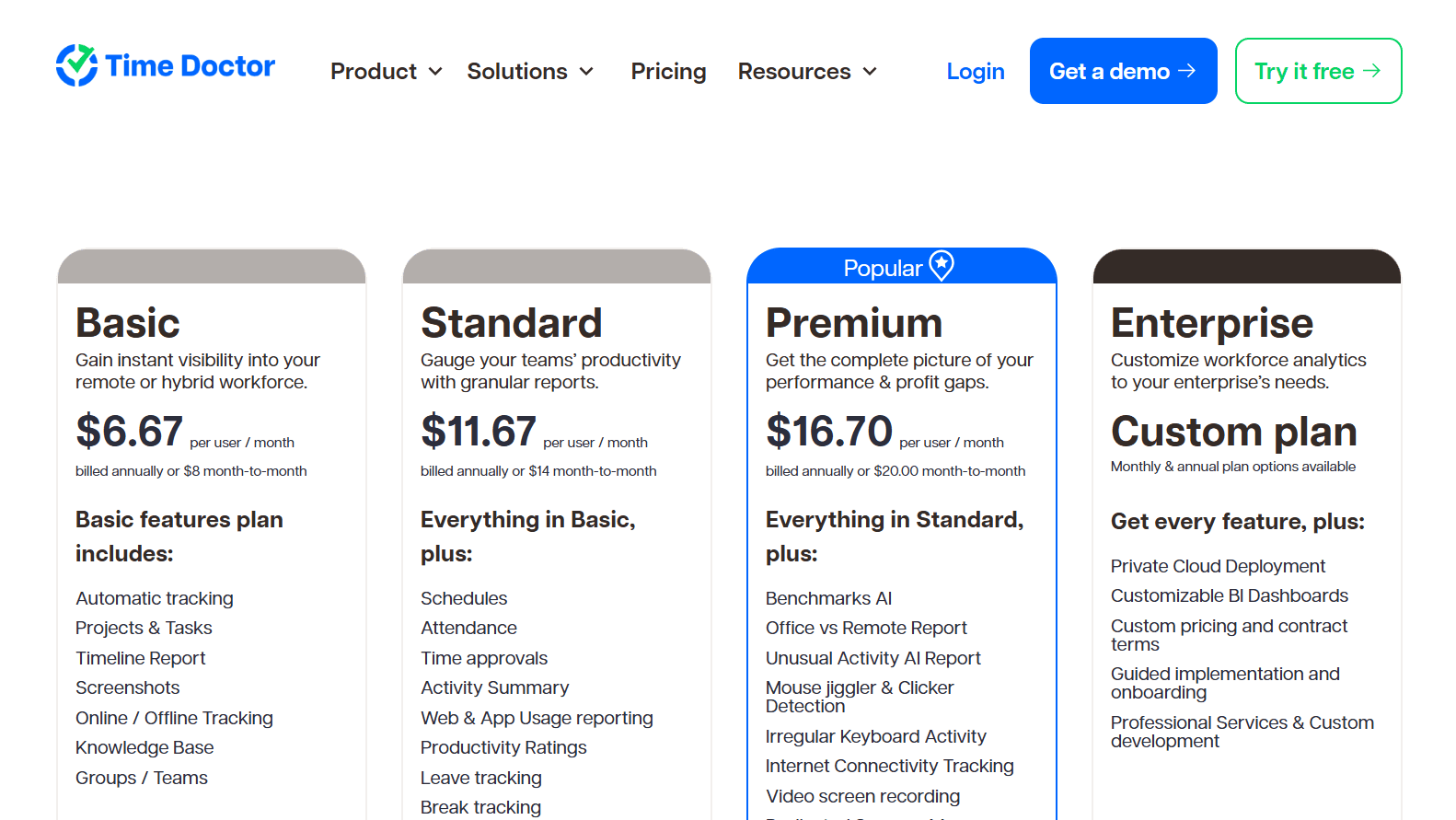
Three published tiers, from $6.67 to $16.70 per user per month on annual billing, plus a custom Enterprise plan and a menu of add-ons.
Basic: $6.67 per user per month billed annually ($8 monthly), with automatic tracking, projects and tasks, the timeline report, screenshots, online and offline tracking, and groups.
Standard: $11.67 billed annually ($14 monthly), adding schedules, attendance, time approvals, web and app usage reporting, productivity ratings, leave and break tracking, payroll, work-life balance metrics, real-time notifications, and 60-plus integrations.
Premium: $16.70 billed annually ($20 monthly), adding Benchmarks AI, the Office vs Remote and Unusual Activity AI reports, video screen recording, an executive dashboard, open API access, SSO, client login, Meeting Insights, Software Cost Insights, and a dedicated success manager.
Enterprise: custom pricing, with private cloud deployment, customizable BI dashboards, guided implementation, and professional services.
Add-ons: Software Cost Insights, Benchmarks AI, and Unusual Activity Reporting at $3 per user per month each on Basic and Standard; native HRIS or payroll integrations at $200 per integration per month.
Pros and cons
✅ Peer benchmarks are unusual at this price.
✅ Attendance, scheduling, and payroll in the same tool suit shift-based operations.
✅ Screenshot blurring and manual time entry are available as privacy options.
❌ The complete analytics set is a Premium feature at $16.70 per user, or a set of $3 add-ons lower down.
#4: Timely
Best for: Agencies, consultancies, and professional services firms that bill by the hour and want timesheets drafted for them, with no screenshots.
Similar to: Toggl Track, DeskTime.
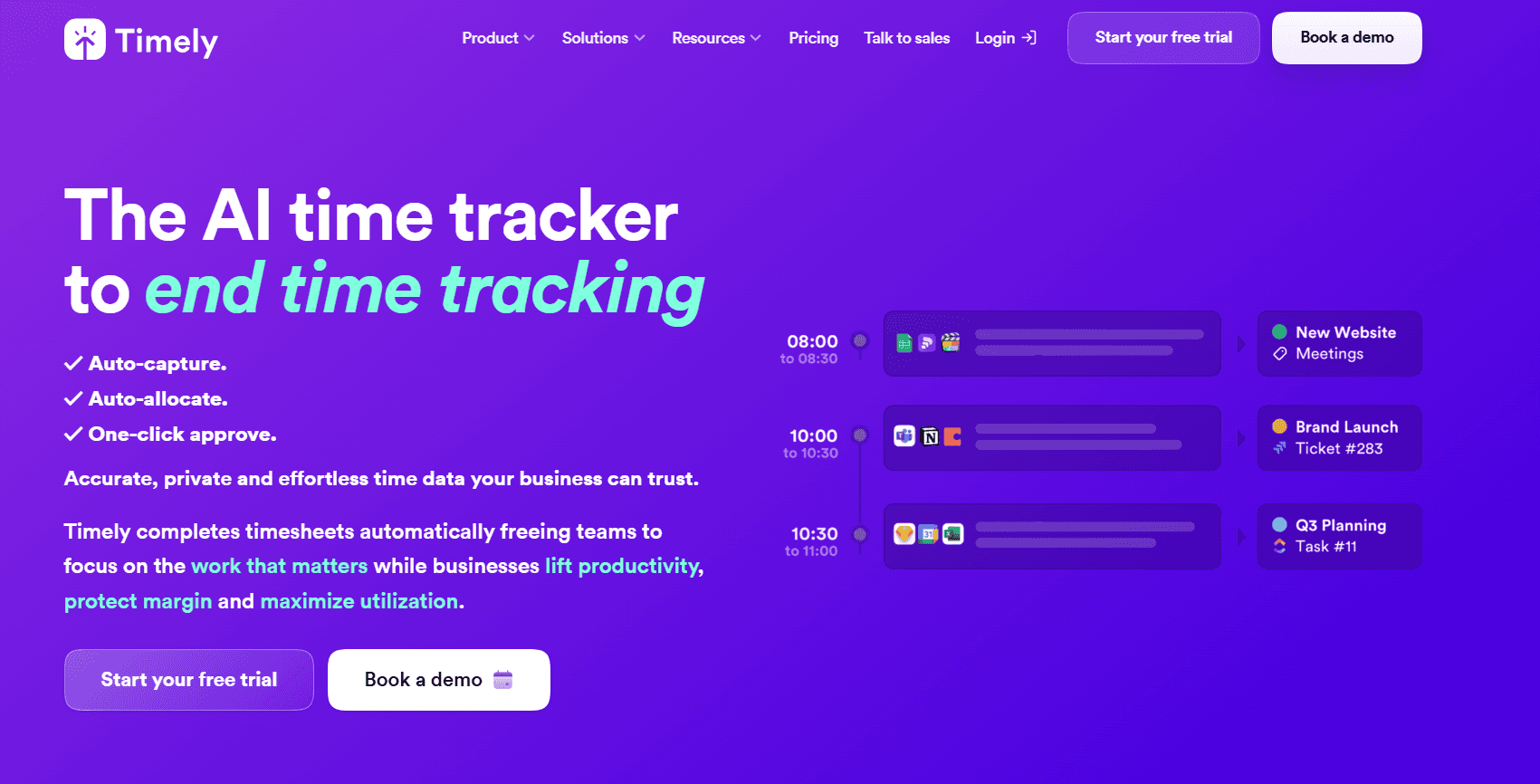
Timely starts from a private record. The Memory tracker keeps a running log of which apps and websites were open and for how long, visible only to the person it belongs to.
AI then sorts that time into projects and clients and drafts the timesheet, a step Timely calls AutoSheet, and the user approves it with a click.
Nothing reaches a manager until the user approves it, and Timely states in writing that it does no keystroke logging and takes no screenshots.
Features
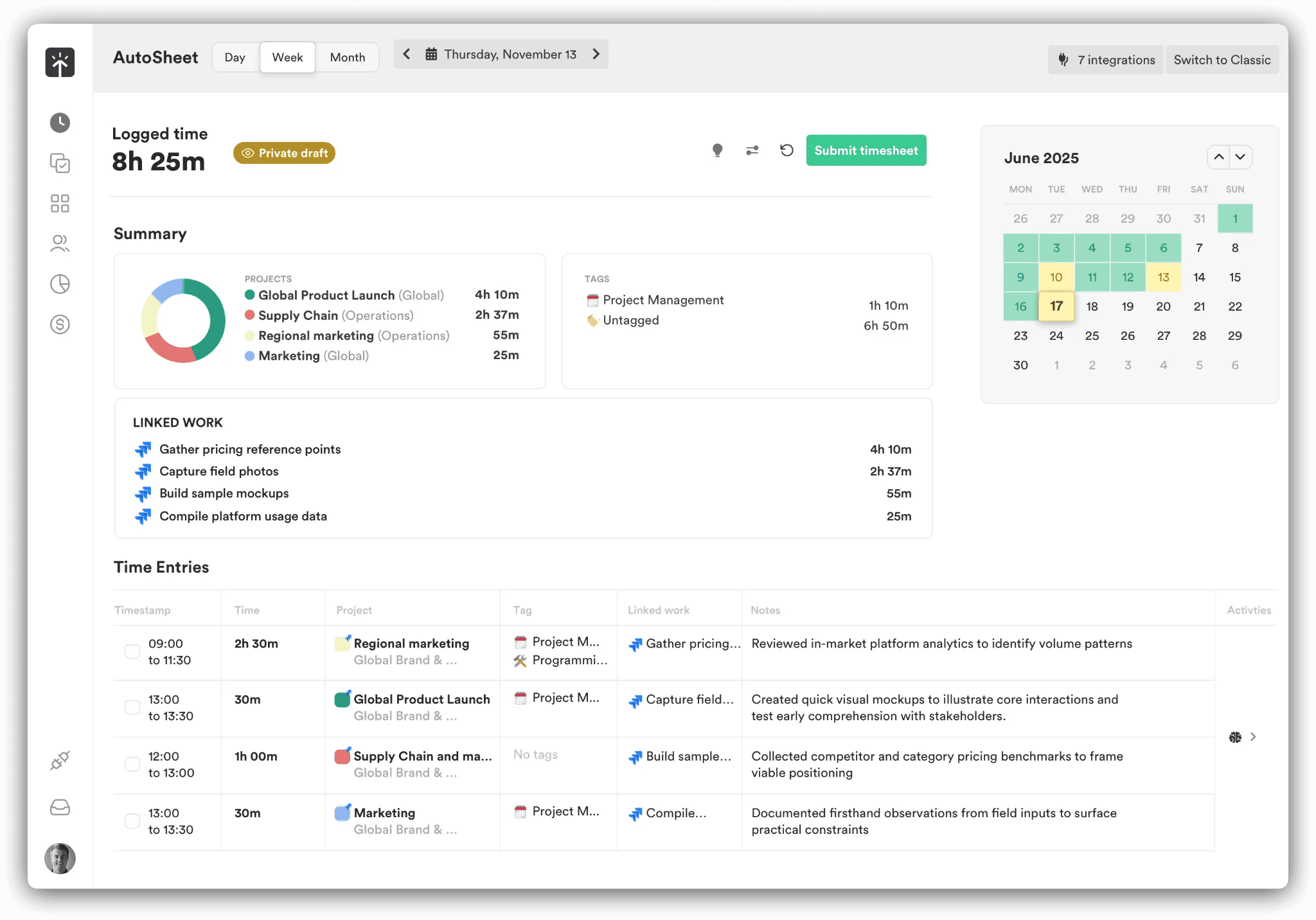
Memory tracker: the background log of app and website activity that feeds everything else; entries stay private until approved.
AI timesheets (AutoSheet): captured time sorted into projects and clients automatically, with a draft timesheet ready for approval. Timely's own figure is under two minutes to complete one.
People dashboard: one view of who is over capacity, how much of the week was billable, and where overtime is building up.
Planning and budgets: planned time, recurring project budgets, alerts at budget milestones, cost rates alongside billable rates, and locked periods on higher tiers.
Pricing
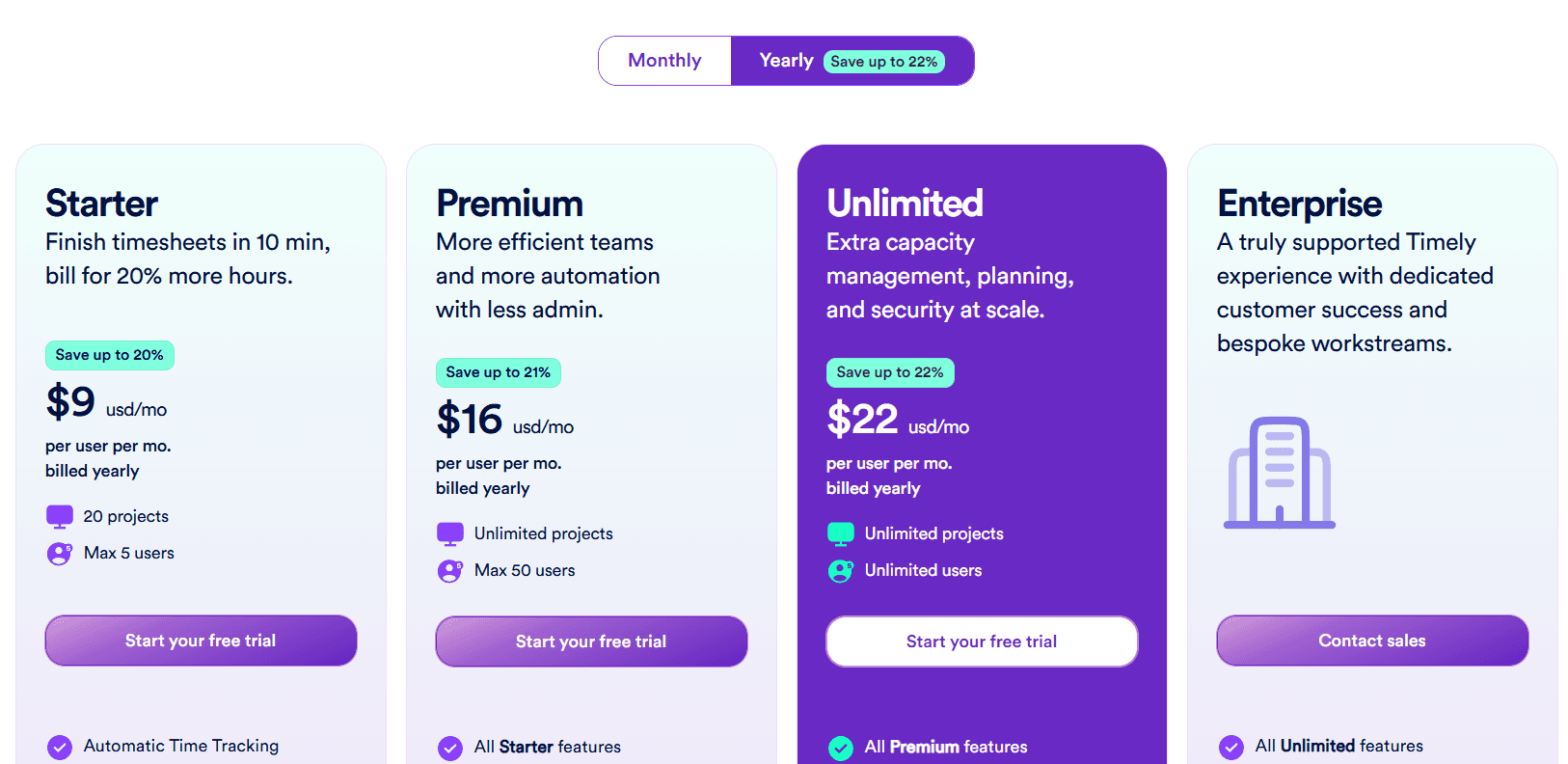
Timely charges $9, $16, or $22 per user per month on yearly billing depending on tier, with an Enterprise plan arranged through sales.
Starter: $9 per user per month billed yearly ($11 monthly), for up to 5 users and 20 projects, with automatic time tracking, AI categorization, project health monitoring, billable hours reporting, and API access.
Premium: $16 billed yearly ($20 monthly), for up to 50 users with unlimited projects, adding project management and accounting tool sync, team management, budgets and costs, and planning.
Unlimited: $22 billed yearly ($28 monthly), for unlimited users, adding capacity management and reporting, overtime and undertime, Azure user management, 50-plus currencies, and premium customer success.
Enterprise: contact sales, with tailored onboarding, team training, monthly or quarterly reviews, and priority support.
Tasks add-on: from $5 per person on any plan, for assigning, scheduling, and tracking progress against deliverables.
Pros and cons
✅ Time is captured without anyone touching a timer, and the user decides what gets shared.
✅ No screenshots and no keystroke logging, stated in writing, which makes the conversation with staff shorter.
✅ The People dashboard flags overload before it turns into overtime.
❌ Starter caps at 5 users and 20 projects, so a growing team is on Premium at $16 fairly quickly.
#5: DeskTime
Best for: Teams that want tracking running from power-on with nobody starting a timer, plus app, URL, and document-level productivity data.
Similar to: Time Doctor, Timely.
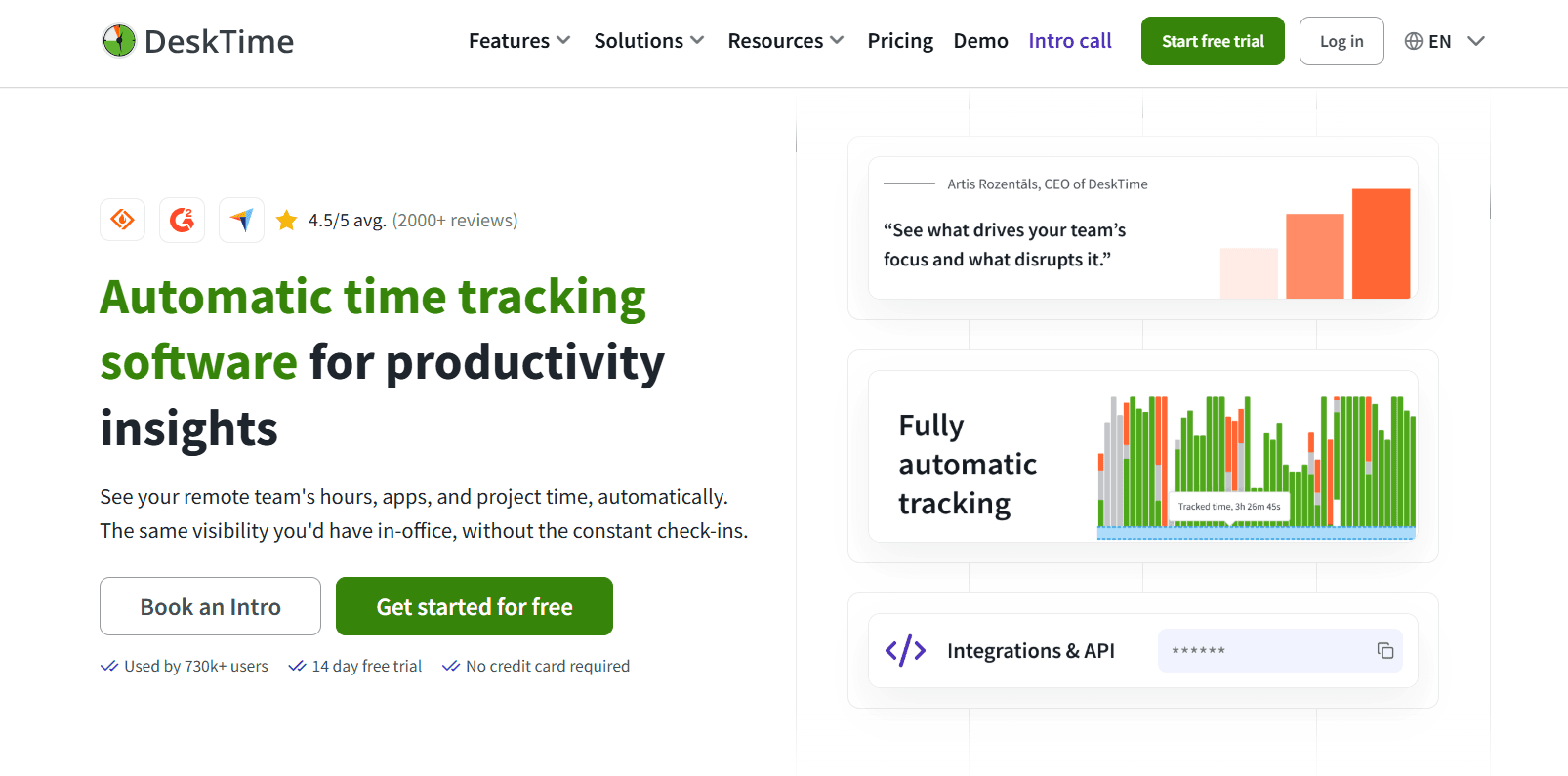
DeskTime has been in the automatic tracking business since 2011, and the company says the widely cited 52/17 work-and-break pattern came out of its data.
The employee does nothing to start it. DeskTime is recording when the computer is, and through the day it grades each app, website, and document title as productive or unproductive.
Features
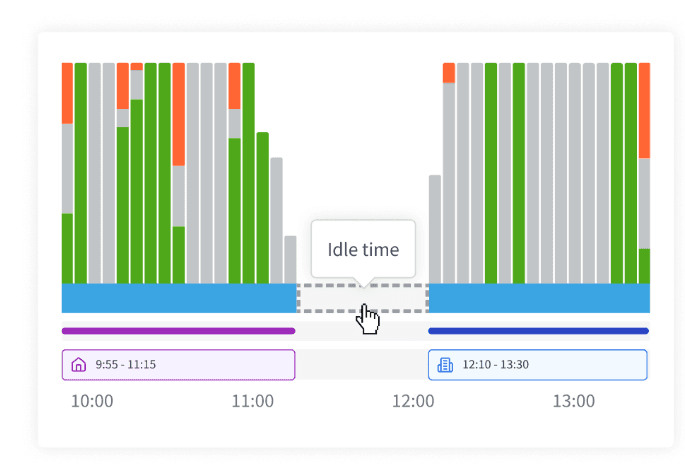
Automatic time tracking: on from power-on, with idle detection, a way to add offline time, and meeting and video tracking so a call doesn't count as idle.
URL, app, and document title tracking: which sites, applications, and documents (email subject lines included) were open, with a productivity score calculated per person and per team.
Project tracking and shift scheduling: time against tasks and projects, shift planning, and an absence calendar.
Screenshots: proof-of-work captures, on Premium and above.
AI Summary: a written summary of each day's activity generated from the tracked data.
Pricing
DeskTime publishes two tiers, $6.42 and $9.17 per user per month on annual billing excluding VAT, and quotes Enterprise for 200-plus users.
Pro: $6.42 per user per month billed annually, for small teams and startups, with document title tracking, productivity calculations, and Google and Outlook calendar integrations.
Premium: $9.17 billed annually, adding screenshots, integrations and API (Jira, Asana, Zapier, and more), and shift scheduling.
Enterprise: custom pricing for 200-plus users, adding a custom API on request, an account manager, and employee training.
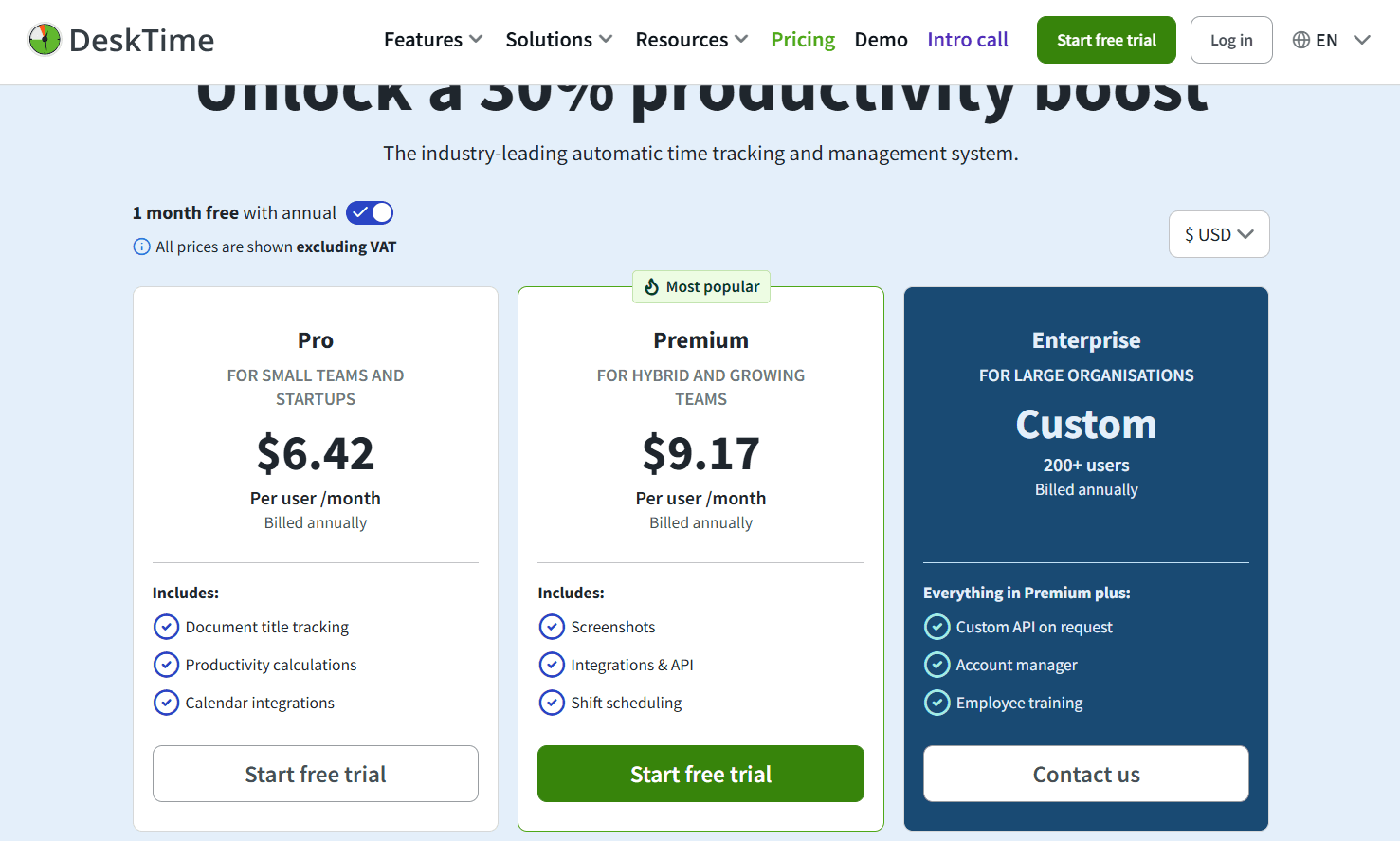
A 14-day free trial needs no credit card, and annual billing includes one month free.
Pros and cons
✅ Zero effort from employees, who never open a timer.
✅ Document titles give more context than app names.
✅ ISO 27001 and ISO 27701 certified, with encryption at rest and in transit and 2FA.
❌ Screenshots, the API, and the project management integrations all require Premium.
#6: Toggl Track
Best for: Teams whose real problem is getting people to record their time at all.
Similar to: Clockify, Timely.
Toggl Track is built around adoption. The timer is quick enough that people use it, the company has a stated anti-surveillance position (no screenshots, no camera), and the reports are flexible enough that the data gets used once it exists.
Features
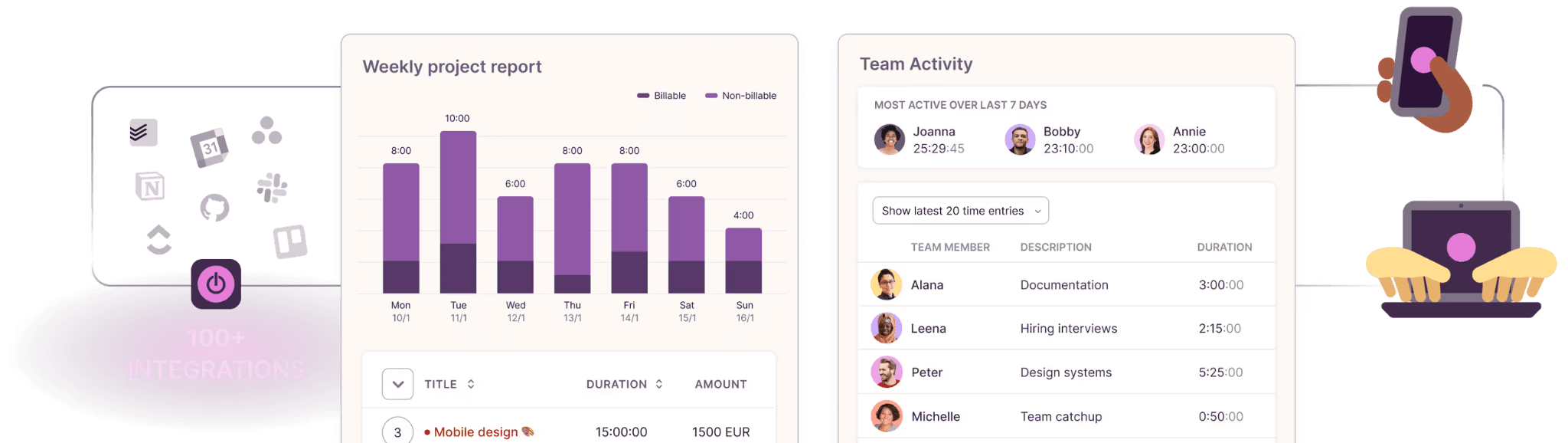
Calendar View: the day's meetings shown beside the timesheet, where an event becomes a time entry with a click. Toggl Track's most-used feature.
Tracking from anywhere: web, desktop, mobile, and browser extensions, plus optional background tracking that only the individual sees unless they promote it to a time entry.
Customizable reports: summary, detailed, workload, billing, profitability, and utilization views, with custom columns, up to three grouping levels, and scheduled email delivery on Premium.
Timesheet approvals and data accuracy: approvals and the data accuracy set (required fields, locked entries, team reminders) on Premium, plus an audit log.
Pricing
A free plan for a small number of users, then Starter at $9 and Premium at $14 per license per month, with Enterprise on a custom quote.
Free: $0 for a limited number of users, with tracking on web, desktop, and mobile, 100-plus integrations via browser extension, Google and Outlook calendar integrations, and productivity reports.
Starter: $9 per license per month, adding billable rates, project time estimates and alerts, revenue and productivity analysis, team collaboration features, and project tasks.
Premium: $14 per license per month for the first year on annual billing, renewing at $18, adding profitability analysis, fixed-fee projects, scheduled reports, timesheet approvals, data accuracy features, fully customizable reports, Jira and Salesforce integrations, and SSO.
Enterprise: custom pricing, with personalized onboarding, a dedicated customer success manager, custom integrations, multiple workspaces under one organization, and volume discounts on annual plans.
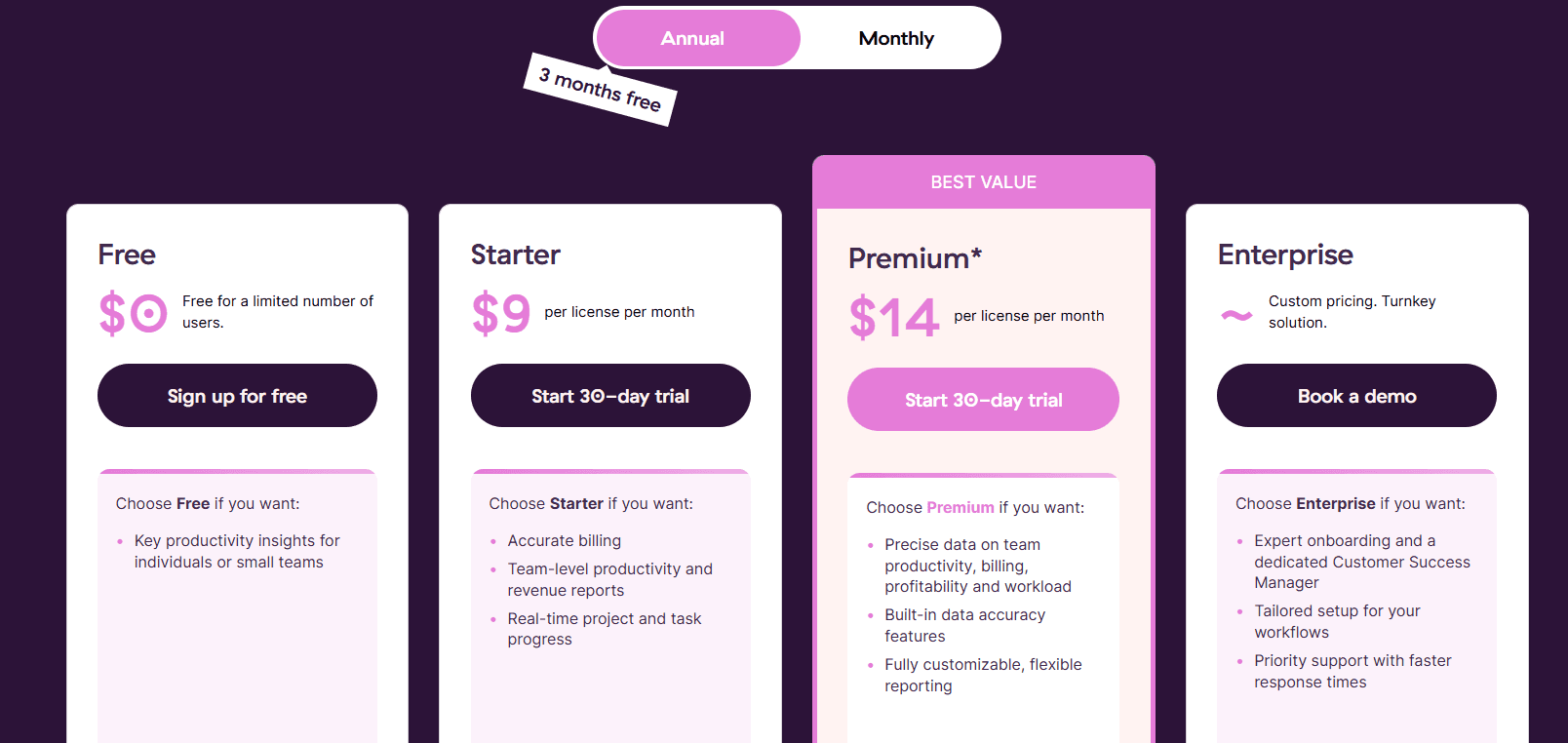
Paid plans come with a 30-day trial and no credit card.
Pros and cons
✅ A stated anti-surveillance position: no screenshots, no camera tracking.
✅ Approvals, required fields, and locked entries keep the data accurate once it's in.
✅ The most flexible reporting among the timer-first tools in this comparison.
❌ Premium's $14 rate covers the first annual term only, then renews at $18 per license.
#7: Everhour
Best for: Teams that work in Asana, ClickUp, Jira, Linear, or Basecamp and want the timer and budgets inside those tools.
Similar to: Toggl Track, Clockify.
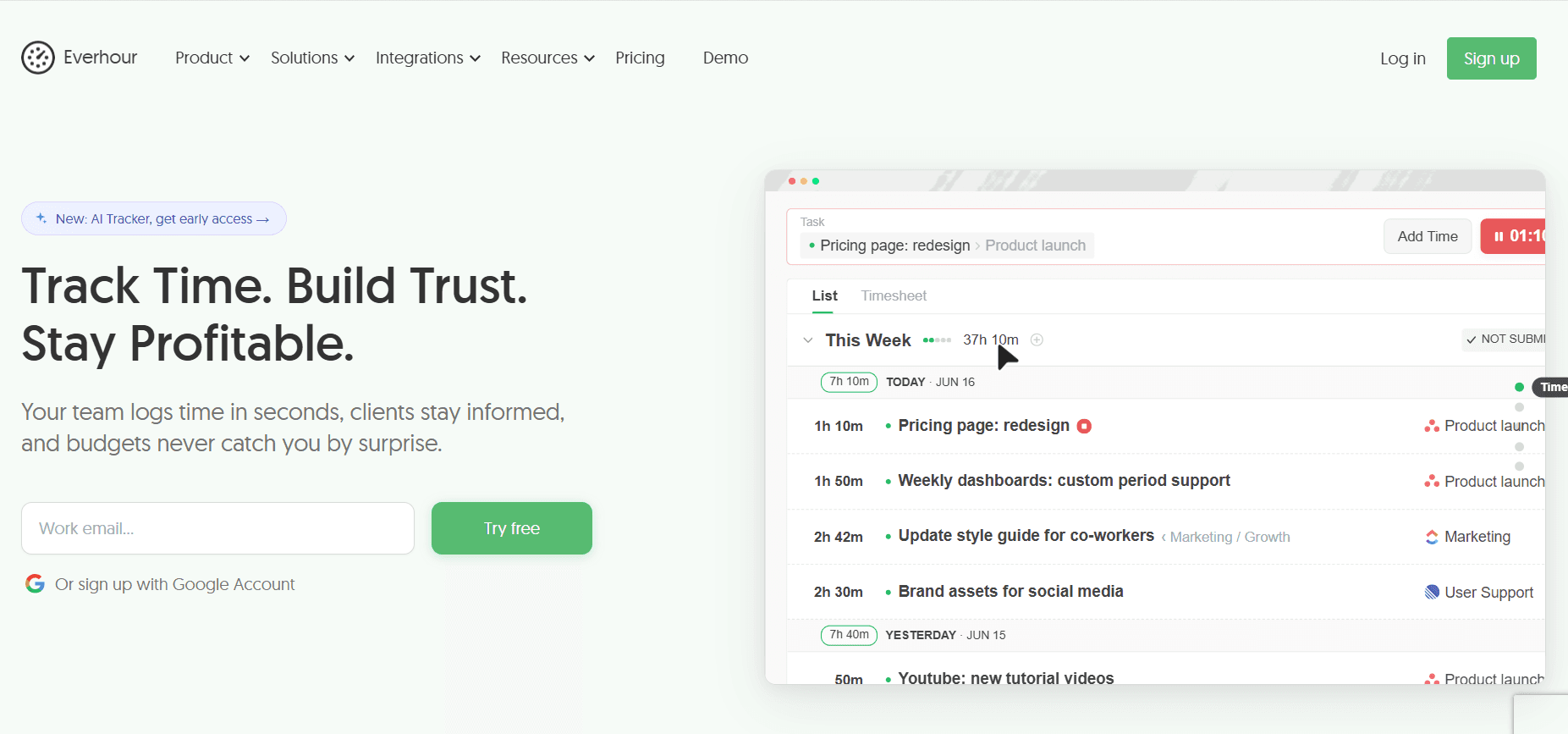
Everhour puts its controls inside the project management tool you're already looking at.
The Start Timer button is on the task, the estimate-versus-actual figure is next to it, and the budget bar is on the project.
From there, Everhour handles the commercial side. Budgets alert at 75%, 90%, and 100%; timers stop when a budget is spent; and invoices go out to Xero or QuickBooks.
Features
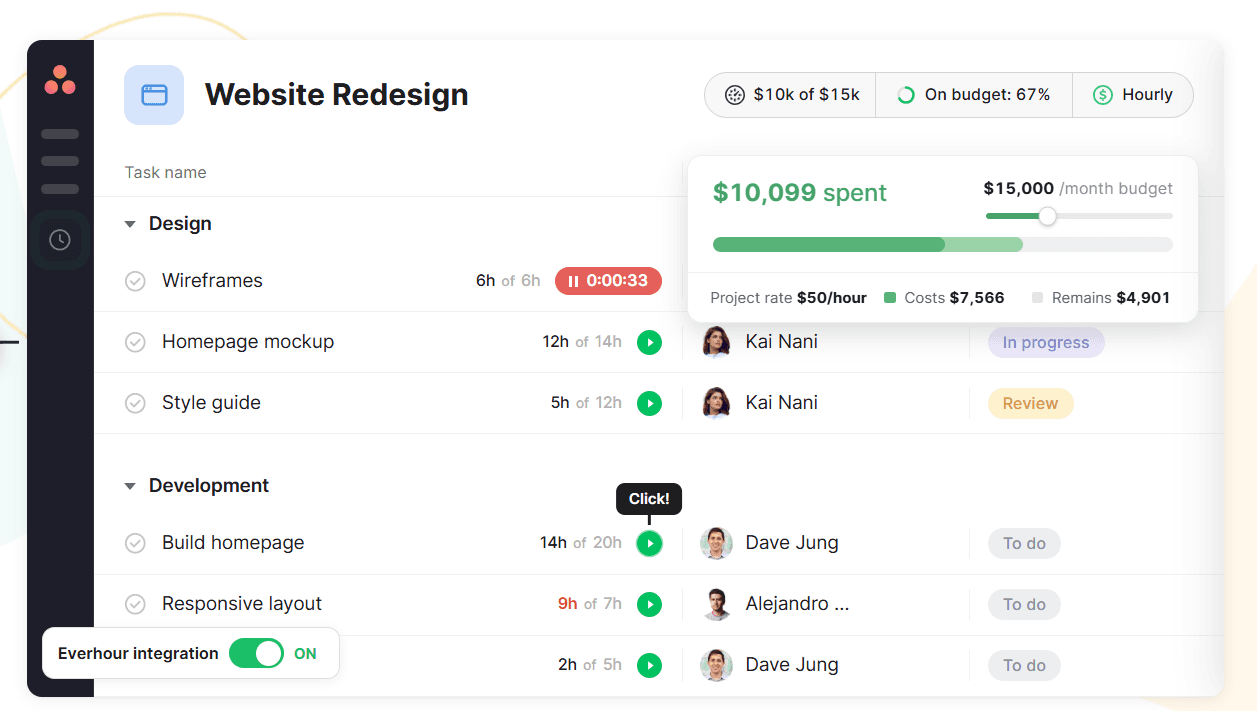
Native integrations: Asana, ClickUp, Basecamp, Jira, Monday, GitHub, Trello, Linear, Notion, and Wrike, with time recorded at task level in each.
Budgets and alerts: time or money budgets per project, email alerts at thresholds you choose, timers that stop when a budget is spent, and monthly resets for recurring work.
Invoicing: billable time grouped by member, project, and period into an invoice, exported to Xero or QuickBooks, with payment status tracked.
Timesheet approval and time off: an approved timesheet can't be edited afterwards; time off accrues automatically and requests are approved in the same place.
Pricing
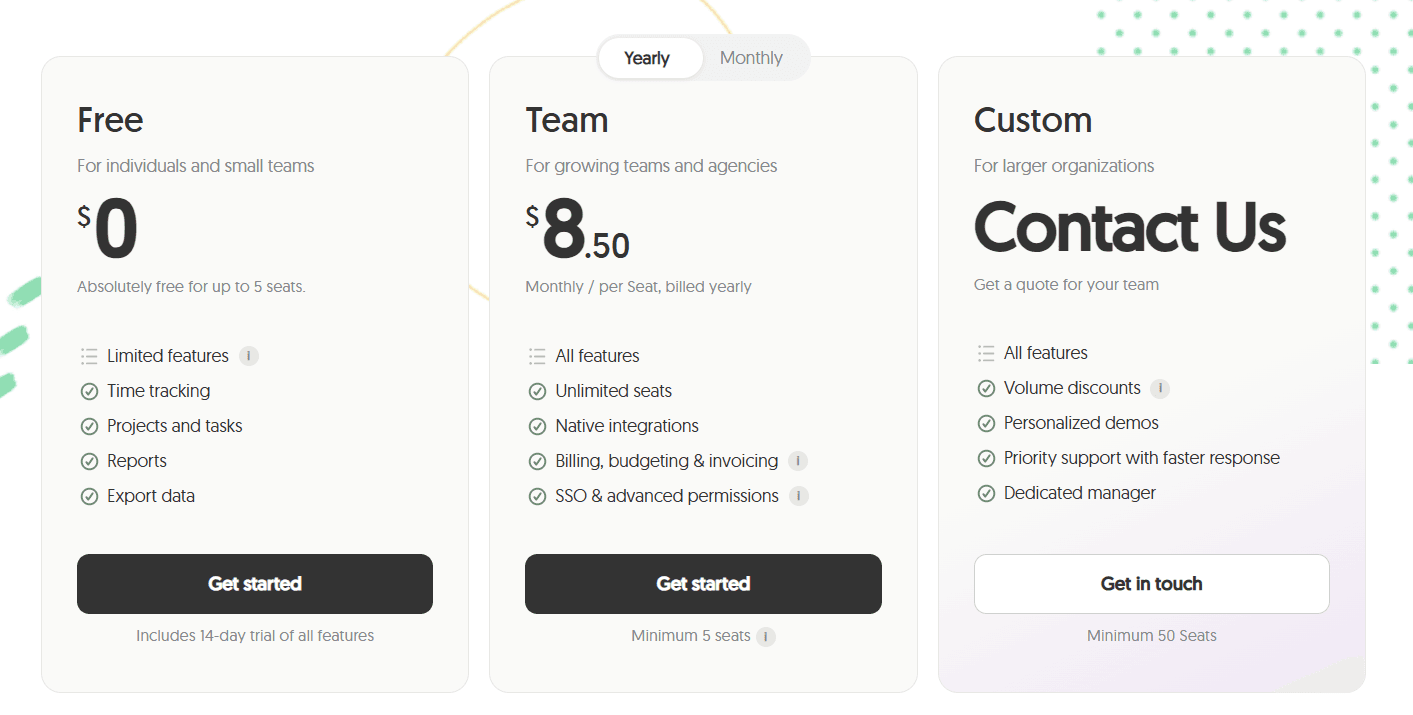
One paid plan at $8.50 per seat per month on yearly billing, a free plan for up to five seats, and a Custom plan from 50 seats.
Free: $0 for up to 5 seats, with time tracking, projects and tasks, reports, and data export, plus a 14-day trial of every feature.
Team: $8.50 per seat per month billed yearly, with a five-seat minimum, unlocking every feature: native integrations, billing, budgeting and invoicing, SSO, and advanced permissions.
Custom: quoted for 50-plus seats, with volume discounts, personalized demos, priority support, and a dedicated manager.
Pros and cons
✅ Nothing is gated by tier; Team includes everything.
✅ Works inside the tools where the tasks already are.
✅ Time data is stored in Everhour, not in the PM tool's fields, and survives a change of project management software.
❌ Team has a five-seat minimum, so a three-person paid team pays for five.
#8: Apploye
Best for: Remote and hybrid teams that want screenshots, session recording, payroll, and invoicing at a low per-user price.
Similar to: Time Doctor, eMonitor.
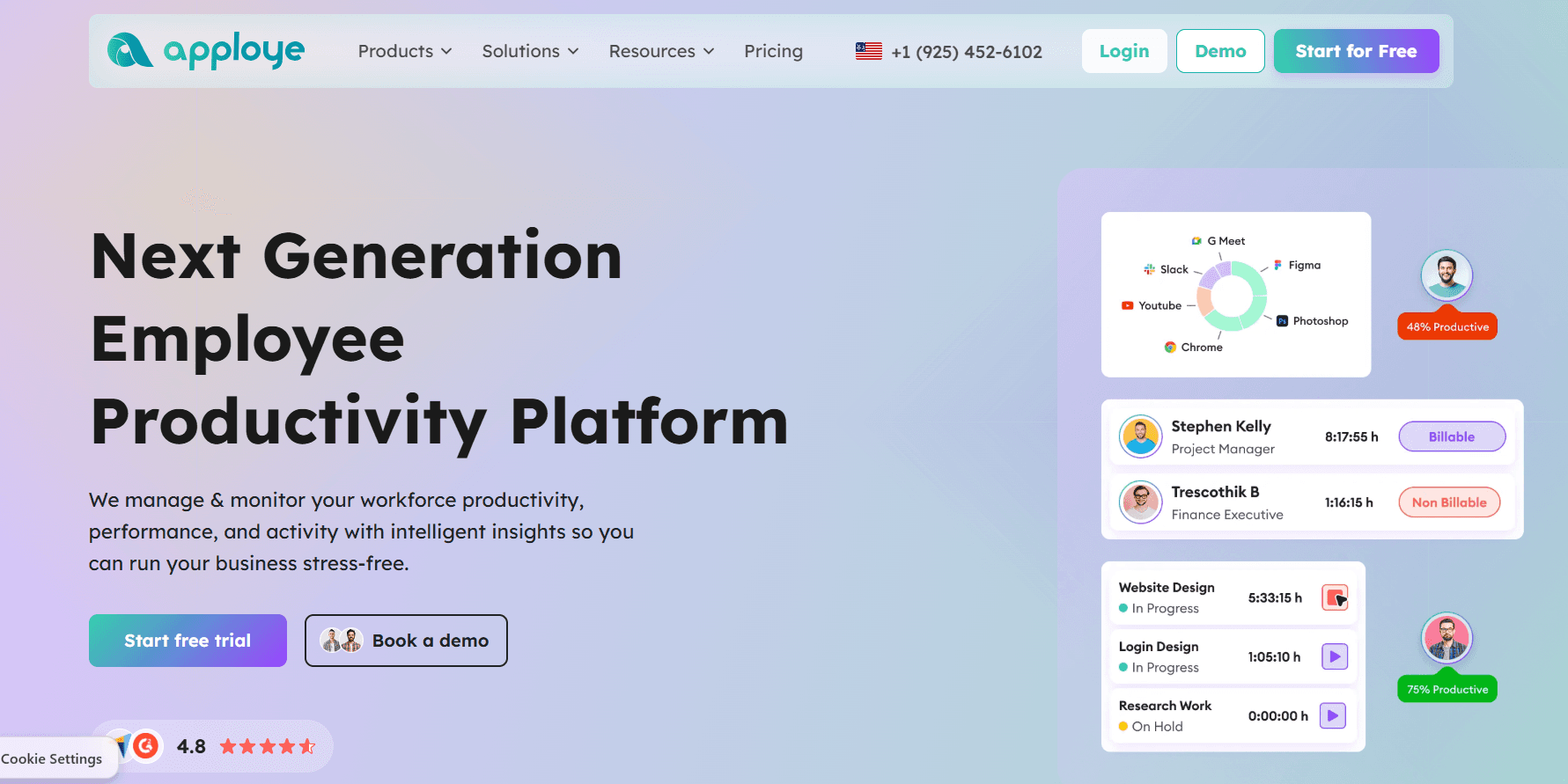
Apploye pairs time tracking with the kind of monitoring depth most tools hold back for their top tiers.
Screenshots, app and URL tracking, a Real-Time Active View, and full video recording of sessions are all in the product, alongside timesheets, payroll, and client invoicing.
Features
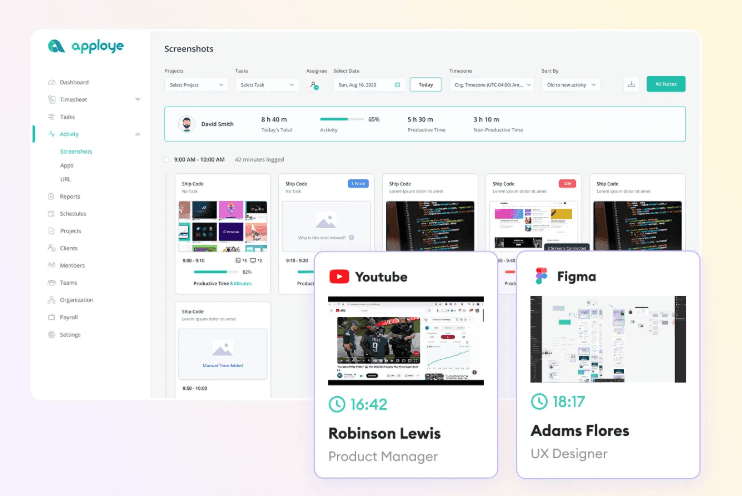
Screenshot and video monitoring: periodic screenshots (optional, and more frequent with an add-on), Real Time Active View, instant screenshots on Power, and complete session recording as an add-on.
Time tracking and attendance: timers, timesheets generated automatically with an approval step, attendance with automatic clock-in and clock-out, and leave management.
Productivity analytics: activity levels and app and URL tracking, custom reports from Elite, and AI report analysis marked as coming soon.
Payroll and invoicing: pay rates per member, payroll runs, and client invoices generated from tracked time.
Deployment options: Mac, Windows, Linux, iOS, Android, and Chrome apps, with Stealth Mode, on-premise hosting, and white labelling as add-ons.
Pricing
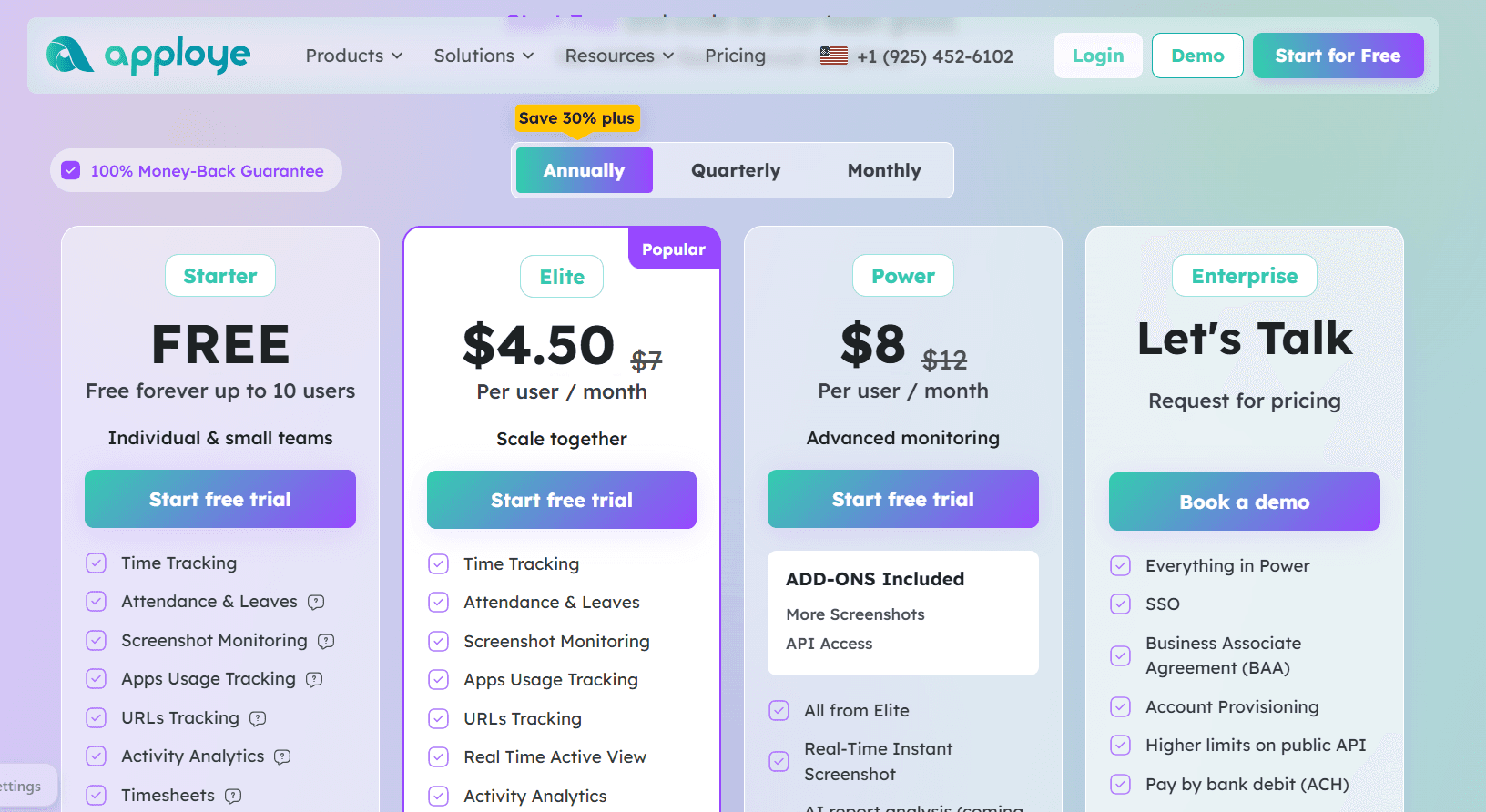
Free for up to 10 users, then $4.50 or $8 per user per month on annual billing, with Enterprise priced on request.
Starter: $0, free forever for up to 10 users, with time tracking, attendance and leaves, screenshot monitoring, app and URL tracking, activity analytics, timesheets and approval, projects, clients and invoices, and payroll.
Elite: $4.50 per user per month billed annually (listed down from $7), adding Real Time Active View, optional screenshots, integrations, and custom reports.
Power: $8 billed annually (listed down from $12), adding More Screenshots and API Access as included add-ons, real-time instant screenshots, and AI report analysis and an AI chatbot marked coming soon.
Enterprise: custom pricing, with SSO, a Business Associate Agreement, account provisioning, higher API limits, ACH payment, guided onboarding, and dedicated support.
Add-ons: Stealth Mode $2, More Screenshots $2, API Access $1, Screen Recording $4, and White Labelling $3 and On Premise $3 (both at 100-plus users), all per user per month, plus BigQuery at $1,000 per organization per month.
Pros and cons
✅ Ten free seats with screenshots and payroll included is generous.
✅ GDPR and HIPAA compliance, with a BAA on Enterprise.
✅ Onboarding ($150) and data migration ($200) are one-time fees.
❌ Stealth Mode, screen recording, and white labelling are priced as separate add-ons.
#9: eMonitor
Best for: Organizations with mixed Windows, macOS, Linux, and Chromebook fleets that want attendance, activity, and DLP alerts from one agent.
Similar to: Apploye, Time Doctor.
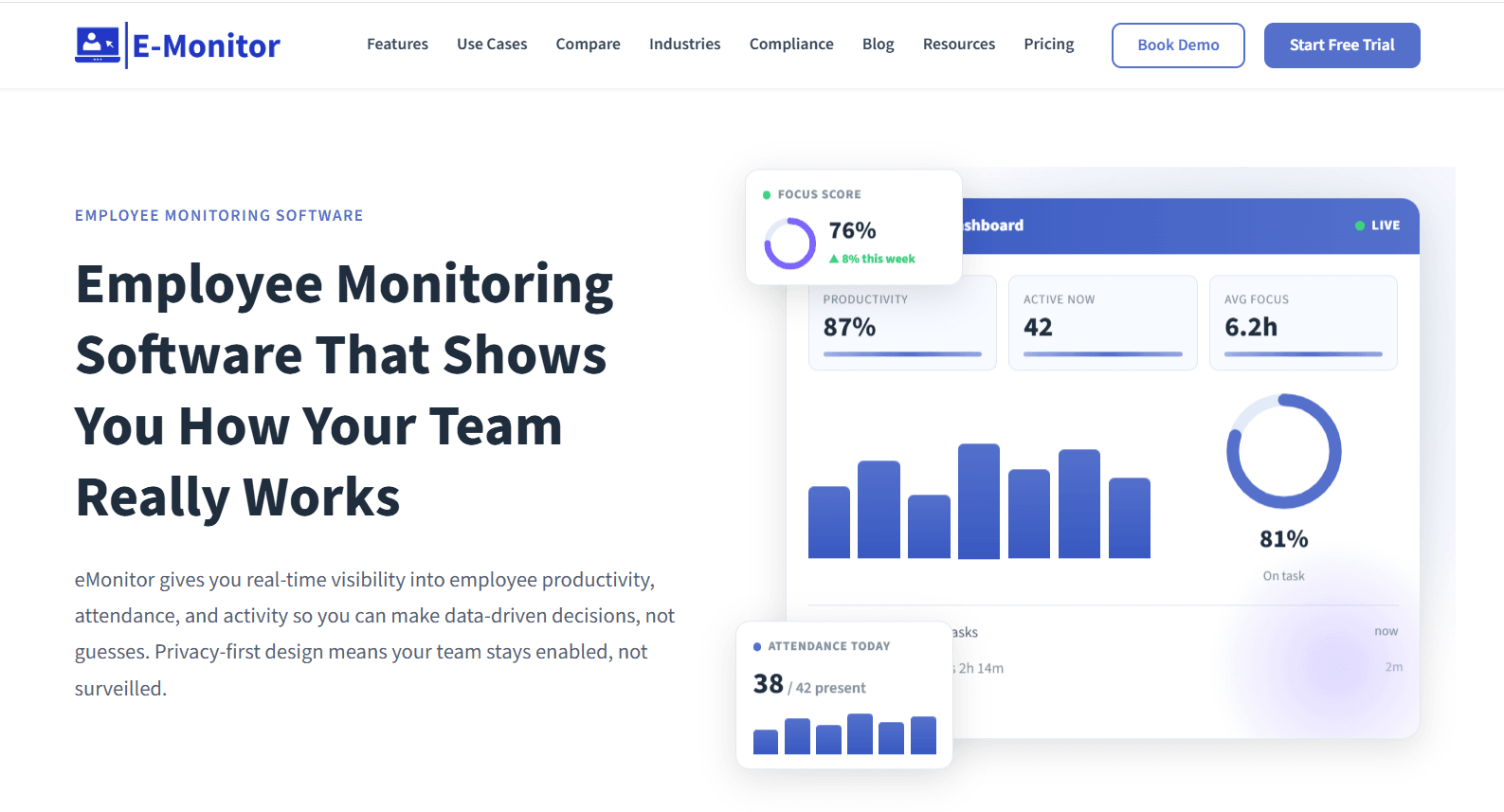
eMonitor runs one agent across Windows, macOS, Linux, and Chromebook with the same feature set on each, and IT can push it out through an MDM or send staff a self-install link.
Features
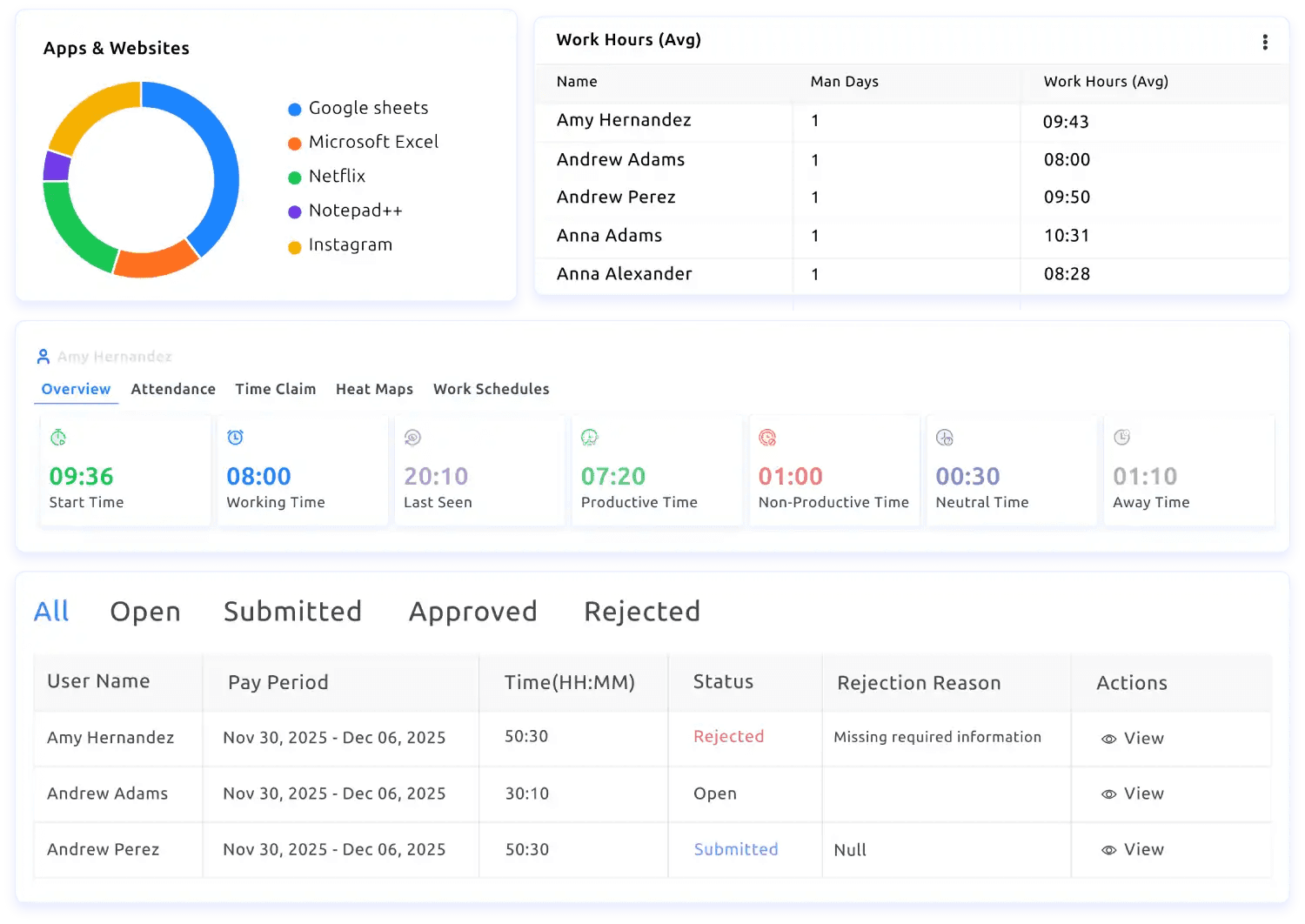
Time and activity tracking: automatic timesheets, active-versus-idle detection, time broken down per app, and attendance that logs clock-in and clock-out and reports who was late, absent, or off their shift pattern.
App and website tracking: each app and site classified as productive or not by role, viewable for a person, a team, or the company.
Screen monitoring: screenshots on a schedule or when activity changes, with sensitive applications blurred, plus live view on Enterprise.
DLP and alerts: USB blocking, monitoring of file transfers and cloud uploads, and an alert when a policy is broken.
Dashboards and exports: managers see only their own reports, employees can open their own numbers, trends are kept over time, and anything on screen exports to CSV or PDF or pushes to a BI tool.
Pricing
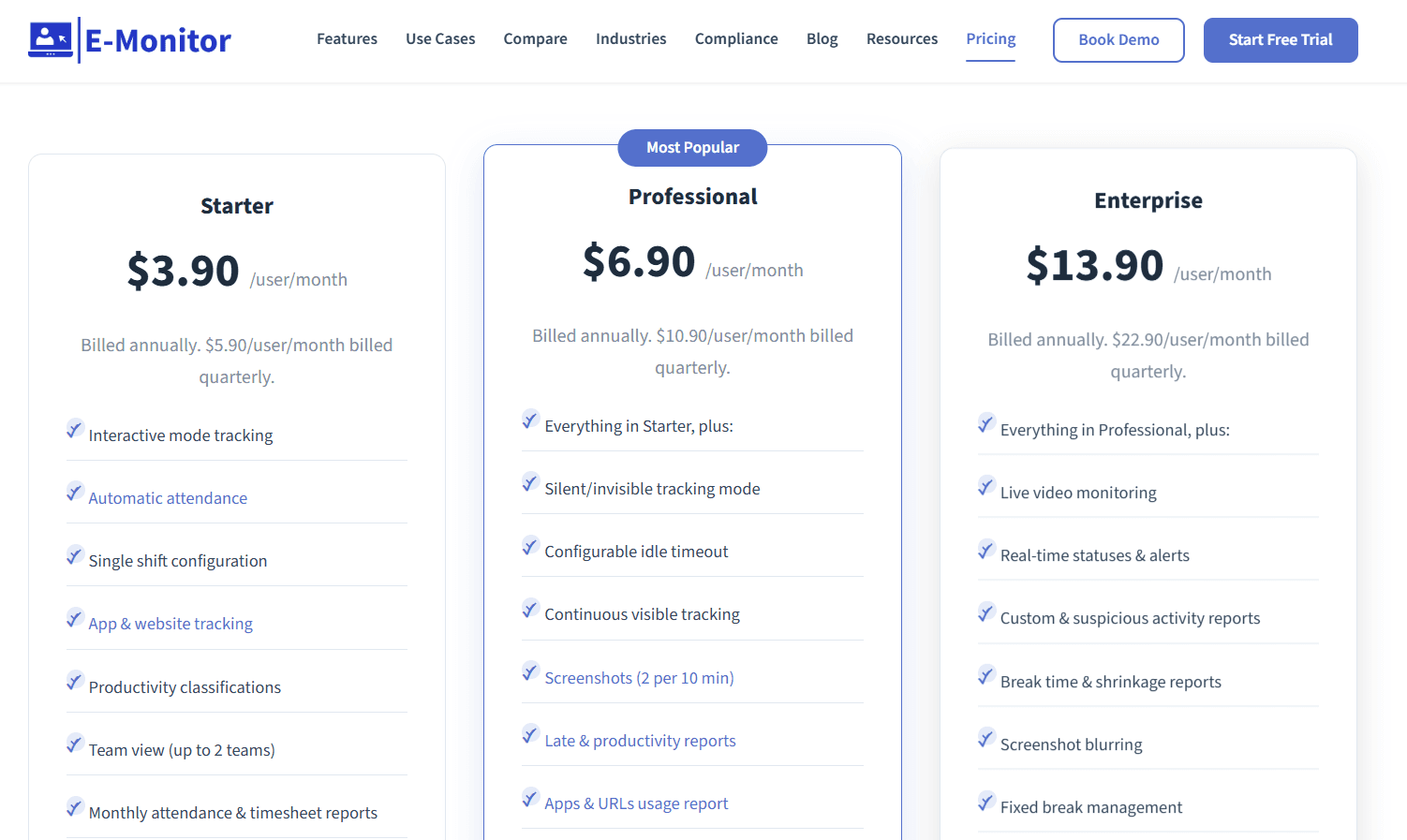
eMonitor's tiers are $3.90, $6.90, and $13.90 per user per month on annual billing, with quarterly billing priced higher on each.
Starter: $3.90 per user per month billed annually ($5.90 quarterly), for up to 25 users, with interactive-mode tracking, automatic attendance, a single shift configuration, app and website tracking, productivity classifications, up to 2 teams, monthly attendance and timesheet reports, and 7-day data retention.
Professional: $6.90 billed annually ($10.90 quarterly), adding silent tracking mode, configurable idle timeout, screenshots at 2 per 10 minutes, late and productivity reports, apps and URLs usage reports, summary alerts, detailed activity for one week, multiple shift configurations, up to 10 teams, and 90-day retention.
Enterprise: $13.90 billed annually ($22.90 quarterly), adding live video monitoring, real-time statuses and alerts, custom and suspicious activity reports, break time and shrinkage reports, screenshot blurring, Azure SSO, API access, up to 50 teams, custom retention, a dedicated account manager, and phone support.
Pros and cons
✅ The same features on every operating system, Chromebook included, at the same price.
✅ DLP alerts from Professional, which most time trackers don't offer at all.
✅ Employee dashboards on by default make the rollout conversation easier.
❌ Data retention is 7 days on Starter and 90 days on Professional; longer history needs Enterprise.
#10: Jibble
Best for: Frontline, construction, manufacturing, and shift-based teams that need free time and attendance with identity checks at clock-in.
Similar to: Clockify, Toggl Track.

Jibble's core product costs nothing for any number of users.
Clock-in from phone or browser, basic timesheets, and connections to Slack, Microsoft Teams, and QuickBooks are all on the free plan.
For field and floor teams, the reason to pick Jibble is verification.
Face Recognition, Selfie Capture, Geofencing, GPS Tracking, and NFC & PIN at the Kiosk exist to confirm that the person clocking in is the person on the roster and is standing where they should be.
Features
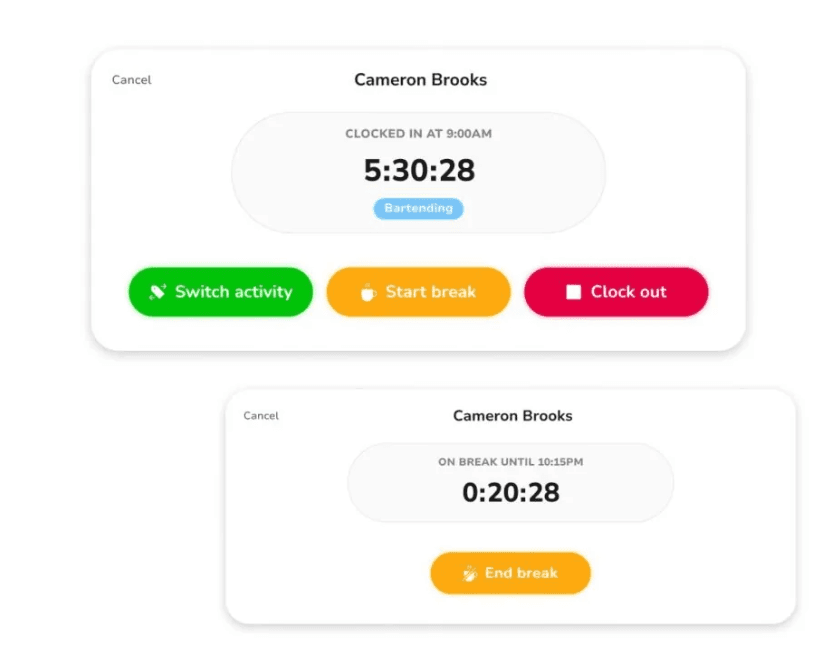
Timer, Timesheets, and Kiosk: staff clock in from their own device or a shared tablet, timesheets are reviewed and approved per pay period, and Offline Mode holds entries until a connection returns.
Verification: Face Recognition to rule out one person clocking in for another, Selfie Capture on each entry, Geofencing so clock-ins only register on approved sites, GPS Tracking attached to each entry, and NFC & PIN as the Kiosk options.
Time Off and Approvals: leave policies with accruals and requests, one-click approval of timesheets, Work Schedules, and People & Groups for organizing staff with role-based permissions.
Reports and Exports: attendance and payroll reports, a live dashboard of who is clocked in, time by project, and XLS or CSV exports that feed payroll tools such as Xero, QuickBooks, and Deel.
Pricing
Jibble's core plan is free for unlimited users, and the paid upgrades are quoted in-app; there was no public price list when I checked.
Free: $0 for unlimited users, with clock-in from mobile and web, basic timesheets, and integrations with Slack, Microsoft Teams, and QuickBooks.
Paid upgrades: Jibble's site confirms paid tiers exist and offers a 14-day trial of them from sign-up. Rates are shown in-app; confirm them there or with sales.
Enterprise: through sales, with SSO, 2FA, dedicated onboarding, and support.
Pros and cons
✅ Free for unlimited users, with no time limit on the plan.
✅ The deepest identity verification at clock-in in this comparison, from Face Recognition to NFC.
✅ Offline Mode keeps clock-ins working on sites without signal and syncs them later.
❌ Paid tier pricing isn't on a public page, so budgeting past the free plan means talking to sales.
See your own workflows in Reflow
If you're leaving Hubstaff because the timesheet tells you how long the work took but not what happened inside it or what to automate, Reflow was built for that question.
Here's what you get with Reflow:
Fully automated capture from a native Mac and Windows agent, with no manual time entry and machine learning doing the labeling.
Workforce intelligence for the base layer: work time, active time, productive time, and productivity trends by team.
Real-time workflow maps showing each step, including the ones skipped, repeated, or delayed.
A readout per workflow: total runs, average run time, average deviation per run, and potential savings in hours per month.
Unit economics of the work by customer, task, and project.
SOP adherence checks, run by run, that flag drift and compliance risk.
Automation recommendations ranked by impact, with ROI measured after each goes live.
Workflow automation on the same platform, so the tool that finds the opportunity is the tool that acts on it.
No integrations and no engineering resources, with white-glove setup and a parallel trial.
➡️ Book a demo to see your own operation mapped, or read how Collective turned that visibility into $3.1M in annual cost savings.
⚠️ Disclaimer: This article was last updated on September 14, 2026. If you spot any inaccuracies, contact us, and we'll fact-check it.
See Reflow in action
A short demo, tailored to your operations.