I've ranked the ten best Jibble alternatives for 2026 below and matched each one to the team I'd recommend it for, with a cost comparison at four team sizes further down.
TL;DR
Reflow is the best Jibble alternative in 2026 for enterprise operations teams that handle high-volume, repeatable work on computers. Its native Mac and Windows agent records active and productive time with no timer or manual entry. That same record shows how each workflow runs and which steps are worth automating, and Reflow goes on measuring the workflow once an automation is live.
TimeCamp and Clockify are my starting points if attendance at a low price is the priority: TimeCamp's free plan has no user cap and gains an attendance calendar on Starter, and Clockify's Kiosk clock-in starts on its $3.99 Basic plan with annual billing.
Hubstaff and Timesheet suit crews working on location: Hubstaff combines GPS tracking with payroll paid out through Deel, Wise, PayPal, or Payoneer, and Timesheet starts its timer from location triggers such as geofences and NFC tags.
Apploye and Time Doctor pair attendance with screenshots and payroll: Apploye is free for up to 10 users, and eMonitor adds data loss alerts from its Professional plan, with one agent for Windows, macOS, Linux, and Chromebook.
DeskTime and Everhour complete the list: DeskTime records from the moment a computer powers on and schedules shifts on Premium, and Everhour adds automatic leave accrual and locked timesheet approvals, plus a timer inside ten project and development tools.
How to choose the best Jibble alternative
The best Jibble alternative is the one built for the job your team needs, and Jibble doesn't do. It's worth naming that job first, whether it's workflow-level data or payroll payouts.
I checked each tool against four tests before adding it, and you'll want to run your own shortlist through them too:
Check where the hours come from: Each tool here records time itself, whether through an agent, background tracking, a timer, a clock-in, or a location trigger. I left out software that only reports on hours another product recorded.
Name the job Jibble doesn't do for you: Because Jibble centers on clock-in and attendance, every alternative had to add a job on top, such as payroll payouts, activity data, DLP alerts, or timers inside project tools. For Reflow, that job is mapping each workflow step by step and measuring what an automation returns once it's live.
Cost it at your real headcount: Jibble's core plan stays free at any size, but Clockify and Everhour cap their free plans at five users and Apploye at ten. That's why the cost table further down prices every tool at 10, 25, 50, and 100 users and flags where rates aren't published, as with Reflow and Jibble's paid upgrades.
Check it's generally available: Every tool on the list is on sale today. Where a feature is still marked as coming soon, like Apploye's AI report analysis, I've said so in the entry, and I've pointed out usage-based costs such as TimeCamp's token-billed AI tracker.
Reflow passes all four for operations teams doing computer-based work. For identity checks at clock-in, though, Jibble's Face Recognition and NFC & PIN go further than any other tool in this guide.
What are the best Jibble alternatives in 2026?
The best Jibble alternative in 2026 is Reflow, for operations teams that want workforce and workflow intelligence captured automatically on Mac and Windows computers.
I ranked TimeCamp second because its free plan, like Jibble's, sets no limit on users, and Clockify third for Kiosk clock-in on its cheapest paid plan and GPS tracking on Pro.
Here's the full shortlist with the team each tool suits and its starting price:
Tool | Best for | Starting price |
Reflow | Enterprise operations teams that want workflows and automation returns measured from one agent on Mac and Windows, with no manual entry or integrations. | Custom quote after a demo |
TimeCamp | Growing teams that want free access for every user, plus attendance and overtime records from Starter. | Free for unlimited users; paid from $2.99/user/month billed annually |
Clockify | Teams that want Kiosk clock-in on a shared tablet from Basic, with attendance and GPS tracking on higher plans. | Free for up to 5 users; paid from $3.99/seat/month billed annually |
Hubstaff | Field and remote crews whose approved hours are paid out in several currencies, with GPS tracking and adjustable monitoring. | From $4.99/seat/month, two-seat minimum |
Timesheet | Individuals and small teams working across several sites, whose timer can start from a location trigger, with working-time limits on Business. | Free for one user; teams from $10/user/month |
Apploye | Remote and hybrid teams that want automatic clock-in and payroll on a free plan for up to 10 users. | Free for up to 10 users; paid from $4.50/user/month billed annually |
Time Doctor | Distributed support teams that want attendance and payroll, with Benchmarks AI on Premium or as an add-on. | From $6.67/user/month billed annually |
eMonitor | IT teams deploying one agent across Windows, macOS, Linux, and Chromebook for attendance reports and data loss alerts. | From $3.90/user/month billed annually, up to 25 users on Starter |
DeskTime | Teams that want tracking from power-on and shift scheduling with an absence calendar. | From $6.42/user/month billed annually, excluding VAT |
Everhour | Teams in Asana, Jira, ClickUp, and other project tools that want a timer on each task and automatic leave accrual. | Free for up to 5 seats; Team at $8.50/seat/month billed yearly, five-seat minimum |
#1: Reflow
Reflow is the best Jibble alternative in 2026 for enterprise operations teams that run high-volume, computer-based processes and want to know what happens inside each one.
The people side of Reflow breaks each day into work time, session time, active time, and productive time, and shows whether productivity is rising or falling by team.
None of those figures relies on self-reported data, because capture runs in the background on the computers where the work happens.
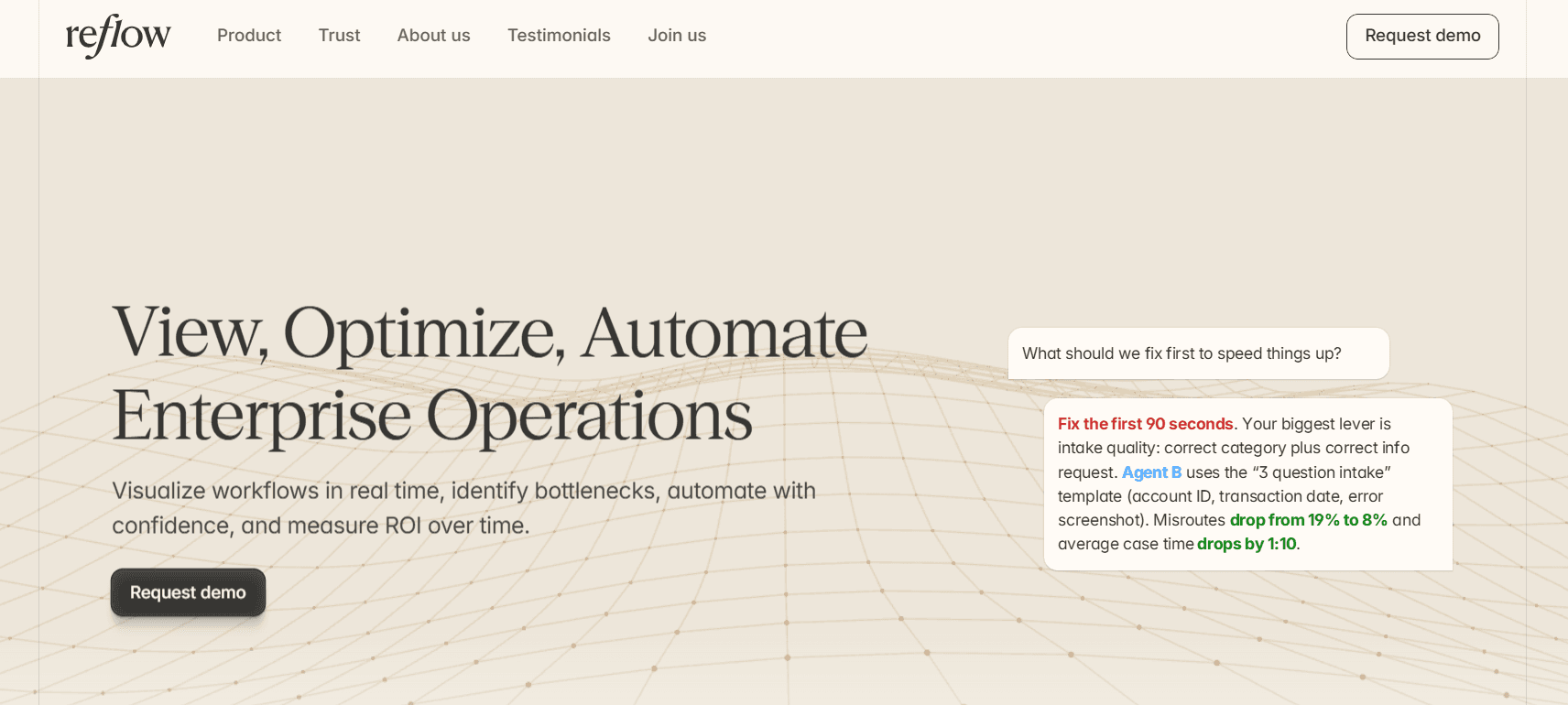
Reflow's sample data for subscription cancellations shows the four figures each workflow readout carries:
Total runs: 3,608.
Average run time: 7 minutes 15 seconds.
Average deviation time: 1 minute 35 seconds.
Potential savings: 96.0 hours a month.
Disclosure: We built Reflow. Below, I lay out why it ranks first here and which parts of Jibble's job it leaves alone.
Each run of a process is recorded step by step as the work happens, and any step that went off plan is marked in the record.
Reflow needs no integrations with your existing tools, and most teams can get started within days.
In fairness to Jibble, Reflow doesn't check who is clocking in or where they are, and it has no kiosk, leave policies, overtime rates, or payroll exports. If your team needs those, I'd leave them with Jibble or a tool like it.
These are the capabilities that put Reflow first on my list:
The anatomy of each workflow
Reflow draws each workflow as a sequence, and every step in it carries its own elapsed time. Steps that went off plan are marked at the point where they happened.
For subscription cancellations, that means the 7 minutes 15 seconds of an average run can be split across its steps, and the 1 minute 35 seconds of deviation traced to the steps where it builds.

When I review a process like this, I usually start with the steps that run slow or get repeated.
Unit economics for each case
Unit economics start with time, so Reflow breaks operational time down to individual customers and tasks before any cost is calculated.
Invoice correction & reissue, in Reflow's example data, runs 2,320 times with an average run time of 5 minutes 20 seconds and an average deviation time of 1 minute 55 seconds.
With a labor rate applied to those 5 minutes 20 seconds, finance can price the reissue of one invoice before any money goes into automating it.
Jibble's reports show tracked time and payroll hours for each pay period, the numbers a payroll run depends on.
A per-case figure from Reflow serves a different decision, which is whether a process is worth automating.
Process drift against the written SOP
Every run is held against the expected steps of its SOP, and differences surface as drift or emerging compliance risks while the work is still in progress.

If a corrected invoice were reissued without the review step its SOP requires, the skipped step would be flagged in that run's record, giving the team a chance to catch it before the invoice goes out.
It's ideal to start these checks with processes that carry compliance risk, because drift there costs more than a few lost minutes.
Where automation pays back most
Reflow ranks automation candidates by impact and names the steps in each that could be automated. After launch, the workflow stays in Reflow's reporting, and the return is measured from post-launch figures.

One sample recommendation concerns a Refund Requests SOP in which repeatable steps take 52% of the time, from lookups to updating several systems.
Automating "lookup + populate + update" is projected to cut those steps to 25 seconds, taking 1 minute 40 seconds off each case and removing missed-field errors.
The automation can run on Reflow as well, and the same platform then reports whether it paid off.
💡 Reflow encrypts data in transit and at rest to industry-leading standards and limits access through strict permissions. The full set of controls is published in the Trust Center.
Automatic capture on Mac and Windows
On each Mac or Windows machine, Reflow's native agent captures the operational signals of the work, down to individual interactions.
Each interaction is then classified by machine learning into a project and a type of work, with a productive or non-productive label and no tagging by the employee.

Reflow accepts no manual entries, and each figure comes straight from the agent's record.
Workflow data comes from the same agent through task mining, and people review the classifications that need judgment.
We call this base layer workforce intelligence, and it shows workforce managers how many people are working and how their productivity is trending. Workflow intelligence and workflow automation both start from that dataset.
How is Reflow different from Jibble?
Jibble builds timesheets and payroll hours from when and where each person clocked in, and Reflow measures the steps inside each workflow to show which ones to automate.
Reflow doesn't attempt identity and location checks, kiosk clock-in, leave, or overtime pay, and Jibble handles that work well for frontline and shift-based teams.
One Reflow dataset runs from workforce intelligence through workflow intelligence to workflow automation, as the comparison below shows.
Here’s how both platforms compare:
Jibble | Reflow | |
Primary output | Timesheets, attendance records, and payroll hours built from clock-ins | Workflow readouts: runs, run time, deviation time, and potential savings |
How time is captured | Clock-in and clock-out from mobile, web, tablet, desktop, Slack, Microsoft Teams, or a shared Kiosk, with Offline Mode syncing entries later | A native agent on Mac and Windows recording in the background |
Identity and location checks | Face Recognition, Selfie Capture, Geofencing, GPS Tracking, and NFC & PIN | Not covered |
Manual entries | Supported, with each manual entry marked on the daily timesheet and a history of edits | Not accepted |
Unit of measurement | Hours by person, pay period, and project | The ordered steps of a process, skipped and repeated steps included |
Leave, overtime, and payroll | Leave policies with accruals, custom overtime rates (daily, rest day, double, weekly, and public holiday), and XLS or CSV payroll exports | Not covered |
Invoicing | Client invoices created from tracked time | Not covered |
Process compliance | Location-stamped, audit-ready records, tamper-proof pay periods, and an audit trail | SOP adherence checked run by run, with drift flagged as it happens |
Automation guidance | Timesheets generated automatically from clock-ins; process automation isn't a stated function | Ranked automation candidates that name the steps involved, with ROI tracked after go-live |
Integrations | Slack, Microsoft Teams, and QuickBooks on the free plan, plus exports for payroll and accounting software | None needed |
Setup | Under two minutes, by Jibble's own figure | Days, with configuration by Reflow's team |
Security and compliance | SSO and 2FA on Enterprise | Encryption at rest and in transit; SOC 2 Type 2, HIPAA, GDPR, and CPRA/CCPA compliant |
Pricing | Core plan free for unlimited users; paid upgrades priced in-app | Not published; quoted after a demo |
Trial | 14 days on paid upgrades from sign-up | Runs alongside Jibble during the trial |
Reflow pricing
There's no public price list for Reflow, so its cost can't be set against the plans compared elsewhere in this guide.
Pricing is quoted after a demo, and the quote depends on headcount and which workflows are in scope.
💡 With white-glove onboarding, Reflow's team configures the platform and your own staff spend little time on setup. During the trial, Reflow can run alongside Jibble so the two datasets can be read together.
Reflow pros and cons
✅ An agent on Mac and Windows records work in the background, with no manual entries to approve or correct.
✅ Steps that went off plan are marked inside each workflow map.
✅ Potential savings are stated in hours a month for each workflow, beside its run count and timings.
✅ Finance gets a time basis for costing each case of operational work.
✅ Runs are compared with their SOP while the work is in progress.
✅ Automation candidates are ranked by impact, and returns come from post-launch data.
✅ Organizations configure what is collected and can limit views to aggregated or anonymized data.
❌ No clock-in verification, kiosk, leave, overtime, payroll, or invoicing features.
❌ Pricing isn't published.
#2: TimeCamp
Best for: Teams that want every user on a free plan and timesheets filled in by an AI agent.
Similar to: Clockify, DeskTime.

If keeping every user on a free plan is the main reason you chose Jibble, TimeCamp is my first pick, because its free plan has no user cap either.
TimeCamp's $2.99 Starter plan then adds attendance and overtime records, and its AI Time Tracking Agent can fill timesheets from app and website activity on every plan.
Features

Background timesheets: the AI Time Tracking Agent sorts app and website activity into AI Timesheets, and keyword-based rules match entries to tasks. Each person also gets an activity timeline with idle time tracked.
Payroll-ready records: a time clock kiosk, attendance and overtime tracking, time-off, and approval workflows that end in payroll-ready data.
Planning and margins: the Resource Planner, budgets and estimates with alerts, labor costs, and fixed-fee projects, with invoices exported to QuickBooks or Xero.
Data at scale: the AI Operational Hub gathers team-wide time data in real time, and Enterprise adds a BigQuery pipeline, Power BI API templates, data warehouse access, and self-hosted or private cloud deployment.
Pricing
TimeCamp's paid plans start at $2.99 per user per month on annual billing and top out at $5.99 on Ultimate, with month-to-month rates $1 to $2 higher.
Free ($0): no limit on users or projects, apps for web, desktop, and mobile, 2FA, and access to the AI Time Tracker, which is billed by tokens used.
Starter ($2.99 per user per month annually, $3.99 monthly): attendance, time-off, and overtime records, plus invoicing, Excel exports, project templates, bulk edit, and unlimited tasks.
Premium ($4.49 annually, $5.99 monthly): tracking of apps and websites with private time, resource planning, budgets and estimates with alerts, rounded billable time, management roles, scheduled email reports, and one integration.
Ultimate ($5.99 annually, $7.99 monthly): timesheet approvals, screenshots, and remote work detection; labor costs, billing rates, expenses, and fixed-fee projects; SSO, custom roles and fields, a pivot table, time entry history, and unlimited integrations.
Enterprise (on request): deployment on a private cloud or self-hosted, warehouse access with a BigQuery pipeline and Power BI templates, directory sync, an audit log, custom reports and activity categories, and an enterprise SLA with training.

Pros and cons
✅ The free plan includes 2FA.
✅ Capacity can be planned with the Resource Planner on Premium, in the same app as the hours.
✅ Users can be synced from a directory on Enterprise, with changes recorded in an audit log.
❌ Premium allows a single integration, and the limit lifts on Ultimate.
#3: Clockify
Best for: Teams that want shared-tablet clock-in for a few dollars per seat and room to add attendance and GPS tracking later.
Similar to: TimeCamp, Hubstaff.
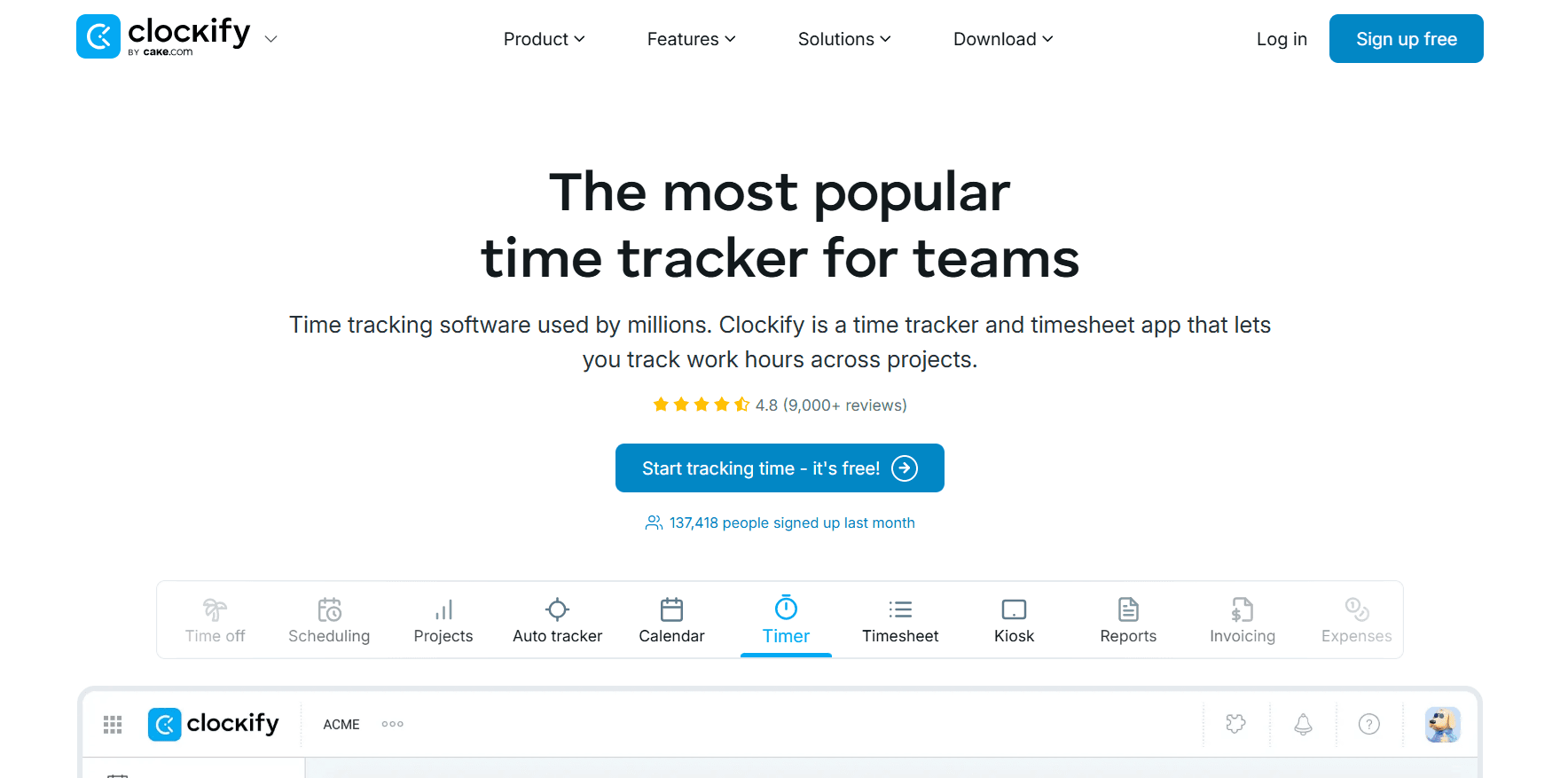
Clockify's Kiosk, available from the $3.99 Basic plan, lets a whole team clock in on one shared tablet, much as Jibble's Kiosk does on a shared on-site device.
You'll want Standard if you need attendance and time off, and Pro if staff work on location and need GPS tracking or shift scheduling.
Features

Clock-in points: the Kiosk on a shared tablet, a live Timer, a weekly Timesheet grid, Calendar blocks for planning the day, and an Auto tracker that records which apps and sites were open.
Staff records: attendance, overtime, time off, approvals, and locked past periods from Standard, plus shift and assignment scheduling with forecasting on Pro.
Location and activity: GPS tracking on Pro, along with activity monitoring and screenshots.
Rates and invoices: billable rates on Basic; task-level rates, rounding, recurring invoices, and a QuickBooks connection on Standard; labor cost compared with revenue on Pro.
Pricing
Five users can share Clockify's free plan, and a paid seat on annual billing costs $3.99 on Basic, rising to $11.99 on Enterprise.
Free ($0, up to 5 users): unlimited tracking through the Timer, Timesheet, Calendar, and Auto tracker, with idle detection, a Pomodoro timer, reports, and team activity.
Basic ($3.99 per seat per month annually, $4.99 monthly): Kiosk clock-in, entering time for other people, billable rates, and accuracy tools such as required fields, time audits, and bulk edit.
Standard ($5.49 annually, $6.99 monthly): attendance, overtime, and time off; approvals with locked time and a manager role; invoicing, recurring invoices included, with QuickBooks.
Pro ($7.99 annually, $9.99 monthly): GPS tracking, scheduling with forecasting, and activity monitoring with screenshots, along with labor cost, profit, budgets, and expenses.
Enterprise ($11.99 annually, $14.99 monthly): an audit log, control accounts, a custom subdomain, and SSO, with users provisioned through SCIM.
CAKE Bundle ($12.99 annually, $15.99 monthly): Clockify Enterprise packaged with Pumble, a team chat app, and Plaky, a project management app.

Pros and cons
✅ Past periods can be locked from Standard onward.
✅ Idle detection runs on the free plan.
✅ Team leads can be given a manager role on Standard.
✅ A custom subdomain and control accounts round out Enterprise.
❌ Attendance and overtime tracking aren't on Basic, so a team that needs them pays $5.49 per seat for Standard.
#4: Hubstaff
Best for: Distributed and field teams that want approved hours paid out in several currencies by the tool that tracked them.
Similar to: Apploye, Clockify.
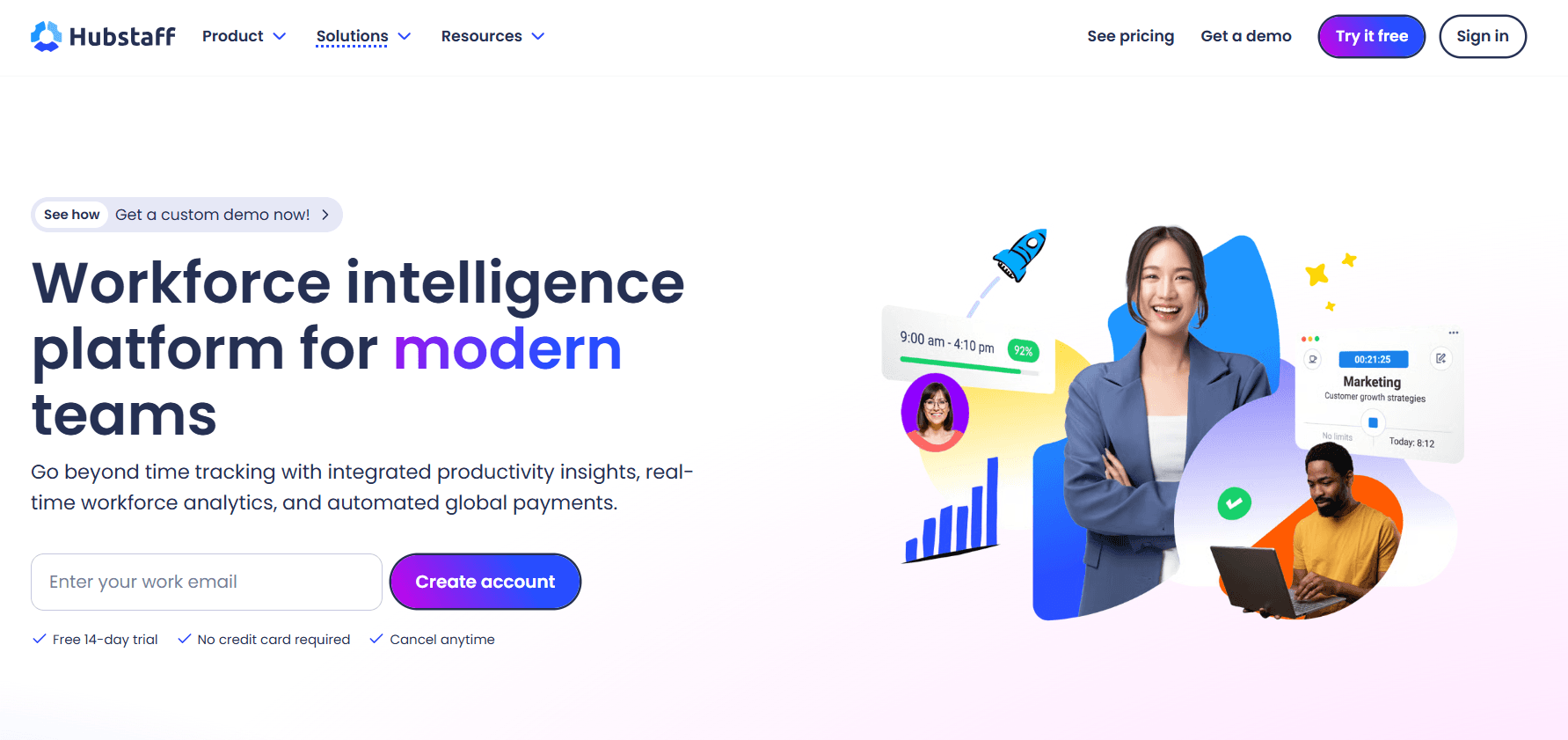
Jibble hands hours to payroll software through XLS or CSV exports, and Hubstaff completes payroll in its own app, paying approved hours through Deel, Wise, PayPal, or Payoneer.
Field crews can be tracked by GPS, with screenshots left optional for each team.
Features

Payroll and payouts: approved hours paid in multiple currencies through Deel, Wise, PayPal, or Payoneer on a pay frequency you set, in a limited form on Starter and in full on Team.
Scheduling and leave: scheduling, attendance, time off, holidays, and overtime on Team, with GPS-based tracking for field work and Locations as an add-on.
Activity settings: activity rates and app and URL tracking, plus optional screenshots and background recording on company devices through the Silent app.
Projects and clients: client and team invoices, expense tracking, and project and client budgets that show real-time costs and alert before an overrun.
Insights and access: Insights on capacity gaps, utilization, focus and meeting time, work classification, and unusual activity, plus an API, a CLI, and an MCP server.
Pricing
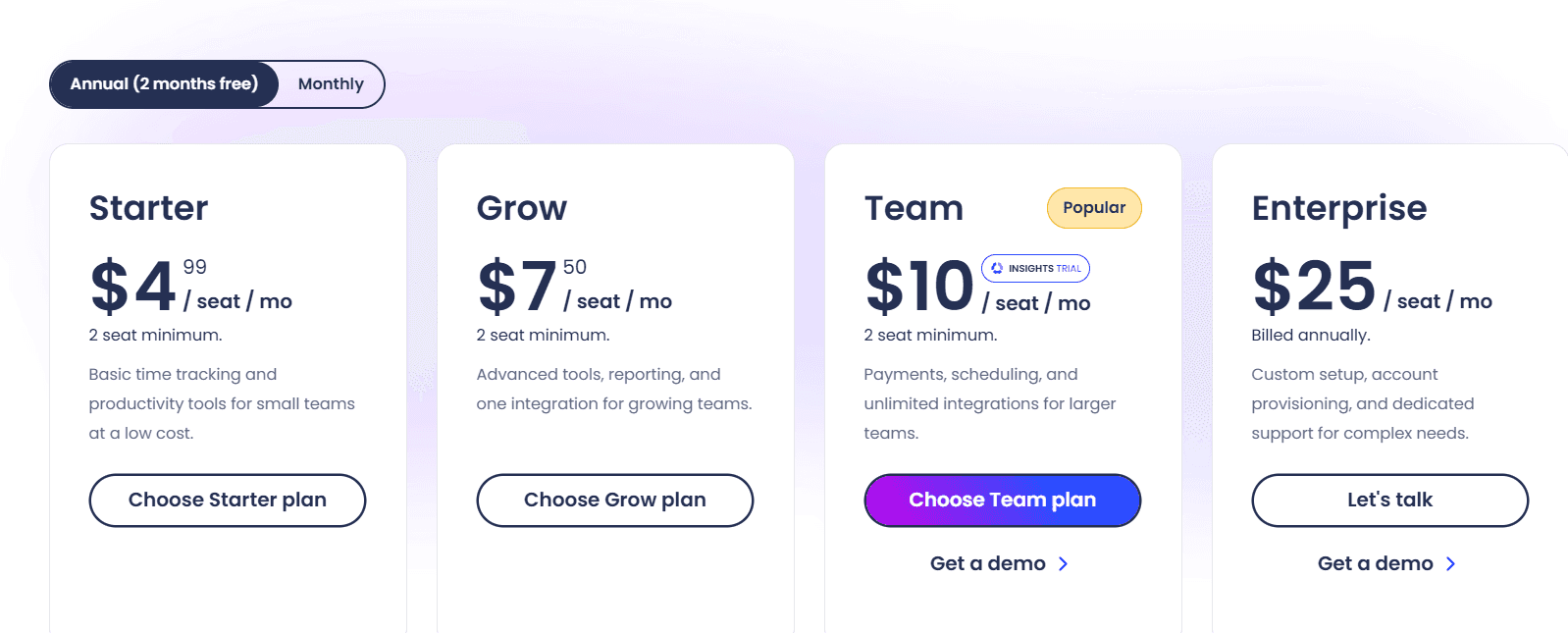
A Hubstaff seat costs $4.99 a month on Starter and $25 on Enterprise, which is billed annually, and the plans below Enterprise require at least two seats.
Starter ($4.99 per seat per month): timesheets and the timer on desktop, web, and mobile, activity levels, a monthly allowance of 500 screenshots and app and URL records per seat, client invoices for up to 5 clients, and limited payroll.
Grow ($7.50): a larger allowance of 1,500 records per seat, idle time-out, expenses, project budgets, Tasks, and one integration, with email support answered within a day.
Team ($10): the complete payroll and payments feature set; scheduling, attendance, time off, holidays, and overtime; approvals, audit logs, team invoices, client budgets, any number of integrations, a limited public API, chat support, and Insights on a three-month trial.
Enterprise ($25, billed annually): SSO, SCIM, and account provisioning, SOC 2 Type II and HIPAA compliance, Insights, Locations, and the Silent app at no extra charge, concierge setup, an account rep, and email answers within two hours.
Add-ons, per seat each month: $2.50 for Insights, Tasks, More screenshots, or the Silent app; $1.67 for Data retention; $3.33 for Locations.
Hubstaff's trial lasts 14 days with no credit card required, and a 30-day money-back guarantee applies after purchase.
Pros and cons
✅ Team tracks holidays and overtime alongside scheduling and attendance.
✅ Audit logs come at the $10 Team price, below Enterprise.
✅ Grow tracks expenses for $7.50 per seat.
❌ Starter and Grow leave out scheduling and attendance.
#5: Timesheet
Best for: Mobile workers and small teams that want the timer started by location, with employment rules enforced on a higher plan.
Similar to: Hubstaff, Clockify.

Timesheet starts its timer from location triggers such as a geofence or an NFC tag, which suits people who move between sites during the day.
On Business, working-time limits and rest periods are enforced as hours build up, and from Pro, Chronis, the AI assistant, can log time from a chat message.
Features

Hands-free starts: NFC tags, Wi-Fi detection, and geofences start tracking on a phone or watch, and the timer runs on in the background with scheduled break reminders.
Employment rules: contracts and employment models, live caps on working time, rest-period and break enforcement, flextime and core-time policies, and leave and overtime balances on Business.
Absence and approvals: absence requests with a calendar and custom approval workflows on Business, backed by audit logs with compliance reports.
Billing output: reports by project, task, client, and income, invoices with expenses and notes exported to PDF with payment status, and Excel, CSV, and API access.
Chronis: the AI assistant logs time and controls the timer from chat, answers project questions, and sends daily and weekly reminders, with an MCP server connecting it to Claude and ChatGPT.
Pricing
Timesheet is free for one user, and team plans start at $10 per user per month on Pro, with 10% off for yearly billing.
Basic ($0, single user): tracking with unlimited projects, basic statistics, and exports to Excel and CSV.
Plus ($5 per month, single user): real-time sync with cloud backup and unlimited storage.
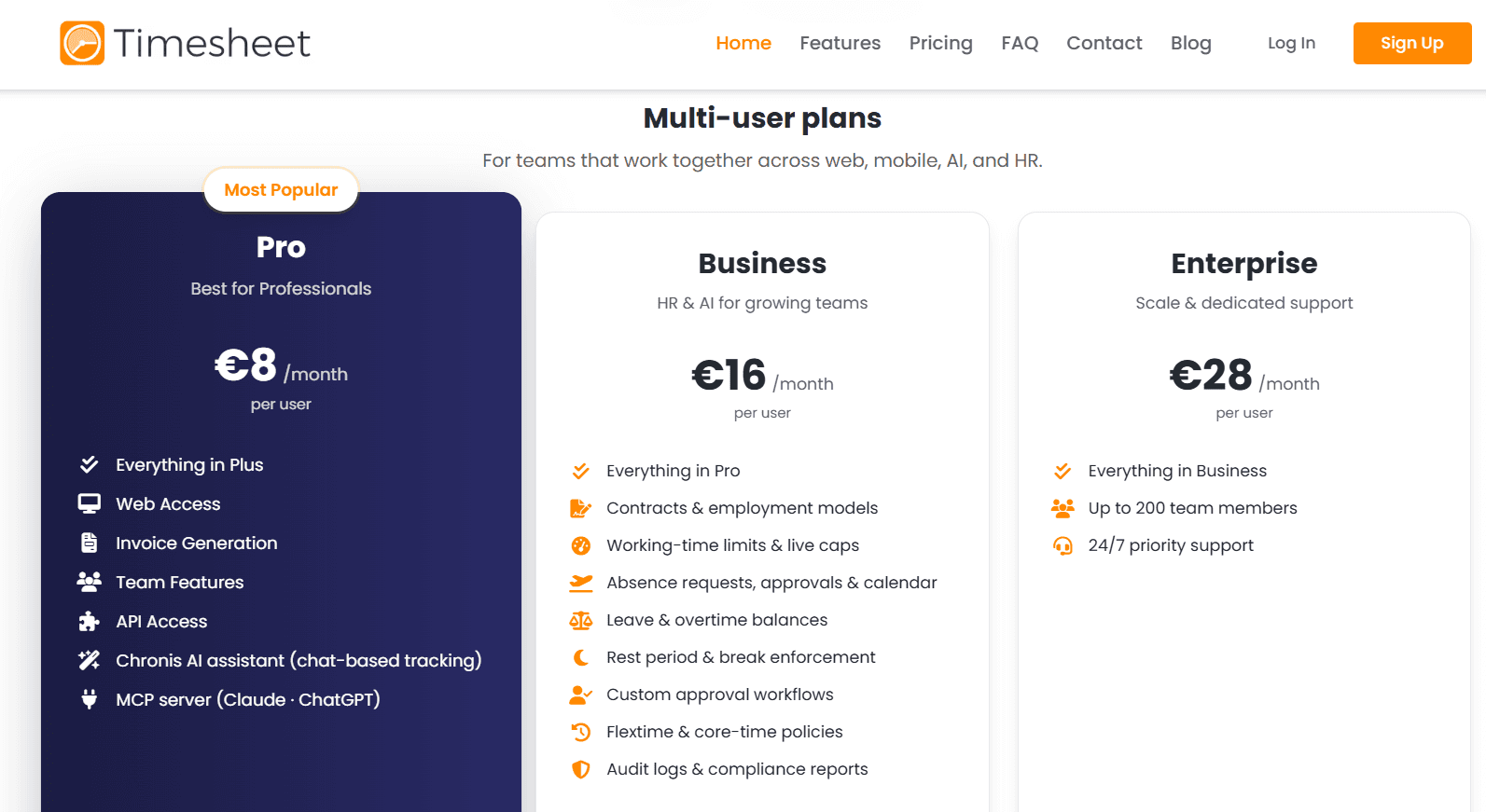
Pro ($10 per user per month): the first team plan, with web access, invoicing, API access, Chronis, and the MCP server.
Business ($20 per user per month): employment rules (contracts, working-time caps, rest and break enforcement, flextime and core-time), leave and overtime balances, absence requests, custom approvals, and audit logs with compliance reports.
Enterprise ($35 per user per month): 24/7 priority support for up to 200 team members.
Pros and cons
✅ A single user gets unlimited projects on Basic at no cost.
✅ For $5 a month, Plus adds cloud backup and real-time sync.
✅ Flextime and core-time policies can be set on Business.
✅ Paying yearly saves 10%.
❌ No free plan covers a team, since team features begin on Pro at $10 per user.
#6: Apploye
Best for: Teams of up to ten that want attendance logged automatically and payroll run from the same app, with more monitoring options as they grow.
Similar to: Hubstaff, Time Doctor.

Apploye's attendance records start without a button press, logging clock-in and clock-out automatically, and the free Starter plan covers up to 10 users.
I normally suggest moving to Elite once a team passes ten users or wants the Real Time Active View, and session recording is sold separately as an add-on.
Features

Clock-in through payroll: automatic clock-in and clock-out, leave management, timesheets generated for approval, pay rates for each member, and payroll runs, with client invoices built from tracked time.
Monitoring options: periodic screenshots, app and URL tracking, activity levels, a Real Time Active View on Elite, instant screenshots on Power, and full session recording as an add-on.
Reporting: activity analytics and custom reports from Elite, with AI report analysis listed as coming soon.
Pricing
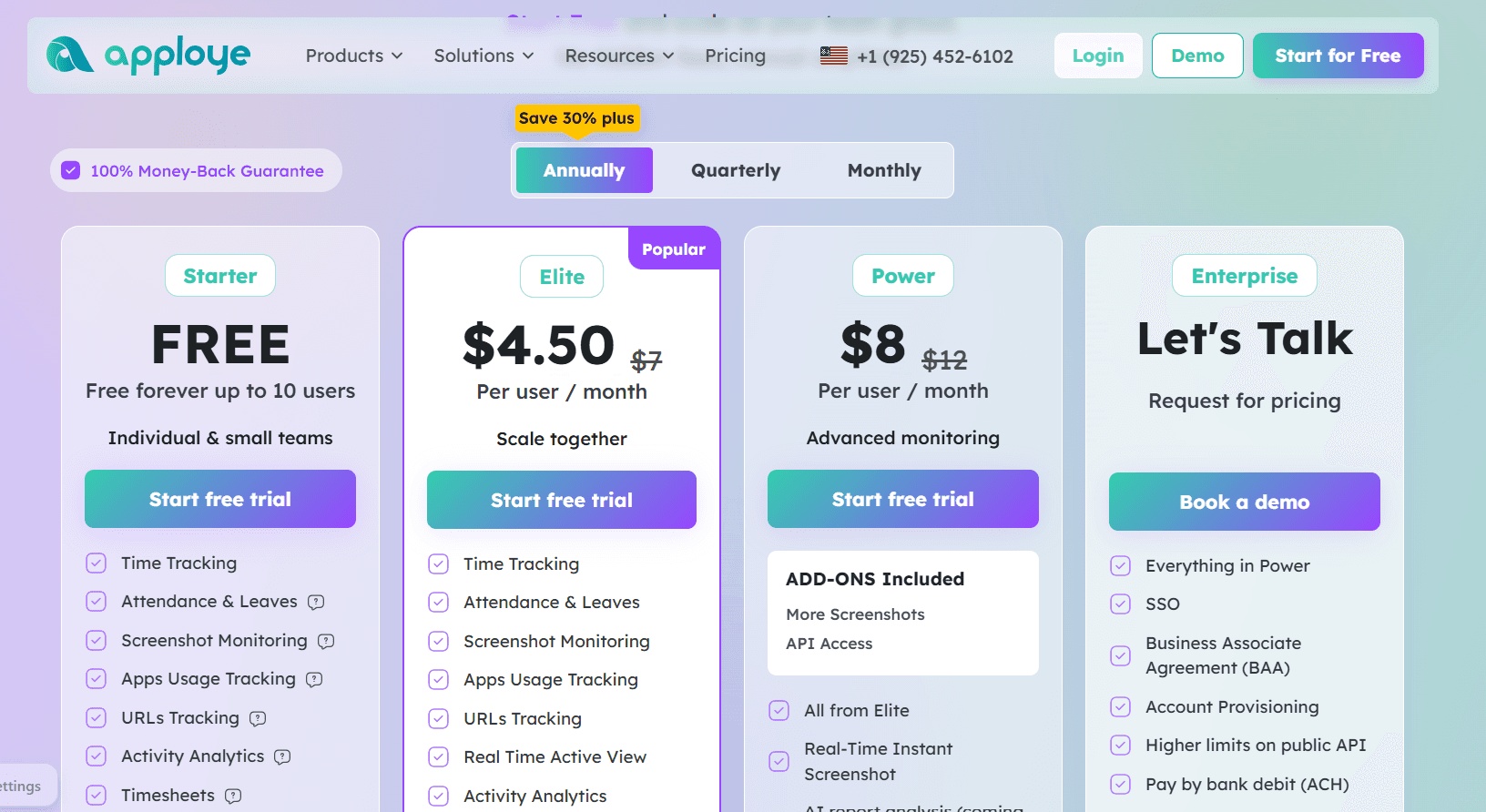
After the free Starter plan for up to 10 users, Apploye's Elite and Power plans cost $4.50 and $8 per user per month on annual billing, and Enterprise pricing is custom.
Starter ($0, up to 10 users): attendance and leave, payroll, invoicing for clients and projects, screenshots, app and URL tracking, activity analytics, and timesheets with approval.
Elite ($4.50 per user per month annually, listed down from $7): custom reports and integrations, plus the Real Time Active View and an option to switch screenshots off.
Power ($8 annually, listed down from $12): instant screenshots, with the More Screenshots and API Access add-ons bundled in, and an AI chatbot and AI report analysis that Apploye lists as coming soon.
Enterprise (custom): SSO and account provisioning, a Business Associate Agreement, ACH payment, raised API limits, and onboarding with dedicated support.
Add-ons (per user per month): $1 for API Access, $2 each for Stealth Mode or More Screenshots, $4 for Screen Recording, and $3 each for White Labelling or On Premise at 100-plus users, plus BigQuery at $1,000 per organization per month.
Pros and cons
✅ Apps cover Linux and Chrome as well as Mac, Windows, iOS, and Android.
✅ Organizations with 100 or more users can host Apploye on-premise through an add-on.
✅ Enterprise customers can pay by ACH and get higher API limits.
❌ AI report analysis and the AI chatbot are still marked as coming soon.
#7: Time Doctor
Best for: Operations managers who want each team's productivity compared with similar teams elsewhere, alongside attendance and payroll.
Similar to: Hubstaff, DeskTime.

Time Doctor's Standard plan puts schedules, attendance, leave and break tracking, and payroll next to web and app usage reports.
For a different kind of check from Jibble's identity verification, Time Doctor's Unusual Activity AI Report looks for mouse jigglers and keyboard simulators during the working day.
Features

Shift administration: schedules, attendance, break and leave tracking, time approvals, and payroll from Standard.
Usage reporting: time by app and website with productivity ratings you define, plus work-life balance metrics and real-time notifications.
AI reports: Benchmarks AI compares a team's productivity with AI-matched teams elsewhere, and the Unusual Activity AI Report studies keyboard and mouse input for jigglers and simulators.
Capture and evidence: automatic background tracking online and offline with screenshots from Basic, plus video screen recording on Premium.
Leadership views: an executive dashboard, Meeting Insights, Software Cost Insights, and the Office vs Remote report on Premium.
Pricing
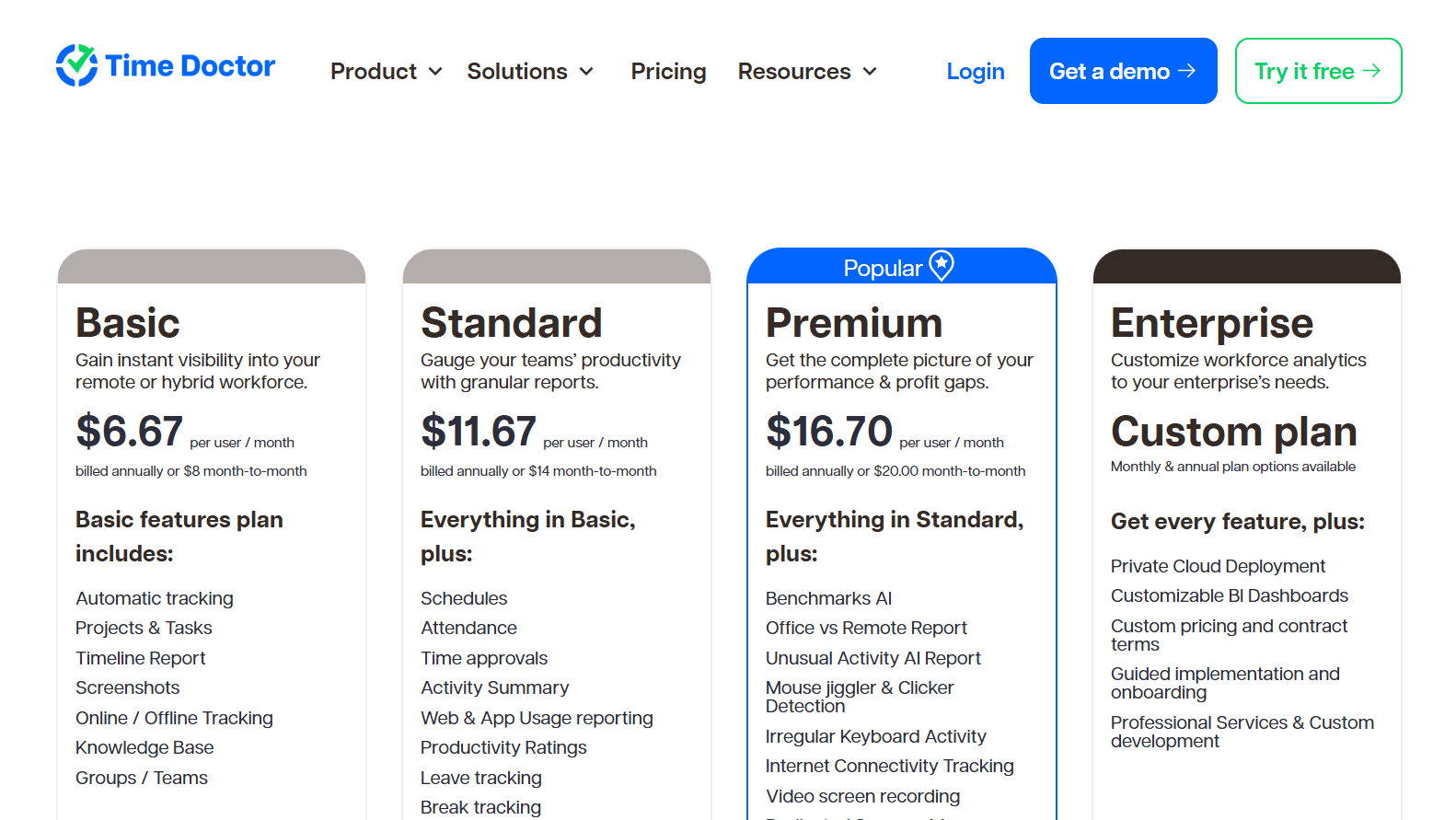
Time Doctor's published rates span $6.67 to $16.70 per user per month on annual billing, alongside a custom Enterprise plan and a menu of optional add-ons.
Basic ($6.67 per user per month annually, $8 monthly): background tracking that works online and offline, screenshots, projects and tasks, groups, and the timeline report.
Standard ($11.67 annually, $14 monthly): the attendance and payroll set (schedules, attendance, leave and break tracking, approvals, payroll), plus usage reports with productivity ratings, work-life balance metrics, real-time notifications, and 60-plus integrations.
Premium ($16.70 annually, $20 monthly): the AI reports (Benchmarks AI, Unusual Activity, Office vs Remote), video screen recording, an executive dashboard, Meeting Insights and Software Cost Insights, SSO, open API access, client login, and a dedicated success manager.
Enterprise (custom): private cloud deployment, BI dashboards that can be customized, guided implementation, and professional services.
Add-ons: $3 per user per month each for Benchmarks AI, Software Cost Insights, or Unusual Activity Reporting on the two lower plans, and $200 a month for each native HRIS or payroll integration.
Pros and cons
✅ Basic tracks offline as well as online.
✅ Standard connects to more than 60 integrations.
✅ Time Doctor can be deployed in a private cloud on Enterprise.
❌ Teams on Basic or Standard pay $3 per user for each analytics module, and the executive dashboard and Meeting Insights require Premium at $16.70.
#8: eMonitor
Best for: IT and operations teams that want lateness and absence reported against shift patterns, plus file-transfer alerts, on Windows, macOS, Linux, and Chromebook devices.
Similar to: Apploye, DeskTime.

eMonitor reports lateness and absence against each shift pattern, and in my view it's the one to shortlist when devices run a mix of Windows, macOS, Linux, and Chromebook.
DLP alerts begin on Professional, and eMonitor's DLP features cover USB blocking and monitoring of file transfers and cloud uploads.
Features

Attendance and shifts: automatic clock-in and clock-out records with lateness and absence reports, and multiple shift configurations from Professional.
Work activity: automatic timesheets, active and idle time, time per app, and apps and websites classified as productive or not for each role.
Screenshots and live view: captures on a schedule or when activity changes, with screenshot blurring and live view on Enterprise.
Visibility and rollout: managers limited to their own reports, an employee view of personal numbers, CSV, PDF, and BI exports, and deployment by MDM or a self-install link.
Pricing
eMonitor's annual prices start at $3.90 per user per month on Starter and reach $13.90 on Enterprise, with higher rates for quarterly billing.
Starter ($3.90 per user per month annually, $5.90 quarterly; up to 25 users): automatic attendance with a single shift configuration, interactive-mode tracking, app and website tracking with productivity classifications, monthly attendance and timesheet reports, 2 teams, and 7 days of data.
Professional ($6.90 annually, $10.90 quarterly): multiple shifts, late and productivity reports, silent tracking, screenshots at 2 per 10 minutes, apps and URLs usage reports, summary alerts, a configurable idle timeout, a week of detailed activity, 10 teams, and 90 days of data.
Enterprise ($13.90 annually, $22.90 quarterly): break time and shrinkage reports, real-time statuses and alerts, live video monitoring, suspicious and custom activity reports, screenshot blurring, Azure SSO, API access, 50 teams, retention set to your needs, a dedicated account manager, and phone support.
Pros and cons
✅ Late reports on Professional show who started a shift late.
✅ Break time and shrinkage get their own reports on Enterprise.
✅ Sign-in through Azure SSO comes with Enterprise.
✅ Data can be exported to a BI tool as well as to CSV and PDF.
❌ Starter caps at 25 users and two teams.
#9: DeskTime
Best for: Desk-based teams that want hours recorded from power-on and shift scheduling, with document title data showing what each hour went to.
Similar to: Apploye, eMonitor.

DeskTime starts recording the moment a computer powers on, so the employee never has to clock in.
DeskTime Premium adds shift scheduling, and an absence calendar records time off.
Features

Power-on tracking: recording that begins at startup, idle detection, meeting and video call tracking, and a way to add offline time.
What was open: document titles and email subject lines as well as apps and URLs, each classed as productive or unproductive and rolled into per-person and per-team scores.
Daily write-ups: an AI Summary of each day's activity drawn from the tracked data.
Shifts and absences: shift scheduling on Premium and an absence calendar, with time logged against projects and tasks.
Proof and security: encryption at rest and in transit, 2FA, ISO 27001 and ISO 27701 certification, and screenshots on Premium and above.
Pricing
Two DeskTime plans carry a published price, $6.42 for Pro and $9.17 for Premium per user per month billed annually before VAT, and Enterprise starts at 200 users with a custom quote.
Pro ($6.42 per user per month annually): productivity calculations, tracking of document titles, and calendar integrations with Google and Outlook.
Premium ($9.17 annually): shift scheduling and screenshots, plus the API and integrations such as Jira, Asana, and Zapier.
Enterprise (custom, 200-plus users): training for employees, an account manager, and a custom API when requested.

Annual billing includes one month free, and the 14-day trial asks for no credit card.
Pros and cons
✅ Idle detection runs alongside power-on tracking.
✅ Pro connects to Google and Outlook calendars.
✅ Productivity scores are calculated for each person and each team.
❌ Pro teams go without shift scheduling until they move up to Premium at $9.17.
#10: Everhour
Best for: Teams whose work is organized in project tools and who want leave and approvals handled beside the task timer.
Similar to: Clockify, TimeCamp.

Everhour records project time from inside the tools where tasks are managed, adding a Start Timer button in Asana, ClickUp, Jira, Monday, and six other project and development tools.
The platform is worth a look if your team already plans its work in one of those tools, since leave accrual and locked timesheet approvals come with the same subscription.
Features

Project-tool timers: time recorded at task level inside Asana, Basecamp, ClickUp, GitHub, Jira, Linear, Monday, Notion, Trello, and Wrike, with each task showing its estimate against the actual.
Leave and approvals: time off that accrues automatically and is approved in Everhour, with timesheets locked once approved.
Budget controls: money or time budgets on each project, with email alerts at the thresholds you pick, a monthly reset for recurring work, and timers that stop once the budget is used up.
Invoices and records: invoices grouped by member, project, and period for Xero or QuickBooks with payment status tracked, and time data stored apart from the project tool's fields.
Pricing
Everhour charges nothing for up to five seats and $8.50 per seat per month, billed yearly, on Team, with Custom quotes from 50 seats.
Free ($0, up to 5 seats): time tracking on projects and tasks, reports, data export, and 14 days of access to every paid feature.
Team ($8.50 per seat per month billed yearly, five-seat minimum): every paid feature, SSO and advanced permissions among them, plus the native integrations, budgets, and invoicing.
Custom (quoted from 50 seats): a dedicated manager, priority support, volume discounts, and personalized demos.

Pros and cons
✅ Data can be exported on the free plan.
✅ Budgets reset monthly for recurring work.
✅ Payment status is tracked on invoices sent to Xero or QuickBooks.
✅ Custom customers get priority support and a dedicated manager.
❌ Team is the only published paid plan, with no lower-priced step between Free and $8.50 per seat.
How much do Jibble alternatives cost by team size?
Jibble's core plan costs $0 a month at 10, 25, 50, or 100 users, and TimeCamp is the only alternative here whose free plan matches that at every size.
I priced each tool at the lowest published plan that admits the whole team, with annual billing applied whenever the vendor publishes an annual rate.
Free plans count where their user limit allows, though their features differ from Jibble's.
Tool | 10 users | 25 users | 50 users | 100 users | How it's priced |
Jibble (reference) | $0 | $0 | $0 | $0 | Core plan free for unlimited users; paid upgrades priced in-app |
Reflow | Quote | Quote | Quote | Quote | Quoted after a demo, based on headcount and the workflows in scope |
TimeCamp | $0 | $0 | $0 | $0 | Free plan with no user cap; the AI tracker is billed by tokens used |
Clockify | $39.90 | $99.75 | $199.50 | $399 | Basic at $3.99 per seat, the first plan with the Kiosk |
Hubstaff | $49.90 | $124.75 | $249.50 | $499 | Starter at $4.99 per seat, two-seat minimum |
Timesheet | $100 | $250 | $500 | $1,000 | Pro at $10 per user, before the 10% yearly saving |
Apploye | $0 | $112.50 | $225 | $450 | Free Starter up to 10 users, then Elite at $4.50 per user |
Time Doctor | $66.70 | $166.75 | $333.50 | $667 | Basic at $6.67 per user |
eMonitor | $39 | $97.50 | $345 | $690 | Starter at $3.90 up to 25 users, then Professional at $6.90 |
DeskTime | $64.20 | $160.50 | $321 | $642 | Pro at $6.42 per user, before VAT |
Everhour | $85 | $212.50 | $425 | $850 | Team at $8.50 per seat; Custom quotes from 50 seats |
Clockify and Everhour start charging from the sixth user, and Apploye's free Starter plan still covers a team of 10.
eMonitor is the lowest-priced paid option at 10 and 25 users, and Clockify takes over at 50 and 100 because eMonitor's Starter plan stops at 25 users. If you need a paid plan past 25 users, Clockify's Basic is the one I'd price first.
Timesheet comes out highest at every size here, since its $10 Pro plan is the first one built for teams. Reflow is left out of the totals because its price is quoted after a demo.
When should you stay with Jibble?
I'd stay with Jibble if the record you care about is who clocked in and from where, particularly for crews on job sites or shared devices.
Four situations favor staying put:
Buddy punching is a real risk on your sites, which Jibble's Face Recognition and Selfie Capture are designed to stop.
Some crews clock in where there's no internet connection. Jibble's Offline Mode syncs those entries once a connection is back.
Overtime is paid at different rates for daily, rest day, double, weekly, and public holiday hours, and you need each rate set in the tool that tracks time.
Staff already clock in from Slack or Microsoft Teams and expect leave balances to show up in their timesheets.
How does Reflow protect employee privacy?
Reflow protects employee privacy by collecting only the operational signals needed to understand workflows, and by default it gathers no personal content or anything unrelated to how the work gets done.
Built to show how systems and workflows run, Reflow is not employee surveillance software.
Organizations still set the boundaries, because Reflow gives them control over how the data is used and who can see it.
Before a rollout, I'd recommend agreeing those boundaries with team leads so staff know what is collected.
Configurable collection: each organization decides which metadata Reflow collects, and the agent doesn't record everything an employee does.
Aggregated or anonymized views: leaders can review the data in aggregated or anonymized form, with visibility controls set by the organization.
Encryption and access limits: data is encrypted in transit and at rest, and strict permissions govern who can open it.
Compliance and storage: SOC 2 Type 2, HIPAA, GDPR, and CPRA/CCPA compliance, with local data storage and secure data processing.
Run Reflow beside Jibble
Based on my experience, it's ideal to start a Reflow trial with Jibble still handling clock-ins and payroll, and with Reflow mapping a single high-volume, computer-based process.
Pick one repeatable process the team runs at volume, such as subscription cancellations or invoice correction & reissue.
Setup is done by Reflow's team, and capture begins on the team's computers without connecting any of your tools.
Jibble carries on with clock-ins and payroll for the whole team.
Reflow's readout for that process covers runs, timings, deviation, and potential savings, and names the steps worth automating.
With both datasets covering the same weeks, you'll want to compare Jibble's tracked hours with Reflow's readout before choosing the first process to automate.
➡️ Book a demo to see your own workflows mapped, or read how Collective reached $3.1M in annual cost savings.
⚠️ Disclaimer: This article was last updated on October 20, 2026. If you spot any inaccuracies, contact us, and we'll fact-check it.
FAQs
Which is better, Reflow or Jibble?
Reflow is the better fit for enterprise operations teams that want to measure how computer-based workflows run and which steps to automate. Jibble is built for clock-in and attendance.
Jibble costs nothing on its core plan at any headcount and can confirm who clocked in and from where, which Reflow doesn't do.
Reflow captures work through an agent on Mac and Windows with no manual entry and measures each workflow, including the return after an automation goes live.
My recommendation is to run the two side by side, with Jibble handling clock-ins and payroll hours and Reflow measuring workflows.
Which is better, Clockify or Jibble?
For a team that needs every user on a free plan, Jibble is the better pick, and Clockify makes more sense once you're ready to pay a few dollars per seat for attendance and GPS tracking.
Clockify's free plan stops at five users, and its Kiosk starts on Basic at $3.99 per seat on annual billing. Attendance and time off are on Standard at $5.49, and GPS tracking and scheduling are on Pro at $7.99.
Which is better, TimeCamp or Jibble?
TimeCamp and Jibble both offer free plans with no user cap, so the choice depends on how hours should be captured.
Jibble records clock-ins and can confirm identity and location. TimeCamp's AI Time Tracking Agent works from app and website activity, with the AI tracker billed by tokens used.
TimeCamp adds attendance and overtime tracking on Starter at $2.99 per user on annual billing.
What is the best free Jibble alternative?
TimeCamp is the best free Jibble alternative, because its free plan, like Jibble's, has no limit on users.
Apploye is free for up to 10 users with payroll on the free plan, and Clockify and Everhour each cover five users at no cost. Reflow doesn't publish a free plan or a price list.
What is the best Jibble alternative for field teams?
Hubstaff is the best Jibble alternative for field teams that want GPS tracking and payroll in one tool, and I'd point smaller mobile teams to Timesheet, whose timer can start from a geofence or an NFC tag.
Clockify also offers GPS tracking, on its Pro plan at $7.99 per seat. Because Reflow captures work on Mac and Windows computers, it suits computer-based operations work more than field crews.
What is the best Jibble alternative for enterprise operations teams?
Reflow is the best Jibble alternative for enterprise operations teams doing repeatable, computer-based work at volume in functions such as customer support, accounting, tax, legal, and compliance.
Our platform’s agent records work with no timers or manual entry, and the platform checks each run against its SOP and measures the return on every automation after launch.
See Reflow in action
A short demo, tailored to your operations.