This guide ranks the 10 best TimeCamp alternatives in 2026, with which buyer each tool fits best and its current prices.
TL;DR
Reflow offers the best TimeCamp alternative for operations teams whose tracker reports hours but can't show how each workflow runs or what to automate. Our native Mac and Windows agent captures work time and productivity with no manual entry. From that data, Reflow maps workflows step by step and later measures the payback on each automation it recommended.
Timely comes closest to TimeCamp's AI Timesheets: AutoSheet prepares a draft from a private Memory timeline, and the person approves it.
DeskTime starts tracking at power-on and grades activity for productivity down to individual document titles.
Time Doctor puts a team's productivity figures next to sector benchmarks through Benchmarks AI, with payroll available from its Standard plan.
For monitoring combined with payroll, Apploye is free for up to 10 users, while Hubstaff pays approved hours out in several currencies.
Clockify and Toggl Track start with a free plan and a timer: Clockify's paid ladder climbs in small steps; Toggl Track publishes a stance against screenshots.
Billable project teams have Everhour, which works inside Jira, Asana, ClickUp, and similar tools, and Harvest, which follows hours through to the client's payment.
What are the best TimeCamp alternatives in 2026?
Reflow is the best TimeCamp alternative in 2026 when an operations team needs automatic workforce and workflow intelligence, with no one entering time by hand.
For AI-drafted timesheets, the nearest match is Timely, and for tracking that begins at power-on, it's DeskTime.
Here’s the full ranking, with each tool's main use and entry price:
Tool | Use case | Price |
Reflow | Automatic capture by agent, step-by-step workflow maps, ranked automation opportunities, and ROI tracked after launch. No integrations and no manual entry. | Not published; quoted after a demo. |
Timely | AI-drafted timesheets (AutoSheet) built from a private Memory timeline. | Starts at $9/user/month on yearly billing. |
DeskTime | Hands-off tracking from power-on, with productivity scores down to document titles. | Starts at $6.42/user/month on annual billing, before VAT. |
Time Doctor | Background tracking with sector benchmarks, screenshots, and payroll from Standard. | Starts at $6.67/user/month on annual billing. |
Apploye | Screenshots and optional session recording, plus payroll and client invoicing. | $0 for up to 10 users; paid plans start at $4.50/user/month (annual). |
Hubstaff | Timer or GPS tracking, monitoring set per team, and payouts via Deel, PayPal, Wise, or Payoneer. | Starts at $4.99/seat/month, two-seat minimum. |
Clockify | A free plan with four recording methods and a low-priced paid ladder up to SSO. | $0 for up to 5 users; paid seats start at $3.99/month (annual). |
Toggl Track | A quick timer, Calendar View, and a public stance against screenshots. | Free plan available; paid licenses start at $9/month. |
Everhour | Tracking and budget controls inside the PM tool (Jira, Asana, Linear, ClickUp, and others). | $0 for up to 5 seats; Team plan $8.50/seat/month on yearly billing, minimum 5 seats. |
Harvest | Automatic rate selection, retainers, and invoices clients pay directly. | $0 for 1 seat; Teams starts at $9/seat/month (annual). |
How were these TimeCamp alternatives evaluated?
Three tests set the lineup:
It must record time on its own: through a timer, a background tracker, or an agent. Tools that only report on another product's timesheet didn't qualify.
It must cover a job TimeCamp is bought for: AI timesheets, billable project time and budgets, activity capture, or measuring where operational hours go.
It must suit the TimeCamp buyer: service firms and operations teams tracking work at team scale. Frontline clock-in tools such as Jibble and device-fleet monitoring such as eMonitor were left out despite some feature overlap.
➡️ A note on order: tools that build the record from observed work rank above timer-first tools, and ties go to the one covering more of TimeCamp's jobs.
#1: Reflow
Reflow is the best TimeCamp alternative in 2026 when an enterprise operations team already logs hours against projects and now needs to see how the processes behind them run.
Our workforce and workflow intelligence platform covers the metrics a time tracker covers, from work, active, and session time to productive time and productivity trends by team, and a person never keys in any of them.
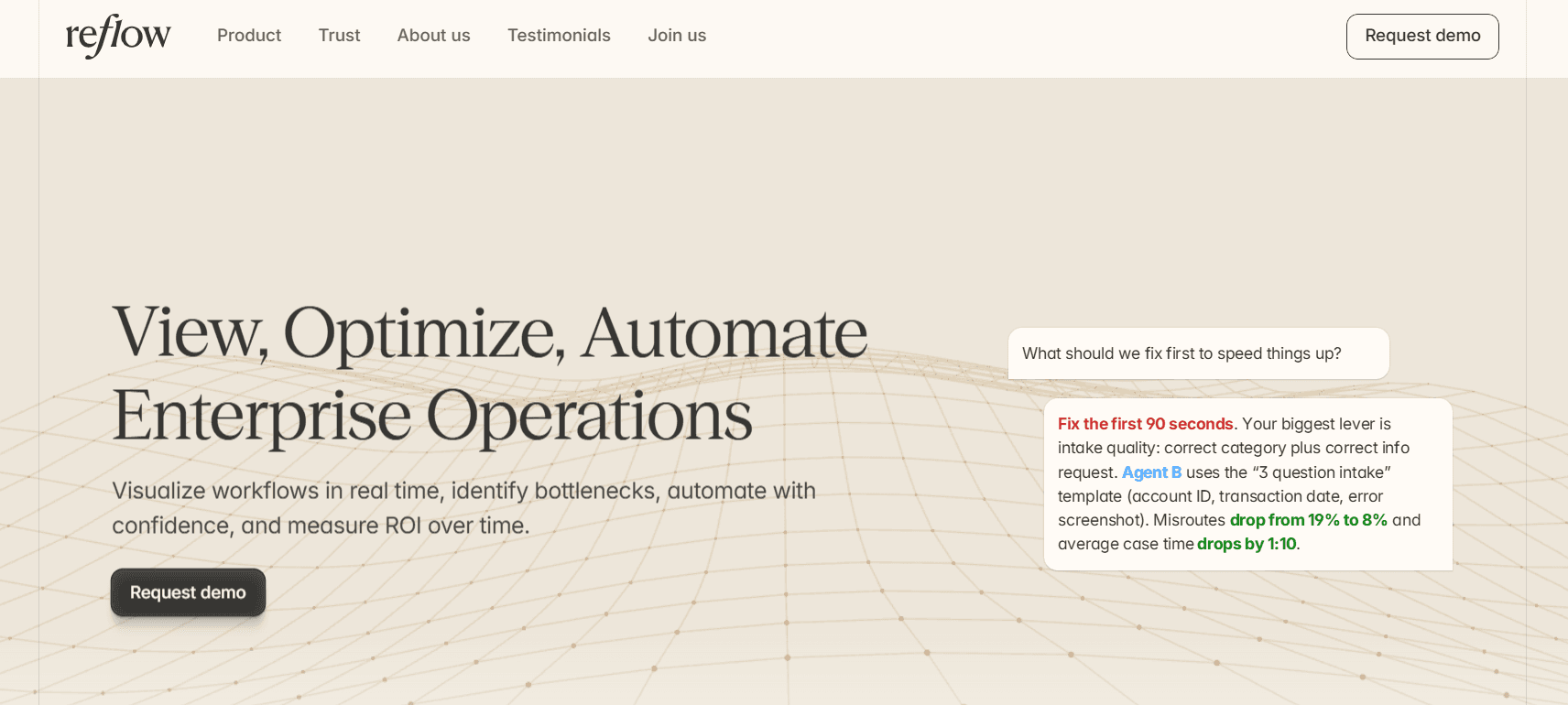
Beyond that base, Reflow gives every process a readout that an hours-based timesheet can't produce:
Run count for the period.
Average time per run.
Average deviation per run.
Hours a month that automation could recover.
Disclosure: Reflow is our platform, and this section argues for ranking it first. It's equally specific about the jobs we leave to other tools.
Operational work is observed as it happens, with each step captured in order, including the ones that were skipped, repeated, or delayed.
A native Mac and Windows agent handles capture and machine learning handles classification, so the first readout doesn't wait on an integration project.
Note: Reflow isn't traditional employee surveillance software. It doesn't capture personal content or log everything a person does, and what it collects is configurable.
Five capabilities explain the top ranking:
Step-by-step workflow maps, including unlogged steps
Each workflow step is logged in the order it happened and given its own time, with delayed, skipped, and repeated steps included.
Invoice correction and reissue makes a good test for a team coming from TimeCamp.
A timesheet will show roughly 206 hours logged against invoice corrections, but not how long a typical correction took or where the variation came from.
In Reflow's sample readout, the same process shows 2,320 runs. The average run takes 5 minutes 20 seconds, deviation averages 1 minute 55 seconds per run, and potential savings come to 65.4 hours a month.
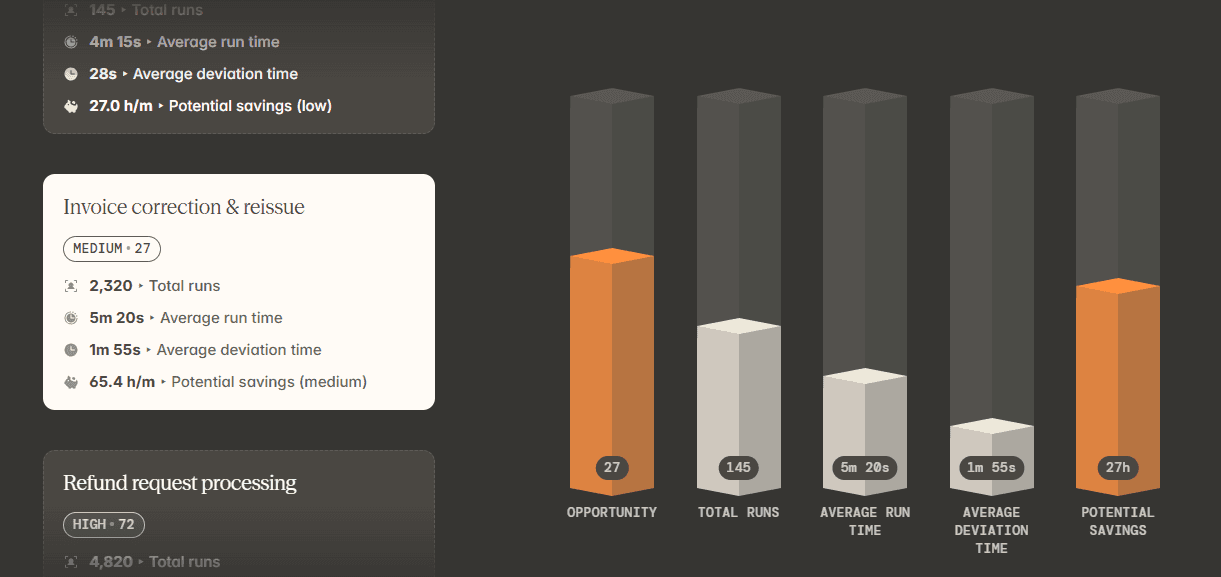
The hours figure proves the cost exists, and the readout points to the step where it accumulates.
The cost of a single case
Reflow allocates operational time to customers, tasks, and projects, turning a total of hours into the cost of one case.
In a sample readout, subscription cancellations show 3,608 runs at 7 minutes 15 seconds each, with 1 minute 35 seconds of average deviation.

Multiplying the run time by the loaded hourly cost of whoever handles cancellations gives finance the cost of one.
A decision to spend on automating that process depends on the per-case number, which is a level below any project margin report.
SOP adherence, checked on every run
Each run is held against the steps its SOP lays out, and any drift appears in live data before the work is finished.

For invoice corrections, that could mean flagging reissues sent without the approval step while the team can still fix the record.
Team leads also use the comparison to see whether the written SOP still reflects how the team works.
Automation opportunities, ranked and then measured
Every workflow gets an automation-opportunity ranking, and Reflow names the steps worth automating.

Measurement continues after the change, so the return is observed from live data.
Let’s go over an example Reflow recommendation:
Workflow: Refund Requests SOP.
Finding: 52% of the workflow's time goes to repeatable steps, such as lookups, copy-paste, and updates across several systems.
Recommendation: automate "lookup + populate + update."
Projected result: 25 seconds for the automated steps, 1 minute 40 seconds saved on each case, and no more missed-field errors.
After launch, Reflow keeps reporting on the same workflow, and an operations lead can check what improved and what didn't before picking the next workflow.
Our platform can also run the automation itself, so the system that found the opportunity carries it out.
💡 Data is encrypted at rest and in transit to industry-leading standards, access is tightly permissioned, and collection is privacy-first by design. The Trust Centre documents Reflow's security and compliance setup.
Capture with no timer and no timesheet
Capture happens through Reflow's native Mac and Windows agent, one interaction at a time, and machine learning labels each interaction by project and work type and marks it productive or not.
Manual entry is disallowed everywhere in the system, so there's no start button to forget and no afternoon to rebuild from memory.
Task mining for the workflow layer runs on the same agent, and any classification needing judgment goes to a person.
That base layer, workforce intelligence, gives workforce managers:
Headcount and working patterns.
Average work, active, and session time.
Productive time.
Where productivity is heading.

Workflow intelligence and workflow automation are built on that same dataset.
How is Reflow different from TimeCamp?
Reflow ends in a decision about what to automate, backed by the return measured afterwards, and TimeCamp ends in a billing-ready record, meaning approved timesheets, invoices, and margin reports by project and client.
Our workflow intelligence platform was built for another question: which parts of an operational process should move to automation, and answering it means seeing inside the process first. We model that as a pyramid:
Workforce intelligence forms the base. Optimizing on a picture of the team that doesn't match reality is filling a leaky bucket.
Workflow intelligence, one layer up, maps a process as it runs, including SOP departures, the points where people get blocked, and where errors enter.
Workflow automation comes last, paying off once the two layers underneath are working.
On the base layer, a time and billing platform like TimeCamp offers far more billing depth than Reflow does. Reflow spans all three layers on a single dataset.
Here’s how the two products compare side by side:
TimeCamp | Reflow | |
Primary output | Timesheets approved for payroll and billing, feeding budget, margin, and productivity reports | A readout for each workflow showing how often it ran, typical run time and deviation, and hours automation could recover each month |
How capture works | A timer, keyword-based automatic tracking, and the AI Time Tracker (TIC), which suggests entries from apps, websites, documents, and calendar events | Reflow's native Mac and Windows agent records each interaction for machine learning to classify |
Role of the person being tracked | Reviews and approves the AI's suggestions; TimeCamp learns from each correction | None; manual entry is disallowed throughout the system |
Privacy model | AI Time Tracker data stays on the user's device unless they share it, screenshots are processed locally and deleted, and Private time is available from Premium | Configurable collection, with aggregated or anonymized views |
Unit of measurement | Hours logged to clients, projects, and tasks | Every workflow step in order, skipped and repeated steps included |
Process control | Timesheet approvals, mandatory tags, and time entry history on Ultimate; audit log on Enterprise | Each run checked against its SOP, with drift surfaced as it happens |
Guidance and alerts | TIC flags anomalies such as logged time below an estimate or an entry that looks misassigned | A ranked list of automation opportunities naming the steps involved, with the return tracked after launch |
Billing and invoicing | Billable time, billing rates, invoicing, fixed-fee projects, labor costs, and budgeting alerts | Outside Reflow's scope |
Integrations | 80-plus tools including Jira and Trello, a developer API, and Power BI, data warehouse, and BigQuery access on Enterprise | Not needed; Reflow's agent observes work across systems with no connections to set up |
Platforms | Web; AI Time Tracker for macOS and Windows; desktop apps for Windows, macOS, and Linux; iOS and Android; Chrome and Edge extensions | Mac and Windows, through Reflow's native agent |
Time to first data | Right away; TIC runs even before sign-up | A few days, once white-glove setup is complete |
Security and compliance | GDPR compliant, 2FA on every plan, SSO on Ultimate, self-hosted or private cloud deployment on Enterprise | Encryption at rest and in transit; SOC 2 Type 2, GDPR, HIPAA, and CPRA/CCPA |
Trying it | Free plan with no user cap, and a free 14-day trial with no card required | A trial run in parallel with the current tracker |
Reflow pricing
We at Reflow haven’t published a price list that you can compare with other solutions.
You’ll have to request a demo, and we'll come back to you with pricing built around your headcount and the processes you want mapped.
💡 Setup is white-glove, with our team doing the configuration and needing very little from yours, and the trial can run alongside TimeCamp so both datasets can be compared.
Reflow pros and cons
✅ Nothing is keyed in by hand: the Mac and Windows agent captures everything, and the system accepts no manual time entries.
✅ Workflows are recorded step by step, with skipped, repeated, and delayed steps included.
✅ Each process reports its runs, typical duration and deviation, and the hours automation could recover each month.
✅ Every run is compared with its SOP, so drift shows up before the work is closed.
✅ Each automation recommendation points to named steps, and Reflow tracks the result once it's live.
✅ No integrations or engineering resources are needed, configuration is white-glove, and the trial can run alongside TimeCamp.
✅ GDPR, HIPAA, CPRA/CCPA, and SOC 2 Type 2 compliance, plus aggregated or anonymized views and configurable collection.
❌ Client invoicing and resource planning aren't part of Reflow, so billable-hours work stays in a tool like TimeCamp.
❌ Pricing isn't published.
#2: Timely
Best for: Hourly-billing agencies and consultancies where staff approve AI-drafted timesheets and screenshots are off the table.
Similar to: Toggl Track, DeskTime.

For a TimeCamp team that relies mainly on AI Timesheets, Timely offers the most familiar routine on this list: AutoSheet drafts each timesheet from a private Memory timeline, and managers see nothing until its owner approves it.
Timely features
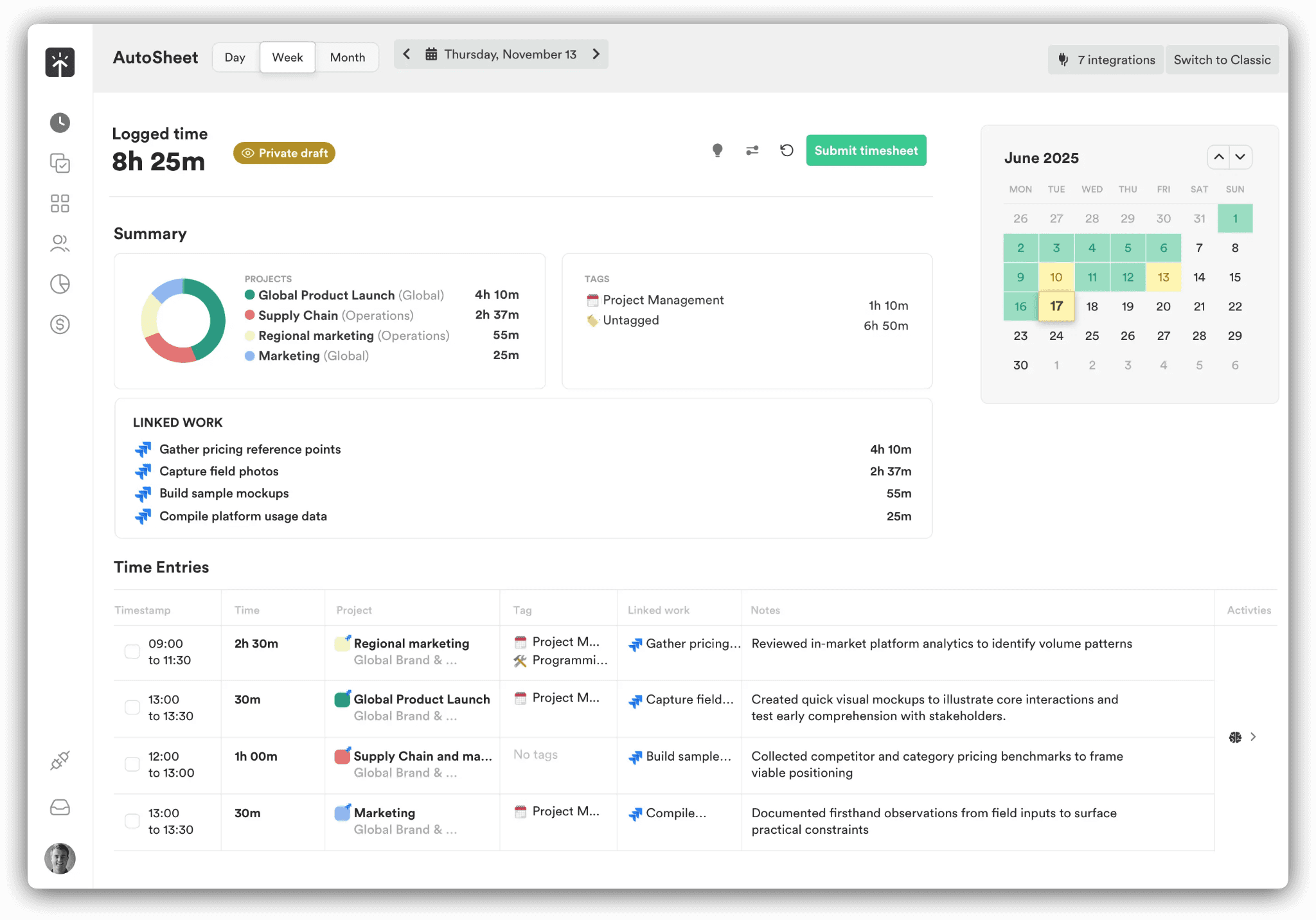
For the person tracking: the Memory tracker records app and website use in the background, and AutoSheet sorts it into projects and clients as a draft. By Timely's figure, finishing a timesheet takes under two minutes, and nothing is shared before approval.
For team leads: the People dashboard flags anyone over capacity or building up overtime and shows the billable share of each week.
For finance: margin inputs (cost rates tracked with billable rates), project budgets that recur and alert at milestones, and period locking on higher tiers.
For planning: planned time, with capacity management and reporting on the Unlimited plan.
How much does Timely cost?
A Timely seat cost $9 to $22 a month on yearly billing in September 2026, according to Timely's pricing page, and the price rises as user and project limits lift.
Starter, $9 yearly or $11 monthly: capped at 5 users and 20 projects. Starter includes the API, project health monitoring, and billable-hours reporting on top of automatic tracking and AI categorization.
Premium, $16 yearly or $20 monthly: up to 50 users and unlimited projects. Planning, budgets and costs, and team management become available, and project management and accounting tools can sync with Timely.
Unlimited, $22 yearly or $28 monthly: no user limit, plus premium customer success, Azure user management, and more than 50 currencies. Capacity management and reporting, with overtime and undertime, also belong to this plan.
Enterprise, via sales: Timely's team runs a review with the customer each month or quarter, support is prioritized, and tailored onboarding and team training are included.
Tasks add-on, from $5 per person: deliverable assignment and scheduling, with progress tracking, on any plan.

Timely pros and cons
✅ The approval step belongs to the person whose time it is, which suits teams with strong privacy expectations.
✅ Margin can be read per project, since cost rates are stored against billable rates.
✅ Timesheet admin shrinks to reviewing a draft AutoSheet has already prepared.
❌ A team of six, or one opening a 21st project, has outgrown Starter and pays Premium's $16 rate.
#3: DeskTime
Best for: Managers who need productivity data at document-title level from a tracker employees never have to start.
Similar to: Time Doctor, Timely.

DeskTime starts tracking at power-on with nothing for employees to do, and throughout the day it classifies activity, down to individual document titles, as productive or unproductive.
DeskTime features

What gets recorded: app and URL use, document titles including email subject lines, meetings and video calls (so call time isn't marked idle), and offline time added by hand.
How it's judged: productivity scores per person and per team, plus idle detection. An AI Summary writes up each day from the tracked data.
Planning tools: an absence calendar and time logged to projects and tasks, with shift scheduling on Premium.
Security: 2FA on accounts, with DeskTime's handling of data (encrypted at rest and in transit) covered by ISO 27001 and ISO 27701 certification.
How much does DeskTime cost?
DeskTime lists Pro at $6.42 and Premium at $9.17 per user per month, billed annually and excluding VAT. Enterprise is quoted for teams of 200 or more:
Pro, $6.42: aimed at small teams and startups, with Google and Outlook calendar integrations next to document-title tracking and productivity calculations.
Premium, $9.17: screenshots, shift scheduling, and the API, plus integrations including Jira, Asana, and Zapier.
Enterprise, custom (200+ users): an account manager and employee training, with a custom API available on request.

Annual plans include a free month, and the 14-day trial asks for no card.
DeskTime pros and cons
✅ Employees have no daily routine to follow, which removes the gaps left by forgotten timers.
✅ Calls count as work, thanks to meeting and video tracking.
✅ The AI Summary gives managers a short written recap of each day's activity.
❌ Pro leaves out screenshots, the API, and the Jira and Asana integrations; each needs Premium at $9.17 per user.
#4: Time Doctor
Best for: Contact centers, BPOs, and distributed teams reporting productivity against industry peers, with screenshots available for teams that need them.
Similar to: Apploye, DeskTime.

Time Doctor calls its category workforce analytics, and most of the product is reporting built on automatic background tracking.
Managers read that data through productivity ratings and app and website usage, with an executive dashboard added on the Premium plan.
Time Doctor features

For operations leads: web and app usage grouped by application and website and rated against productivity categories the company defines.
For benchmarking: Benchmarks AI compares a team's productivity with AI-matched benchmarks drawn from similar teams, giving industry context for a number. Premium includes it, and Basic and Standard can add it for $3.
For data integrity: the Unusual Activity AI Report analyzes keyboard and mouse patterns to flag input from devices such as mouse jigglers and keyboard simulators.
For workforce management: from Standard, Time Doctor runs payroll and approves time, and it tracks attendance, schedules, leave, and breaks. Native HRIS and payroll integrations cost extra.
For privacy: screenshots can be blurred, and manual time entry is available.
How much does Time Doctor cost?
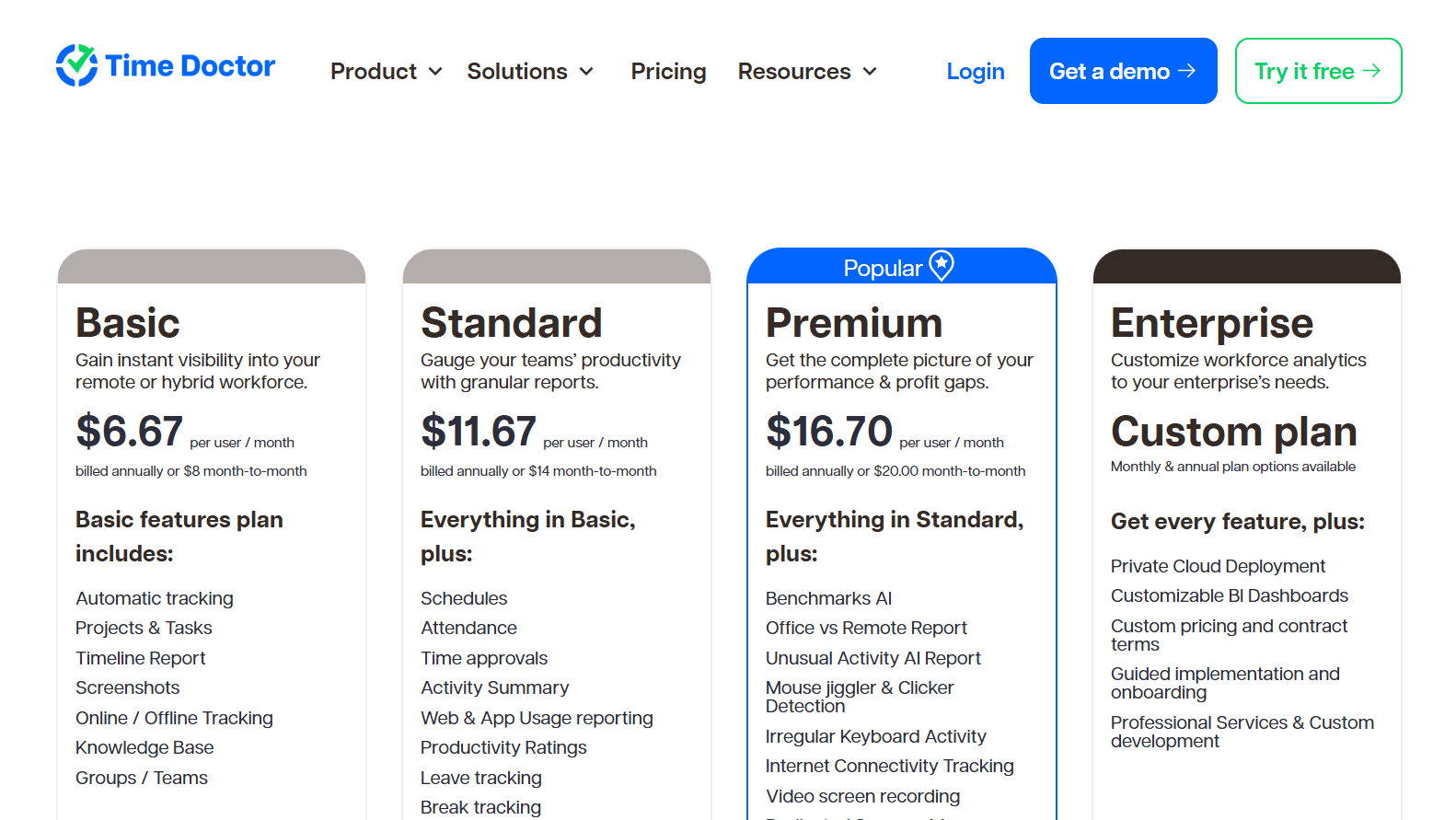
Time Doctor's published rates span $6.67 to $16.70 per user per month on annual billing, alongside a custom Enterprise plan and a menu of optional add-ons.
Basic ($6.67; $8 monthly): groups, projects and tasks, the timeline report, screenshots, and automatic tracking that works online or offline.
Standard ($11.67; $14 monthly): workforce management arrives, with attendance, payroll, schedules, time approvals, and leave and break tracking. Reporting grows to productivity ratings, web and app usage, work-life balance metrics, and real-time notifications, and the integration count passes 60.
Premium ($16.70; $20 monthly): SSO, open API access, client login, and a dedicated success manager, plus the complete analytics suite of Benchmarks AI, the executive dashboard, Meeting Insights, Software Cost Insights, video screen recording, and the Unusual Activity AI and Office vs Remote reports.
Enterprise (custom): professional services and guided implementation, with private cloud deployment and BI dashboards the customer can configure.
Add-ons: three analytics modules are sold individually to Basic and Standard customers for $3 a user each month (Benchmarks AI, Software Cost Insights, and Unusual Activity Reporting). Each native HRIS or payroll connection is $200 monthly.
Time Doctor pros and cons
✅ Input from mouse jigglers and keyboard simulators gets flagged, protecting the integrity of productivity data.
✅ A Standard customer can buy only the analytics module it needs for $3 a user.
✅ Private cloud deployment is on offer for organizations with hosting requirements.
❌ Teams on Basic or Standard pay $3 per user for each analytics module, and the executive dashboard and Meeting Insights require Premium at $16.70.
#5: Apploye
Best for: Small, cost-sensitive remote teams where payroll, client invoicing, and screenshot-level monitoring all need to come from one tool.
Similar to: Time Doctor, eMonitor.

Apploye's free plan is unusually full, giving up to 10 users screenshots, app and URL tracking, timesheets, payroll, and client invoicing at no cost.
Monitoring deepens on paid plans, with Real Time Active View on Elite and full session recording as an add-on.
Apploye features

Where Apploye runs: apps for Windows, Mac, Linux, Android, iOS, and Chrome. Stealth Mode is a paid option, as are white labelling and on-premise hosting for teams of 100 or more. Apploye is GDPR and HIPAA compliant.
Pay and invoicing: each member's pay rate drives payroll, and invoices for clients come straight from tracked hours.
Attendance: clock-in and clock-out happen automatically. Alongside timers and leave management, Apploye generates timesheets automatically and routes them for approval.
Visibility: activity levels, app and URL tracking, periodic screenshots that can be switched to optional, instant screenshots (Power plan), Real Time Active View, and full session recording as an add-on. Elite brings custom reports, and AI analysis of reports is listed for a future release.
How much does Apploye cost?
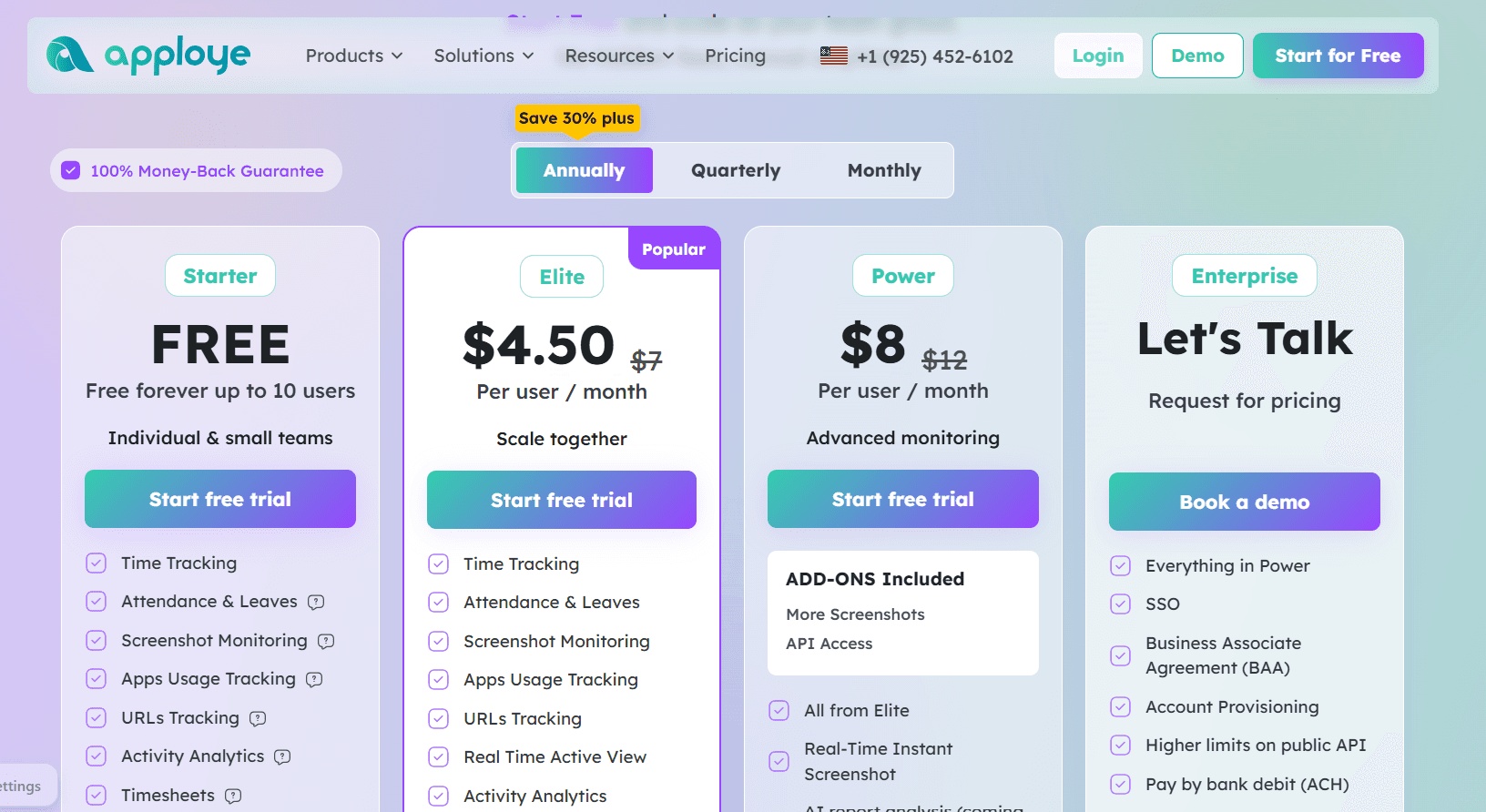
Apploye listed Elite at $4.50 and Power at $8 a user each month, billed annually, in September 2026, both below their original $7 and $12, with Starter free for 10 users and Enterprise by quote.
Starter, free: 10 users with no expiry, including payroll, projects, clients, and invoices, attendance and leave, timesheet approval, activity analytics, and screenshot and app/URL tracking.
Elite, $4.50: integrations, custom reports, Real Time Active View, and the option to make screenshots optional.
Power, $8: instant real-time screenshots, with API Access and More Screenshots included. An AI chatbot and AI report analysis are listed as coming soon.
Enterprise, custom: guided onboarding and dedicated support, ACH payment, raised API limits, account provisioning, SSO, and a Business Associate Agreement.
Add-ons, per user per month: Screen Recording $4, Stealth Mode $2, More Screenshots $2, and API Access $1.
Apploye pros and cons
✅ A team of ten can run payroll and send client invoices from tracked time without a paid plan.
✅ Attendance needs no separate clock, since clock-in and clock-out are captured automatically.
✅ Apps exist for Linux and Chrome as well as Mac, Windows, iOS, and Android.
❌ Stealth Mode adds $2 per user and screen recording $4. Layered onto Elite at $4.50, the monitoring depth a Veriato team would expect takes the seat past $10.
#6: Hubstaff
Best for: Distributed teams that pay people directly from approved hours and set monitoring intensity per team.
Similar to: Time Doctor, DeskTime.
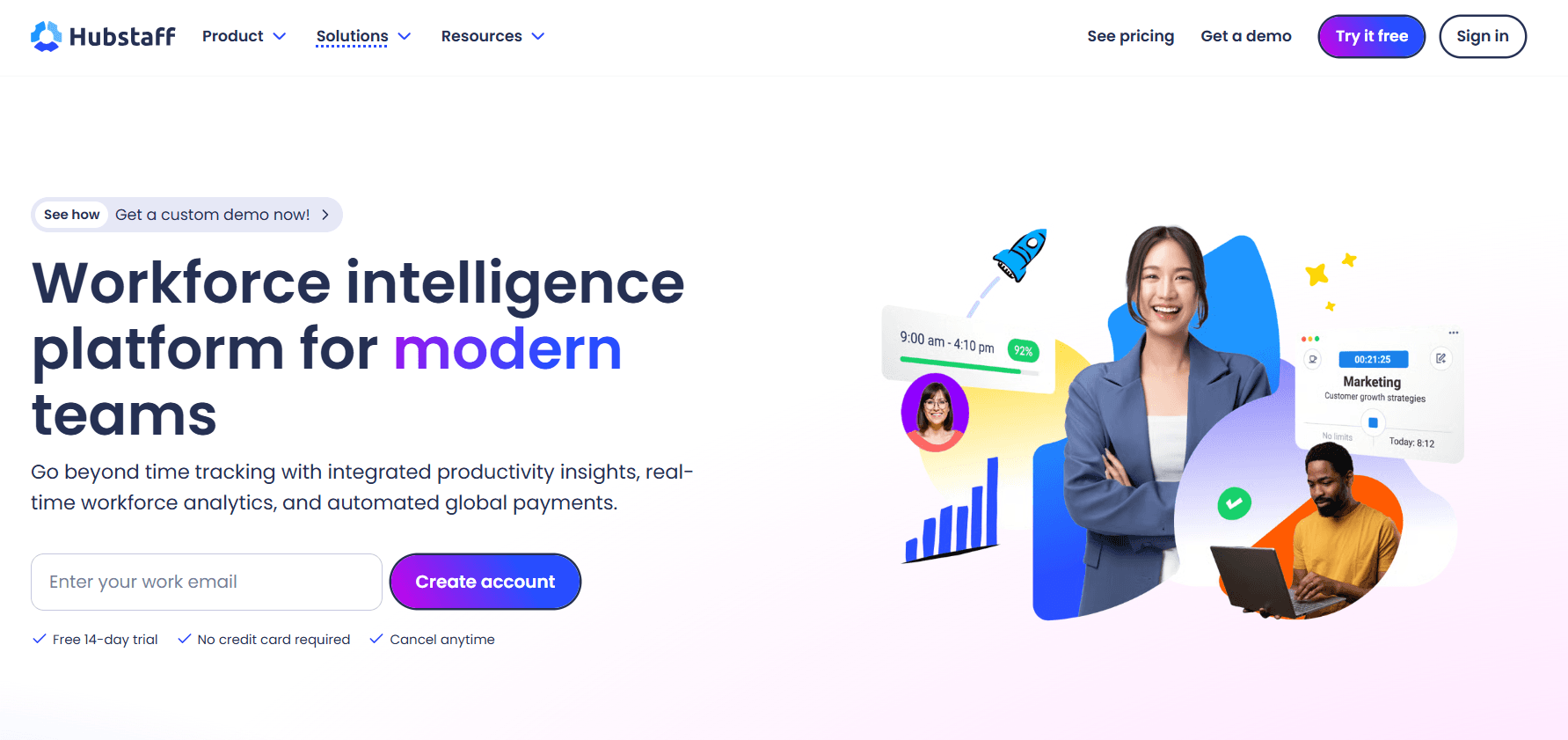
Hubstaff's standout is global payouts: approved hours are paid through Payoneer, PayPal, Deel, or Wise without leaving Hubstaff, and the hours come from a start-and-stop timer or, for field staff, GPS tracking.
Monitoring settings, including activity rates and app and URL tracking, are adjustable per team, and screenshots are optional.
Hubstaff features

Field staff: GPS-based tracking for people working on location.
Office and remote staff: desktop, web, and mobile apps, plus the Silent app add-on for background tracking on company-owned devices.
Managers: optional screenshots, activity rates, and app and URL tracking, configured and made visible per team. Insights reports on focus versus meeting time, unusual activity, capacity gaps, work classification, and utilization trends.
Finance: project budgets with live cost data and overrun alerts, and multi-currency payouts on set pay frequencies once hours are approved.
Developer access: an MCP server alongside the API and a CLI, so scripts and AI assistants can work with Hubstaff data.
How much does Hubstaff cost?
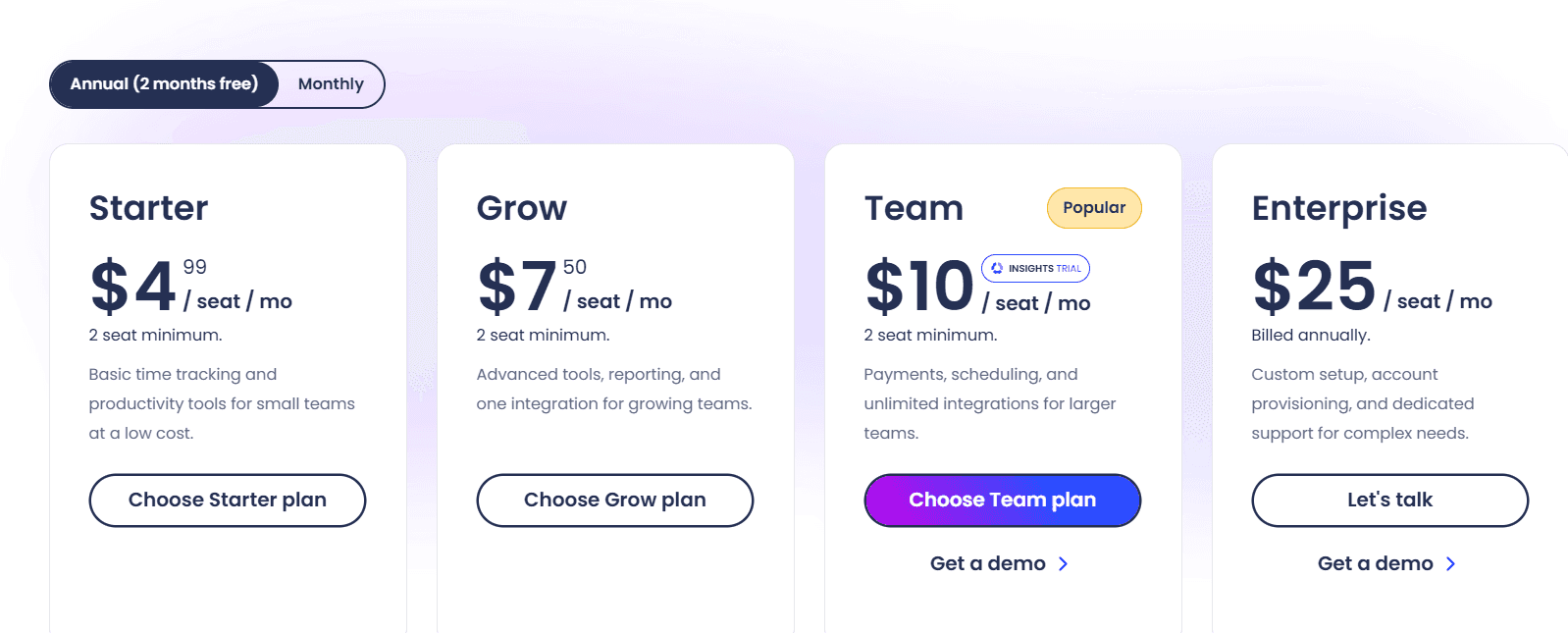
Four Hubstaff tiers carry a published rate:
Starter, $4.99: each seat can capture 500 screenshots and app/URL records a month. The plan runs the timer on every platform, with activity levels and timesheets, limited payroll and payments, and client invoices, with a limit of 5 clients.
Grow, $7.50: the monthly allowance triples to 1,500, and project budgets, expenses, idle time-out, Tasks, and one integration are added, with email support answered within a day.
Team, $10: full payroll and payments, plus approvals, attendance, scheduling, time off and holidays, overtime, client budgets, and team invoices. Integrations become unlimited, a limited public API and audit logs appear, support moves to chat, and Insights can be trialled for three months.
Enterprise, $25 (annual): the compliance and identity plan, with SOC 2 Type II, HIPAA, SSO, SCIM, and account provisioning, and with Insights, the Silent app, and Locations bundled in. Support moves up to an assigned account rep, and email replies come within two hours under the SLA, with concierge setup included.
Add-ons: four modules at $2.50 a seat each month (the Silent app, More screenshots, Tasks, and Insights), extra data retention at $1.67, and Locations at $3.33.
Hubstaff pros and cons
✅ Field teams on GPS and desk teams on the desktop app end up in one system.
✅ Overrun warnings arrive while a project still has budget left to protect.
✅ The money-back guarantee gives 30 days to back out of a paid plan.
❌ Background capture through the Silent app costs $2.50 per seat on every tier below Enterprise, where it becomes part of the $25 rate.
#7: Clockify
Best for: Teams of five or fewer starting free, and growing teams adding invoicing, scheduling, or SSO when the need arrives.
Similar to: Toggl Track, Jibble.
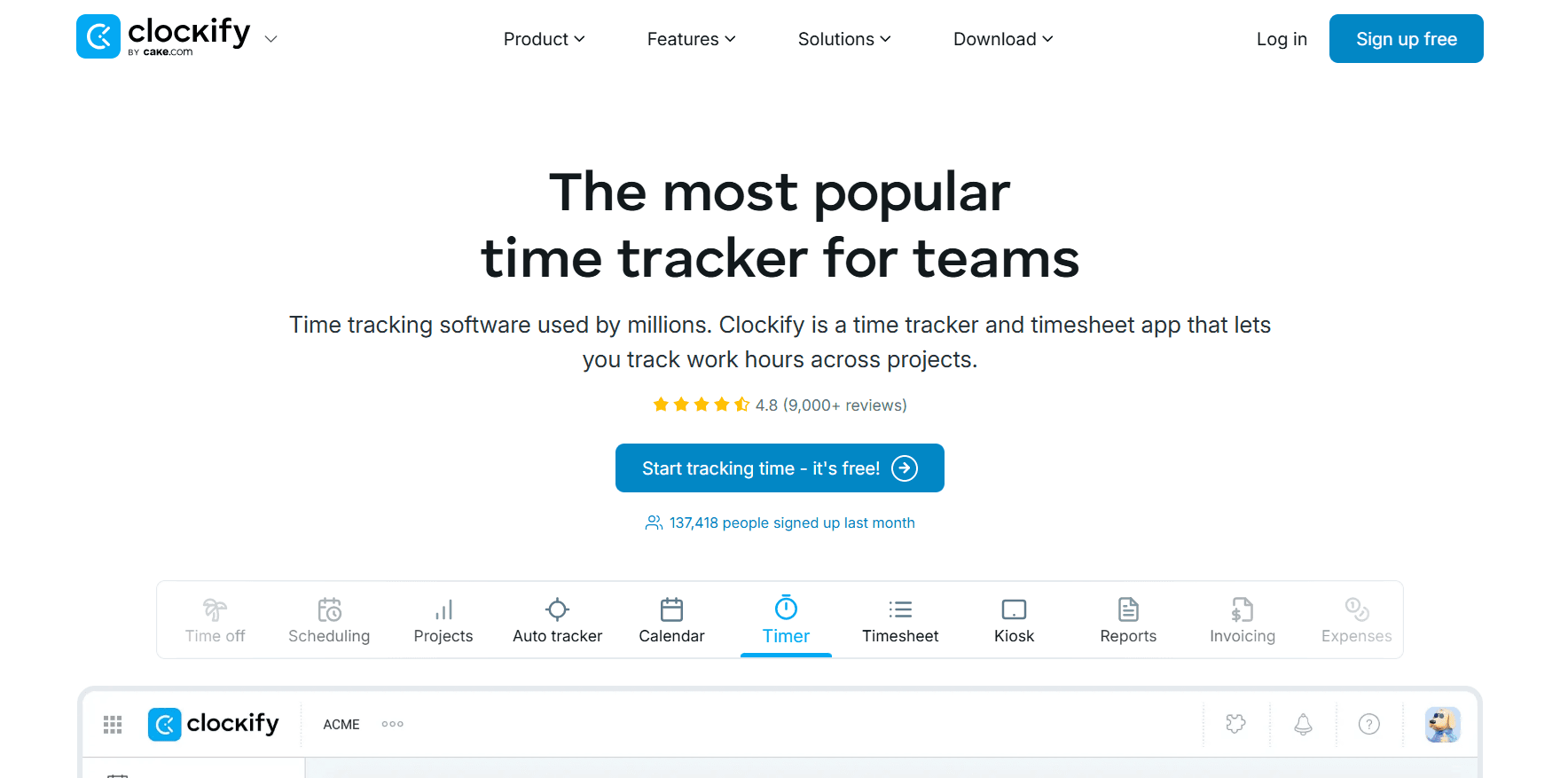
Clockify's pricing ladder resembles TimeCamp's, with paid tiers from $3.99 to $11.99 a seat on annual billing, invoicing unlocking on Standard, and scheduling on Pro.
The free plan, for up to five users, includes the Timer, Timesheet, Calendar, and Auto tracker, and Basic adds a Kiosk for shared tablets.
Clockify features

Billing clients: billable rates start on Basic, and Standard brings task-level rates, rounding, one-off and recurring invoices, and a QuickBooks link.
Running a team: from Standard, managers get approvals, locked periods, time off, attendance, and overtime; Pro is the plan for forecasting and for scheduling shifts and assignments.
Knowing profit: labor cost set against revenue on Pro.
Recording time: four tools on the free plan (Timer, weekly Timesheet grid, Calendar for time-blocking, and an Auto tracker for open apps and sites), plus a shared-device Kiosk from Basic.
How much does Clockify cost?
Clockify offers probably the most generous free plan, as 5 users can use the platform for free with unlimited tracking. Paid tiers range from $3.99 to $11.99 per seat per month on annual billing.
Free: $0 for up to 5 users. Unlimited tracking through the Timer, Timesheet, Calendar, and Auto tracker, plus a Pomodoro timer, idle detection, tracking integrations, team activity, and reports.
Basic: $3.99 per seat per month on annual billing, $4.99 monthly. Kiosk, billable rates, required fields, time entry on behalf of others, bulk edit, time audit, imports, and project templates.
Standard: $5.49 billed annually, $6.99 monthly. Invoicing including recurring invoices, the QuickBooks integration, approval, locked time, attendance and overtime, time off, targets and reminders, and a manager role.
Pro: $7.99 billed annually, $9.99 monthly. Scheduling and forecasting, screenshots, activity monitoring, GPS tracking, labor cost and profit, budgets and estimates, expenses, custom fields, alerts, and email reports.
Enterprise: $11.99 billed annually, $14.99 monthly. SCIM provisioning, SSO, an audit log, control accounts, and a custom subdomain.
CAKE Bundle: $12.99 billed annually, $15.99 monthly, pairing Clockify's Enterprise features with Plaky for project management and Pumble for team communication.

Clockify pros and cons
✅ One tablet running Kiosk can handle clock-ins for a whole team, from Basic.
✅ Enterprise identity controls, SCIM provisioning included, cost $11.99 per seat, billed yearly.
✅ For $1 more per seat than Enterprise, the CAKE Bundle includes Pumble and Plaky.
❌ Screenshots start on Pro ($7.99), as do scheduling and labor-cost reporting, so the two cheaper paid tiers don't fit teams that need them.
#8: Toggl Track
Best for: Organizations struggling to get consistent tracking from staff, where speed of entry and a no-surveillance stance count most.
Similar to: Clockify, Timely.

Toggl Track is designed to keep people logging time day after day, with Calendar View turning meetings into entries in a click and timers on web, desktop, mobile, and browser extensions.
The company has also taken a public position against screenshots and camera tracking, and its reports can be customized extensively once the data is in.
Toggl Track features

Privacy by default: background tracking is optional and visible only to the individual until they turn an activity into a time entry.
Fast entry: Calendar View, which Toggl Track names as its most-used feature, shows the day's meetings next to the timesheet for one-click logging.
Clean data: on Premium, timesheet approvals and data accuracy tools such as required fields, team reminders, and locked entries, backed by an audit log.
Reporting: six report views (profitability, utilization, billing, workload, summary, and detailed) that accept custom columns and up to three levels of grouping. Premium can email them on a schedule.
How much does Toggl Track cost?
Toggl Track's paid licenses cost $9 per month on Starter and $14 on Premium in the first annual term, with Enterprise quoted and a free plan that has a user cap:
Free: for a limited number of users, with apps for web, desktop, and mobile, productivity reports, calendar sync with Google and Outlook, and more than 100 integrations through the browser extension.
Starter, $9: billable rates with revenue and productivity analysis, plus team collaboration features, project tasks, and time estimates that come with alerts.
Premium, $14 first year, then $18: SSO, Jira and Salesforce integrations, fixed-fee projects, profitability analysis, scheduled and fully customizable reports, approvals, and data accuracy features.
Enterprise, custom: multiple workspaces under one organization, with annual-plan volume discounts, custom integrations, personalized onboarding, and a dedicated customer success manager.

Each paid plan has a 30-day trial that doesn't require payment details.
Toggl Track pros and cons
✅ Meeting-heavy roles log each meeting from Calendar View in a single click.
✅ Nobody else sees background tracking data until the individual converts it into an entry.
✅ A month-long trial gives enough time to test adoption across a whole team.
❌ Budgets should assume $18 per license from the second year of Premium, since $14 is a first-term rate.
#9: Everhour
Best for: Project and delivery teams managing tasks in Jira, Asana, Linear, ClickUp, or Basecamp, with time and budgets needed on those same tasks.
Similar to: Toggl Track, Clockify.

Everhour's timer, estimates, and budget figures appear inside the connected project management tool, on the tasks and projects a team already works from.
Budget alerts go out at thresholds such as 75%, 90%, and 100%, a spent budget halts its timers, and invoices go to QuickBooks or Xero.
Everhour features

Scoping: estimates on tasks, and time or money budgets on projects that can reset monthly for recurring work.
Delivery: task-level tracking inside Jira, GitHub, Linear, Asana, ClickUp, Monday, Trello, Basecamp, Notion, and Wrike. Everhour stores the time data itself, outside the PM tool's fields, so it carries over if the team changes PM software.
Budget control: email alerts at thresholds the team sets, and timers that stop when the money or hours run out.
Close-out: once approved, a timesheet is locked. Invoices group billable time per member, project, and period, export to QuickBooks or Xero, and show their payment status in Everhour.
Time off: accruals calculated automatically, with requests approved next to timesheets.
How much does Everhour cost?
Everhour charged $8.50 per seat per month for its Team plan on yearly billing in September 2026. Small teams can stay on the free plan for up to 5 seats, and 50 or more seats get a Custom quote.
Free: data export, reports, projects and tasks, and time tracking for 5 seats, plus 14 days of access to every feature on trial.
Team, $8.50 (yearly, 5-seat minimum): unlocks the whole product, native integrations and SSO included, along with budgeting, invoicing, billing, and advanced permissions.
Custom, 50+ seats: volume pricing, personalized demos, a dedicated manager, and priority support.

Everhour pros and cons
✅ Timers stop once a budget is spent, so a project can't run past it unnoticed.
✅ Recurring work is handled with budgets that reset each month.
✅ Finance can check in Everhour whether an exported invoice has been paid.
❌ Teams under five people still pay for five seats on Team, a minimum of $42.50 a month on yearly billing.
#10: Harvest
Best for: Service firms that bill by the hour and follow each engagement until the client has paid.
Similar to: Everhour, Toggl Track.
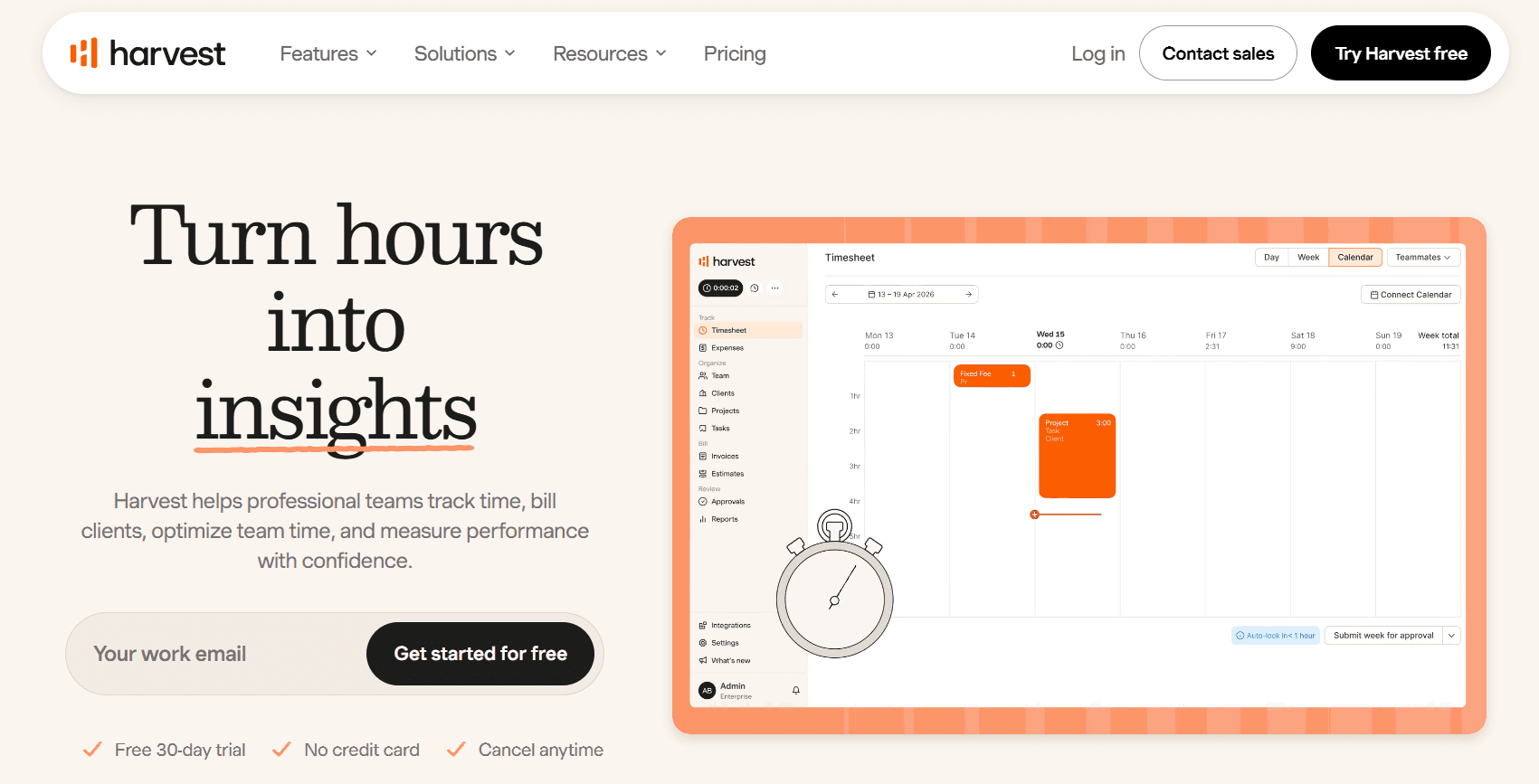
Harvest links tracked time to cash: every hour carries the correct rate for the person, project, or task type, applied automatically, and clients settle invoices directly from the invoice document.
Harvest features

Before the work: project estimates, retainers set up as recurring hour banks, and multi-tiered rates by person, project, or task type.
During the work: people log hours from calendar events, a weekly or daily timesheet, or a one-click timer, on browser, mobile, or desktop. Retainer and estimate use is tracked live, and an alert goes out before a budget is exceeded.
After the work: invoices built from time and expenses, paid by the client from the invoice, tracked as receivables, and exported to accounting tools.
Across the portfolio: profit by project and client on Enterprise, and Harvest Forecast for scheduling people across projects.
How much does Harvest cost?
Harvest's Teams plan opens at $9 per seat per month billed annually, or $108 per seat per year. A Free plan covers one person and Enterprise begins at $14.
Free: $0 permanently, good for 1 seat and 2 projects. Invoicing, time tracking, expense tracking, and the Mac and iOS apps.
Teams: $9 per seat per month and up, billed annually. Unlimited seats, billable and cost rates, team reporting, up to 4 custom reports, project and people import, and accounting and payment integrations.
Enterprise: from $14 per seat per month billed annually, or $168 per seat per year. Profitability reporting joins timesheet approvals, unlimited custom reports, SAML-based SSO, an activity log, required notes, and custom exports.
Enterprise Plus: custom pricing. Product customization, custom integrations, white labelling, assisted data migration, tailored onboarding, and a dedicated Customer Success Manager.

Harvest pros and cons
✅ Connected calendar events can become time entries, with nothing retyped.
✅ Outstanding invoices are visible in Harvest's receivables tracking.
✅ A solo consultant gets invoicing and expense tracking free.
❌ Usage-based charges on Teams and Enterprise can change the final bill, and approvals and profitability reporting require Enterprise.
Which TimeCamp alternative should you choose?
The right TimeCamp alternative depends on what the time data is for: billing clients, paying people, measuring productivity, or deciding what to automate.
Your priority | Closest fit |
Knowing what happens inside each workflow and what to automate | Reflow |
AI-drafted timesheets that stay private until approved | Timely |
Automatic tracking with app, URL, and document title detail | DeskTime |
Productivity measured against comparable teams | Time Doctor |
Monitoring, payroll, and invoicing on a small budget | Apploye |
Approved hours paid out in several currencies | Hubstaff |
A free starting point with small, steady price steps | Clockify |
Getting a team to track consistently | Toggl Track |
Budgets and timers inside the PM tool | Everhour |
Hours carried through to a paid client invoice | Harvest |
Reflow is the option for operations leaders whose tracker reports how many hours the team logs but can't show what fills them.
Our workflow intelligence platform maps each workflow step by step and measures every automation after it ships, with no manual entry and no integrations to set up.
➡️ Book a demo to see your own operation mapped, or read how Collective turned that visibility into $3.1M in annual cost savings.
⚠️ Disclaimer: This article was last updated on October 1, 2026. If you spot any inaccuracies, contact us, and we'll fact-check it.
See Reflow in action
A short demo, tailored to your operations.