This guide ranks the 10 best Timesheet alternatives for 2026 and explains which kind of team gets the most from each one, along with current pricing.
TL;DR
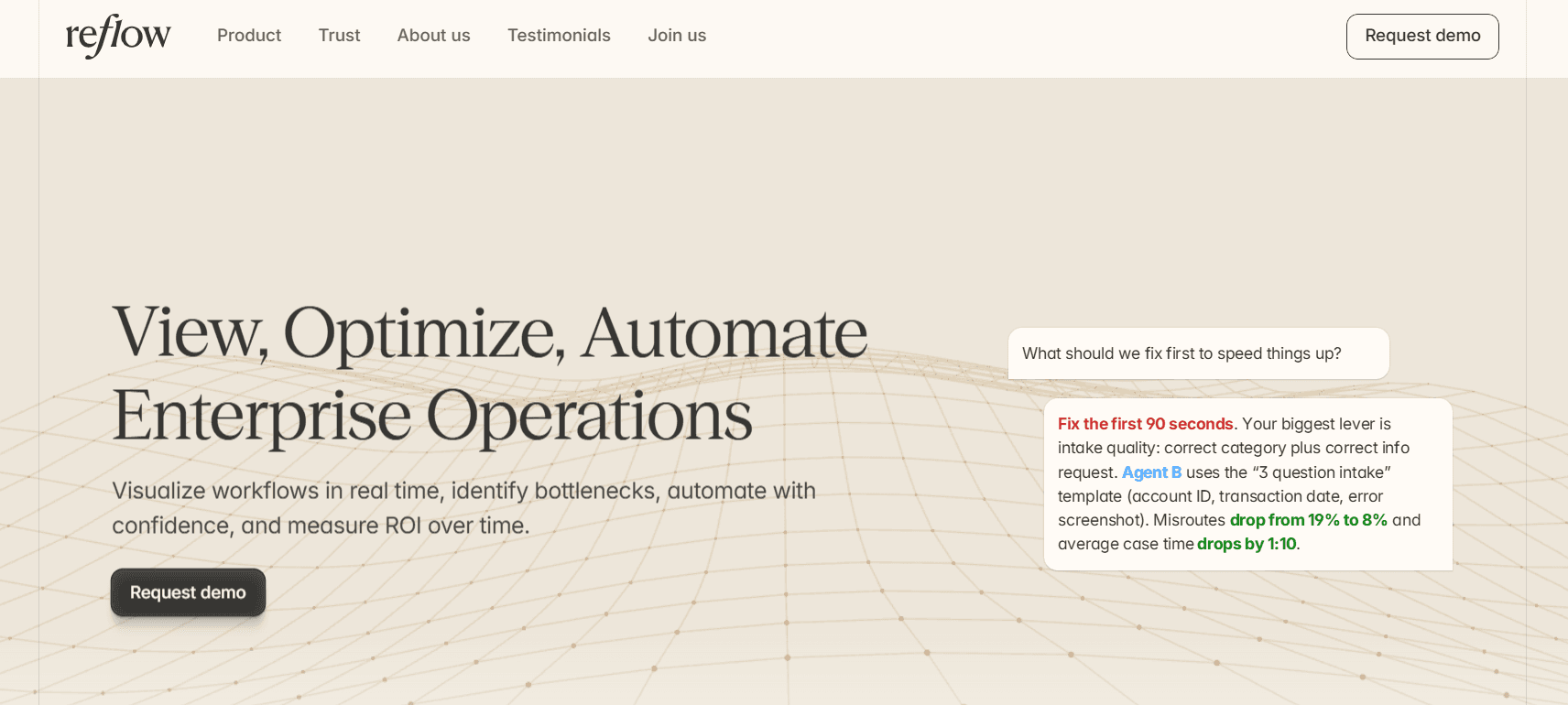
Reflow is the best Timesheet alternative in 2026 for operations teams that want hours recorded without a timer to start. A native Mac and Windows agent logs active, productive time throughout the day, with manual entry disabled. From that record, Reflow maps each workflow step by step, ranks the steps worth automating, and measures the return on each automation after it goes live.
Jibble and Hubstaff come closest to Timesheet's location-based tracking: Jibble verifies clock-ins by location or by face, and its core plan is free for unlimited users. Hubstaff pairs GPS-based tracking with payouts of approved hours in several currencies.
Harvest is the strongest match on client billing, applying the correct rate to each entry and letting clients pay from the invoice. Toggl Track offers profitability analysis on Premium, and Everhour puts its timer and budgets inside Asana, Jira, and eight other tools.
TimeCamp's AI Time Tracking Agent fills in timesheets from app and website activity with no clicks, while Timely's AutoSheet drafts them for the user to approve. DeskTime starts recording at power-on, and Clockify completes the list with five free seats and paid plans from $3.99 per seat.
What are the best Timesheet alternatives in 2026?
The best Timesheet alternative in 2026 is Reflow, which records operational work with no timer involved and reports on it one workflow at a time.
Clockify ranks second for its five free seats and GPS tracking on Pro, and TimeCamp third for a free plan with no user cap and an AI agent that fills timesheets in the background.
Here are all ten tools that I've shortlisted:
Tool | Best for | Starting price |
Reflow | Workforce and workflow intelligence captured by an agent, with no manual entry. Readouts per workflow, a ranked list of steps to automate, and the return tracked once each automation is live, with nothing to integrate. | Not published; quoted after a demo |
Clockify | A live Timer, weekly grid, Calendar, Auto tracker, and Kiosk, with GPS tracking, time off, and invoicing on paid plans. | Free for up to 5 users; paid from $3.99/seat/month on annual billing |
TimeCamp | An AI Time Tracking Agent with attendance, overtime, and budgets, plus warehouse and BigQuery access on Enterprise. | Free for unlimited users; paid from $2.99/user/month on annual billing |
Hubstaff | Timer and GPS tracking with optional screenshots, project budgets, and multi-currency payroll. | From $4.99/seat/month, 2-seat minimum |
Jibble | Clock-in confirmed by Geofencing, Face Recognition, or NFC & PIN, with leave policies and payroll exports. | Core plan free for unlimited users; upgrades priced in-app |
Toggl Track | Manual and calendar-based tracking with customizable reports and a stated position against screenshots. | Free plan; paid from $9/license/month |
Harvest | Rates applied to entries automatically, live retainers, and invoices clients can pay directly. | Free for 1 seat; Teams from $9/seat/month on annual billing |
Timely | AutoSheet drafts built from the private Memory tracker, approved by each person, plus a People dashboard. | From $9/user/month on yearly billing |
Everhour | Timer and budgets inside Asana, ClickUp, Jira, and other project management tools, with invoices exported to Xero or QuickBooks. | Free for up to 5 seats; Team at $8.50/seat/month billed yearly, minimum 5 seats |
DeskTime | Automatic recording from the moment a computer starts, with document title and URL data, and shift planning. | From $6.42/user/month on annual billing, excluding VAT |
How were these Timesheet alternatives chosen?
Three tests set the lineup:
It must produce its own time data: A timer, location trigger, background tracker, or agent counts. Dashboards that read hours out of another product don't.
It must do a job Timesheet is bought for: Client billing and team hours under HR rules both count, as does capture that works without anyone remembering a timer. Reflow goes furthest on the third job, since its agent removes manual entry from the system.
It must be available now: All ten tools are generally available, and usage-based charges, such as TimeCamp's token-billed AI tracker, are noted in the relevant section.
#1: Reflow
Reflow is the best Timesheet alternative in 2026 for enterprise operations teams that want time recorded with no timer to start and want to see how each of their processes runs.
Our workflow intelligence platform reports the measures teams expect from time tracking, from work time and session time to active and productive time and the productivity trend for each team.
None of those figures depends on a timer, whether it is started by hand, by an NFC tag, by a WLAN rule, or by a geofence.
From the same capture, Reflow builds a readout for each workflow with four figures:
Total runs.
Average run time.
Average deviation time.
Potential savings, in hours per month.
Disclosure: Reflow is our platform. Below, I explain why it leads a list of Timesheet alternatives, and I name the Timesheet jobs it leaves to other tools.
Operational work is followed as it unfolds, and each step is logged in sequence, including steps that were repeated or skipped.
The data comes from a native agent on Mac and Windows machines and is classified by machine learning, and the first readout needs no long integration project.
Let's go over Reflow's capabilities that I think make it the best Timesheet alternative in 2026:
Step-level workflow maps
Each workflow appears in Reflow as an ordered sequence of steps with elapsed time attached to every step, including any step that was delayed.
Refund request processing is a useful example.
A project report gives the hours the team booked to refunds in a month, while Reflow's example readout puts the same process at 4,820 total runs.
The average run lasts 6 minutes 10 seconds against an average deviation time of 1 minute 5 seconds, and potential savings come to 87.1 hours a month.
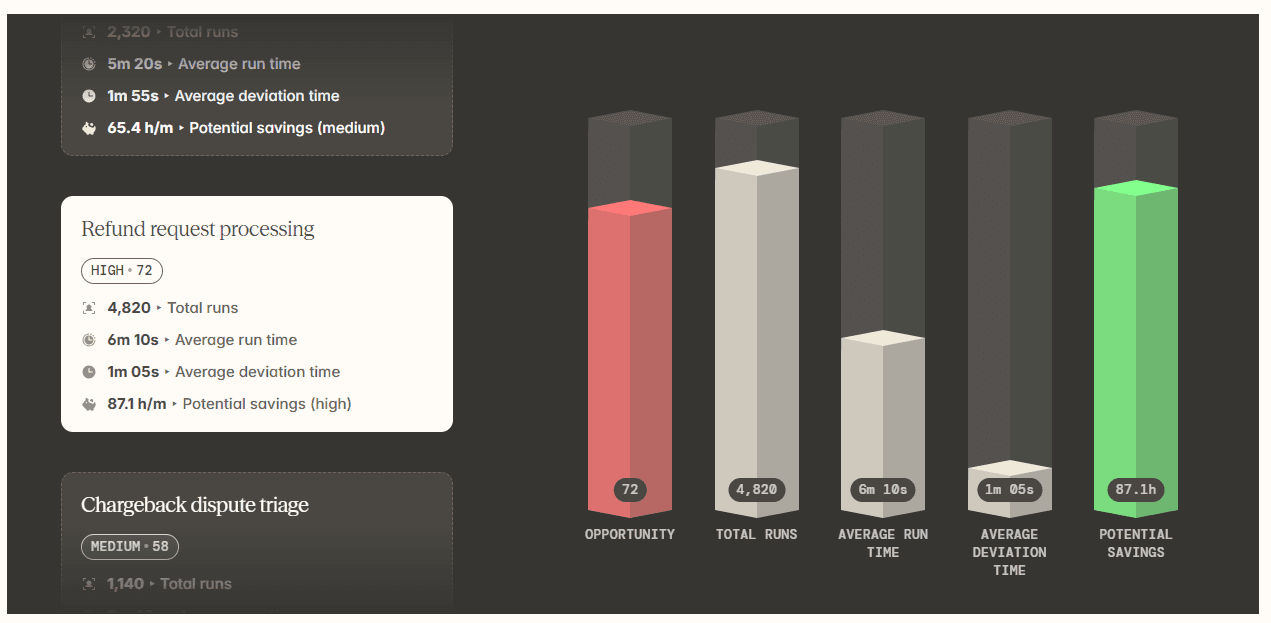
Booked hours size the refund workload, and the step-level map shows where inside the process the extra minutes accumulate.
What one case costs
Reflow splits operational time by customer, task, and project, which is the basis for costing each unit of work.
Chargeback dispute triage, in our example data, takes 9 minutes 40 seconds per run on average across 1,140 runs, and its average deviation time is 3 minutes 20 seconds.
Multiplying that average run time by the fully loaded cost per minute of the person handling disputes gives finance the cost of triaging a single chargeback.

Timesheet's reports put income next to the hours logged per project and client, and this is genuinely useful for agencies.
However, a per-case cost built on Reflow's data supplies the matching figure on the expense side, ahead of any decision to spend money automating the process, which is the functionality that we built for enterprises.
SOP adherence on every run
Each run of a workflow is checked against the steps its SOP lays down, so drift appears in the data while the work is still underway.

The check carries extra weight for data deletion requests, each of which runs against a regulatory deadline. If a run skipped a verification step, or repeated the same lookup three times, Reflow would flag it while there is still time to fix the record ahead of a customer complaint or a regulatory inquiry.
Over time, the same comparison also reveals when a written procedure has fallen out of step with how the team works.
Automation recommendations with measured returns
Reflow produces a ranked list of workflows to automate, each with the steps a machine could take over. Measurement continues after the change goes live, and the reported return comes from the workflow's post-launch figures.

In one sample recommendation, repeatable steps (lookups, copy-pasting, and updates across systems) take 52% of the time in a Refund Requests SOP.
Once "lookup + populate + update" is automated, Reflow projects those steps will take 25 seconds, saving 1 minute 40 seconds per case. Missed-field errors are projected to disappear.
After launch, the workflow remains in Reflow's reporting, so an operations lead can compare the before-and-after figures ahead of choosing the next process.
Our platform can also run the automation itself, which puts the recommendation and its execution in the same system.
💡 Data in Reflow is encrypted at rest and in transit, with privacy-first collection and tight limits on who can access it. Security and compliance controls are documented in full in the Trust Centre.
Automatic capture across the working day
Reflow's agent, native to Mac and Windows, logs work at the level of individual interactions.
Machine learning then labels each interaction by project and type of work and marks whether it was productive.
Reflow doesn't accept manual entries at any point.
A missed start or a forgotten afternoon never needs reconstructing, because there is no timer involved.

Task mining for the workflow layer runs on the same agent, with a human reviewer brought in when a classification needs judgment.
That first layer, which we call workforce intelligence, gives workforce managers headcount and working patterns, average work time, active time, session time, productive time, and the trend in productivity. Workflow intelligence and workflow automation are built on that same data.
How is Reflow different from Timesheet?
Reflow measures how each workflow runs and tells you which steps to automate, while Timesheet records hours against projects and clients for invoicing and for leave and overtime balances.
Timesheet's location-triggered timers and Business-plan employment rules are jobs Reflow leaves to other software, and for freelancers and small teams split between clients, Timesheet is well built for them.
Here’s how both platforms compare head-to-head:
Timesheet | Reflow | |
Primary output | Reports, invoices, and leave and overtime balances built from tracked hours | Per-workflow figures for total runs, average run time, average deviation time, and potential savings |
How time is captured | One-tap timers on phone, watch, or browser, started automatically by NFC tags, WLAN rules, or geofences, with the timer running in the background | An agent on Mac and Windows that records continuously, with no timer |
Manual time entry | Supported, including logging time in a single chat message through Chronis | Not accepted anywhere in the system |
Devices | iOS and Android apps, watch, browser extension, and web access from Pro | Mac and Windows computers |
Unit of measurement | Hours by project, task, and client, with income alongside | The steps of a process in sequence, repeated and skipped steps included |
AI assistance | Chronis logs time, controls the running timer, answers project questions, and reminds users daily and weekly; MCP server for Claude and ChatGPT | Machine learning classifies work by project, type, and productivity, and task mining feeds the workflow layer |
Billing and invoicing | Invoices generated from tracked time, with expenses, notes, PDF export, and paid or unpaid status | Not covered; per-hour billing stays with other software |
HR and working-time rules | Working-time limits and live caps, rest-period and break enforcement, contracts and employment models, flextime and core-time policies, absence approvals, and leave and overtime balances (Business) | Not covered |
Process compliance | Audit logs and compliance reports (Business) | Each run checked against its SOP, with drift flagged during the work |
Automation guidance | Automation applies to starting and stopping timers; process automation isn't a stated function | Automation candidates ranked, with the steps named and the return measured after launch |
Integrations | Google Calendar, Zapier, QuickBooks, Google Chrome, and Basecamp among others, plus API access and Excel, CSV, and PDF export | None needed; the agent captures across systems without connecting to them |
Time to first data | Immediate: create a project and start a timer | Days, after configuration by Reflow's team |
Security and compliance | GDPR and CCPA compliant | SOC 2 Type 2, HIPAA, GDPR, and CPRA/CCPA, with encryption at rest and in transit |
Trialling it | Free trial of paid plans with no credit card; single-user Basic free | A trial run in parallel with your current tracker |
Reflow pricing
Reflow's pricing isn't published, so it can't be checked or compared with the other price lists in this article.
Quotes are prepared after a demo and reflect headcount and the workflows in scope.
💡 Onboarding is white-glove, and setup is carried out by our team with little time asked of yours.
During the trial, Reflow can run beside Timesheet so the two datasets can be read together.
Reflow pros and cons
✅ Capture requires no timer, and Reflow accepts no manual entries.
✅ Repeated and skipped steps appear on the workflow map next to completed ones.
✅ Total runs, average run time, average deviation time, and potential savings are reported for each workflow.
✅ Unit economics put a cost on each case of operational work.
✅ SOP drift is flagged during the run, while the record can still be corrected.
✅ Each automation recommendation identifies the steps involved, and the workflow is still measured after launch.
✅ Data can be viewed in aggregated or anonymized form, under SOC 2 Type 2, HIPAA, GDPR, and CPRA/CCPA compliance.
❌ No invoicing, per-hour billing, scheduling, or HR features such as leave balances and working-time limits.
❌ Pricing isn't published.
#2: Clockify
Best for: Growing teams that start on five free seats and later want Kiosk clock-in, time off, invoicing, or GPS tracking for a few dollars per seat.
Similar to: TimeCamp, Toggl Track.
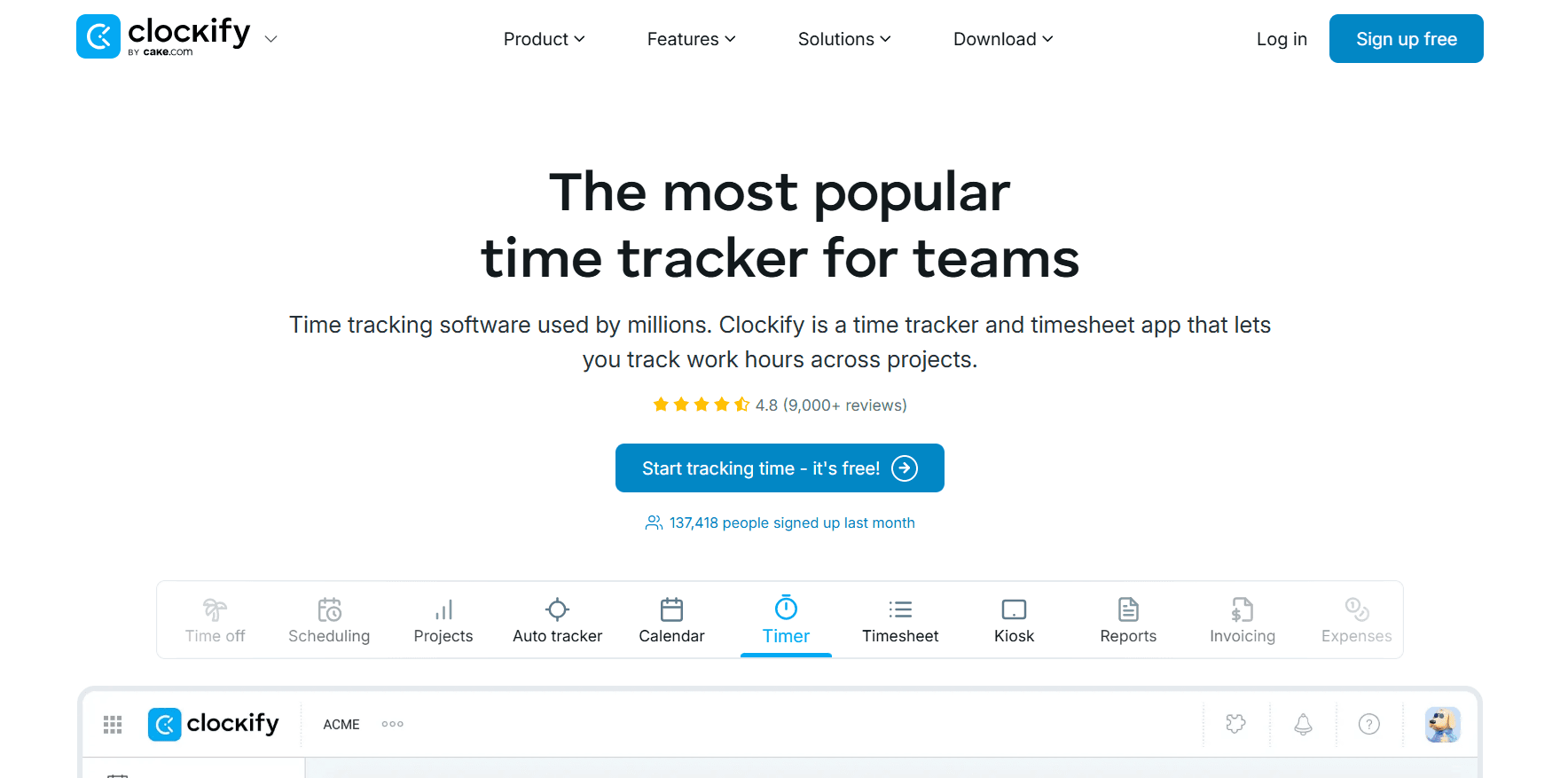
Clockify gives teams five ways to record hours, from a live Timer and weekly grid to a Kiosk on a shared tablet, and its Pro plan offers GPS tracking for people working on location.
Time off and invoicing start on Standard, the second paid plan, and SSO waits for Enterprise.
Features

Clock-in and capture: desk work is covered on the free plan by the Timer, a weekly grid, Calendar blocks, a Pomodoro timer, and an Auto tracker of open apps and sites with idle detection.
People records: overtime and attendance are tracked from Standard alongside time off and targets with reminders, and Pro adds forecasting to shift and assignment scheduling.
Billing: invoices can repeat on a schedule and sync with QuickBooks, priced from rates set per task and rounded where needed. Pro compares labor cost with revenue and tracks budgets, estimates, and expenses.
Entry quality: required fields and time audits catch gaps, and approvals with locked past periods protect submitted time. Enterprise adds SSO with SCIM provisioning and an audit log.
Support: staffed 24/7 for every customer, free accounts included.
Pricing
Clockify's paid plans start at $3.99 per seat on annual billing and reach $11.99 on Enterprise, or $12.99 for the CAKE Bundle.
Free ($0, up to 5 users): reports and team activity, tracking integrations, and unlimited time on the Timer, Calendar, Timesheet, and Auto tracker, with idle detection and a Pomodoro timer.
Basic ($3.99 per seat per month annually, $4.99 monthly): billable rates and the Kiosk, with imports and project templates for setup, bulk edit for corrections, required fields and time audits for accuracy, and time entry on someone else's behalf.
Standard ($5.49 annually, $6.99 monthly): invoicing with recurring invoices and QuickBooks, approvals and locked time, time off, attendance and overtime, targets and reminders, and a manager role.
Pro ($7.99 annually, $9.99 monthly): scheduling with forecasting; GPS tracking, screenshots, and activity monitoring; expenses, budgets, estimates, and labor cost and profit; custom fields, alerts, and email reports.
Enterprise ($11.99 annually, $14.99 monthly): SSO and SCIM provisioning, control accounts, an audit log, and a custom subdomain.
CAKE Bundle ($12.99 annually, $15.99 monthly): everything in Enterprise, with Pumble for team communication and Plaky for project management.

Pros and cons
✅ Kiosk clock-in from one shared tablet starts on Basic, the lowest paid plan.
✅ GPS tracking is available on Pro for teams that work on location.
✅ Time can be entered on someone else's behalf from the Basic plan.
✅ For $1 more per seat than Enterprise on annual billing, the CAKE Bundle includes team chat and project management apps.
❌ The free plan stops at five users.
#3: TimeCamp
Best for: Organizations of any size looking for an uncapped free plan, an AI agent filling timesheets in the background, and attendance and overtime records from the first paid plan.
Similar to: Timely, Clockify.

TimeCamp combines an AI agent that fills timesheets from app and website activity with the attendance and overtime records a payroll run draws on.
The free plan sets no limit on users or projects, and paid seats begin at $2.99 per user on annual billing.
Features

Capture without clicks: the AI Time Tracking Agent and AI Timesheets categorize apps and websites on their own, keyword rules assign time to tasks, and each person gets an activity timeline with idle time tracked.
Workforce records: an attendance calendar, time-off, and overtime tracking from Starter, a time clock kiosk, and timesheet approvals and remote work detection on Ultimate.
Margins: labor costs and fixed-fee projects are tracked against billable rates and expenses, budget and estimate alerts warn of overruns, and invoices go to QuickBooks or Xero.
Reporting and data: the AI Operational Hub shows the whole team's time in one place, privacy-first and refreshed in real time.
Pricing
Annual billing puts TimeCamp's Starter, Premium, and Ultimate plans at $2.99, $4.49, and $5.99 per user per month; paying monthly raises them to $3.99, $5.99, and $7.99. Enterprise is priced on request.
Free ($0, forever): no cap on users or projects; timesheets in the web, desktop, and mobile apps; 2FA; and the AI Time Tracker, billed by token usage.
Starter ($2.99 annually, $3.99 monthly): invoicing and Excel report export; an attendance calendar with time-off and overtime tracking; and unlimited tasks, bulk edit, and project templates.
Premium ($4.49 annually, $5.99 monthly): the Resource Planner; apps and websites tracking with private time; billable time, rounding, budgets, estimates, and budgeting alerts; management roles, scheduled email reports, and a single integration.
Ultimate ($5.99 annually, $7.99 monthly): approvals for timesheets; screenshots and remote work detection; billing rates, labor costs, expenses, and fixed-fee projects; a pivot table and time entry history; custom fields and user roles; SSO; and integrations without a limit.
Enterprise (on request): self-hosted or private cloud hosting; warehouse access, a BigQuery pipeline, and Power BI API templates; custom reports, activity categories, and integrations; user directory sync and an audit log; an enterprise SLA with onboarding and training.

Pros and cons
✅ Keyword rules place time on the right task without anyone picking it from a list.
✅ Labor costs and fixed-fee projects give project owners margin data in the same tool as the hours.
✅ Self-hosted or private cloud deployment is available on Enterprise.
✅ Invoicing appears on Starter, the lowest paid plan.
❌ Timesheet approvals and screenshots wait until Ultimate, the top published plan.
#4: Hubstaff
Best for: Field crews and remote staff whose approved hours need to become payouts in several currencies, with GPS-based tracking for work done away from a desk.
Similar to: DeskTime, Clockify.
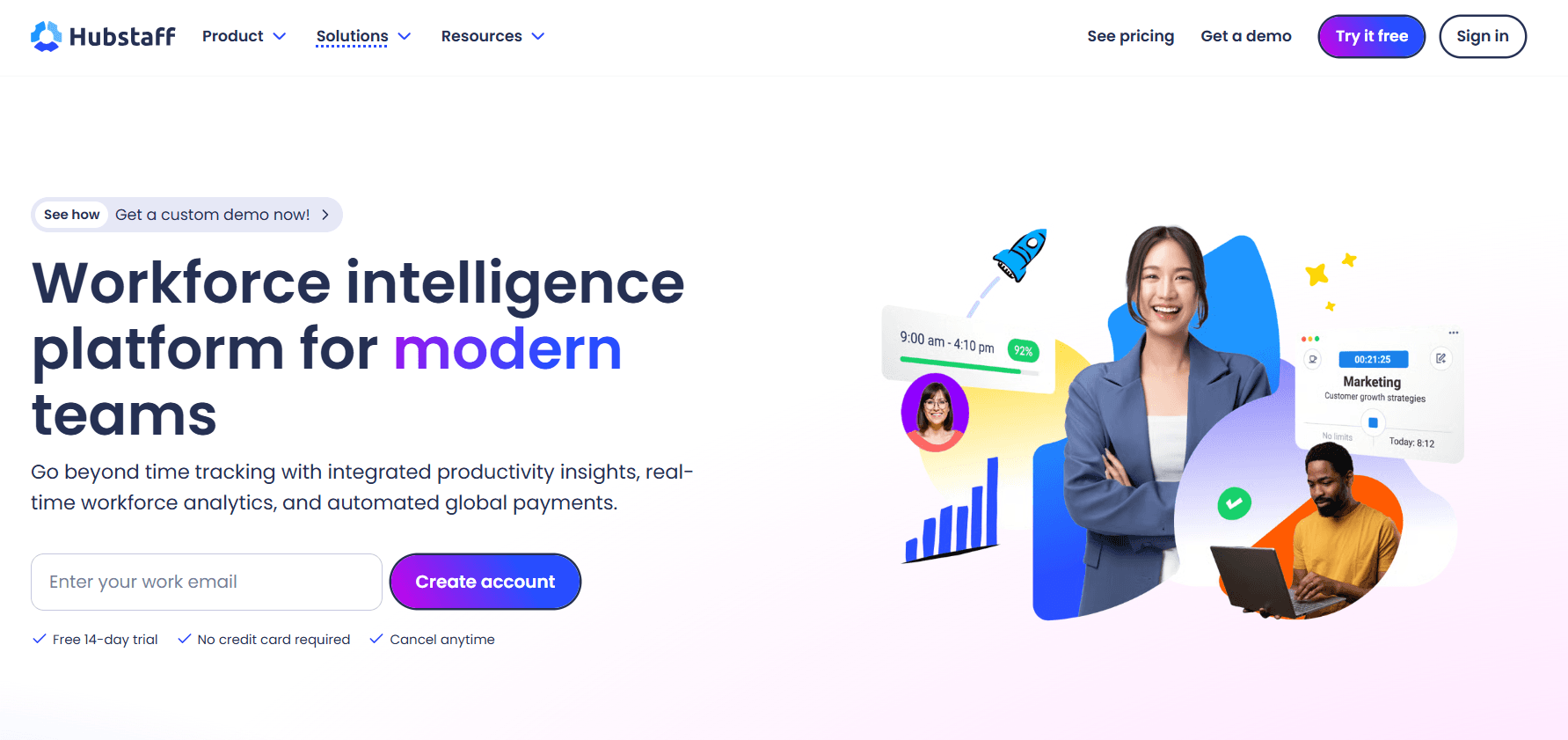
Hubstaff carries tracked hours through to payment, sending approved time out through Payoneer, Wise, PayPal, or Deel in multiple currencies.
Teams on the road can track by GPS, and an MCP server alongside the API and CLI opens the data to AI assistants and scripts.
Features

Payouts: pay frequencies, approval of hours, and multi-currency payments through Deel, Wise, PayPal, and Payoneer, with limited payroll on Starter and the full version on Team.
Field and attendance: GPS-based tracking for field teams, with scheduling, attendance, overtime, and holiday and time-off records.
Monitoring levels: each team decides how much to capture, from activity rates alone up to app and URL records and optional screenshots, and the Silent app add-on records in the background on company-owned devices.
Budgets and invoices: budgets with real-time cost data and spend against budget, alerts before a project overruns, client budgets, client and team invoices, and expense tracking.
Insights: where capacity runs short and how utilization is trending, the split between focus and meeting time, how work is classified, and when activity looks unusual.
Pricing
Below Enterprise, Hubstaff's plans run from $4.99 to $10 per seat per month, each with a two-seat minimum, and Enterprise costs $25 per seat per month on annual billing.
Starter ($4.99): the timer on desktop, web, and mobile, timesheets, and activity levels; screenshots and app and URL records capped at 500 per seat each month; up to 5 clients with client invoices; limited payments and payroll.
Grow ($7.50): Tasks and a single integration, project budgets, expense tracking, idle time-out, a monthly limit of 1,500 screenshots and app and URL records per seat, and a one-day SLA on email support.
Team ($10): payments and payroll in full, team invoices and client budgets, approvals for timesheets, attendance with scheduling, holidays, time off, overtime, audit logs, a limited public API, integrations with no cap, chat support, and Insights to trial for three months.
Enterprise ($25 on annual billing): SSO, SCIM, and account provisioning; compliance with SOC 2 Type II and HIPAA; the Silent app, Locations, and Insights at no extra charge; concierge setup, a named account rep, and an email SLA of two hours.
Add-ons, per seat each month: $2.50 for Insights, Tasks, More screenshots, or the Silent app; $1.67 for Data retention; $3.33 for Locations.
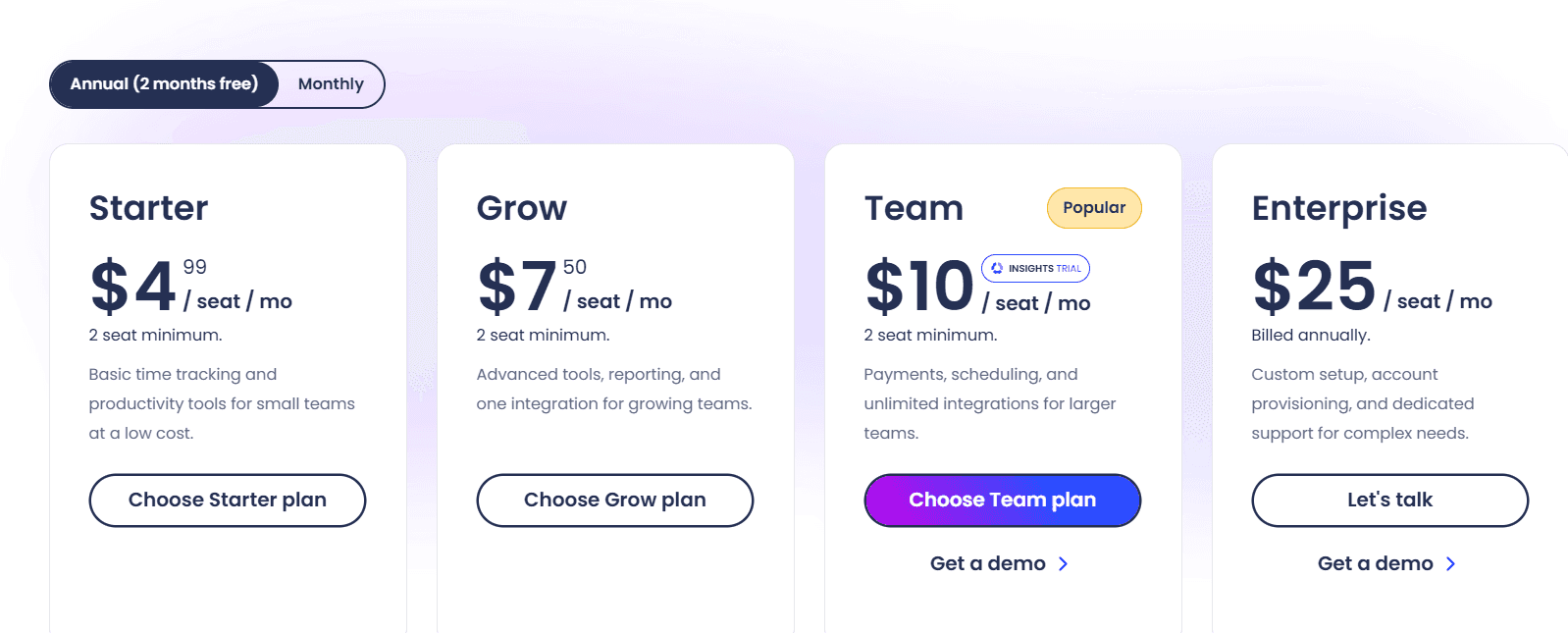
Buyers get 14 days to try Hubstaff without entering a card, and purchases carry a 30-day money-back guarantee.
Pros and cons
✅ A 30-day money-back guarantee applies on top of the card-free trial.
✅ Insights can be added for $2.50 per seat per month on plans below Enterprise.
✅ Client invoices are available from Starter, the entry plan.
✅ Concierge setup and an assigned account rep are included on Enterprise.
❌ Starter and Grow put a monthly per-seat cap on screenshots and app and URL records.
#5: Jibble
Best for: Teams on job sites and shop floors that need each clock-in confirmed by location, a face match, or NFC & PIN at a Kiosk.
Similar to: Clockify, Hubstaff.

Jibble checks where and by whom a shift is started, using Geofencing to accept clock-ins only on approved sites and Face Recognition to confirm the person matches the roster.
Features

Location checks: Geofencing for approved sites and a GPS position recorded on each entry.
Identity checks: Face Recognition, Selfie Capture on each entry, and NFC & PIN at a shared Kiosk.
Shifts and leave: staff work to Work Schedules, request leave under policies that accrue over time, and have their timesheets approved in one click per pay period.
Payroll handoff: XLS or CSV exports for Xero, QuickBooks, Deel, and similar tools, built on attendance and payroll reports and time by project.
Pricing
Everything on Jibble's free plan stays free however many people join, and the paid upgrades list their rates inside the app.
Free ($0, unlimited users): web and mobile clock-in and basic timesheets, connected to Slack, Microsoft Teams, and QuickBooks.
Paid upgrades (rates in-app): a 14-day trial starts at sign-up, and current figures can be confirmed in the app or with sales.
Enterprise (through sales): sign-in through SSO with 2FA, plus dedicated onboarding and support.

Pros and cons
✅ Slack and Microsoft Teams connect on the free plan.
✅ A live dashboard shows who is on the clock at any moment.
✅ People & Groups organize staff with permissions set by role.
✅ Paid upgrades can be trialled for 14 days from sign-up.
❌ SSO is part of Enterprise, which is arranged through sales.
#6: Toggl Track
Best for: People who prefer a quick manual timer, meetings logged straight from the calendar, and reports flexible enough for billing, workload, and utilization.
Similar to: Harvest, Clockify.

Calendar View, the feature Toggl Track's users open most, places the day's meetings next to the timesheet so each one can be logged with a click.
Background tracking is optional and private to the individual until they promote an activity to an entry, and the company has a stated position against screenshots and camera tracking.
Features

Report builder: six report types (detailed, summary, workload, billing, profitability, and utilization) accept custom columns and up to three nested groupings, and Premium sends them by email on a schedule.
Entry points: web, desktop, and mobile apps, browser extensions linking the timer to more than 100 tools, and Google and Outlook calendar integrations.
Accuracy controls: Premium can lock entries, require fields, send team reminders, and route timesheets for approval, with an audit log behind them.
Billing and profit: billable rates, project time estimates with alerts, and revenue analysis on Starter, then profitability analysis and fixed-fee projects on Premium.
Pricing
Above a free plan for small groups, Toggl Track charges $9 per license per month for Starter and $14 for Premium in its first annual term, and Enterprise is quoted.
Free ($0 for a limited number of users): tracking on web, desktop, and mobile; productivity reports; calendar sync with Google and Outlook; and 100-plus tools reachable through the browser extension.
Starter ($9 per license per month): project tasks with time estimates and alerts, billable rates, revenue and productivity analysis, and collaboration features for teams.
Premium ($14 per license per month in the first annual term, then $18 at renewal): SSO; Jira and Salesforce integrations; approvals and the data accuracy set; reports that can be fully customized and scheduled; and fixed-fee projects with profitability analysis.
Enterprise (custom quote): several workspaces grouped under one organization and integrations built to order, with personalized onboarding, a dedicated customer success manager, and volume discounts on annual plans.

Trials of the paid plans last 30 days and don't ask for a card.
Pros and cons
✅ Productivity reports are included on the free plan.
✅ Premium connects tracked time to Jira and Salesforce.
✅ Revenue analysis is available from Starter, the first paid license.
✅ Enterprise lets one organization run several workspaces.
❌ Timesheet approvals and profitability analysis aren't included in the $9 Starter license.
#7: Harvest
Best for: Firms and individuals billing clients by the hour who want each entry priced at the right rate and invoices that clients can pay directly.
Similar to: Toggl Track, Everhour.
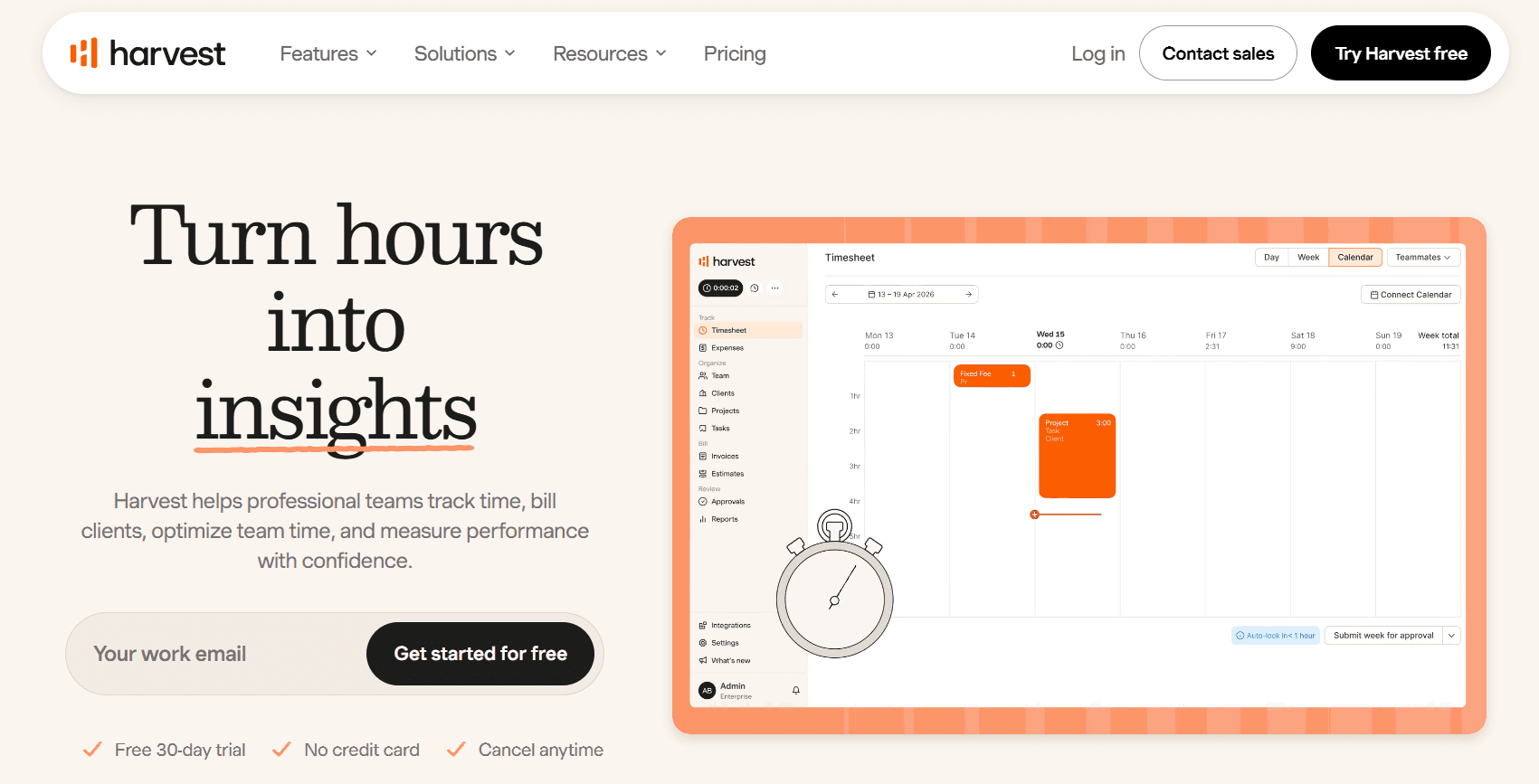
Harvest updates retainers and hour banks as time is logged, and alerts go out before a budget is exceeded.
Billing rates defined for a person, a project, or a task type are matched to each entry automatically, and clients can pay invoices built from that time straight from the document.
Features

Logging time: entries come from the one-click timer, a daily or weekly timesheet, or a connected calendar, on whichever device the person is using (desktop, mobile, or browser).
Rates and receivables: invoices from tracked time and expenses, the applicable billing rate chosen automatically, receivables tracking, and export to accounting tools.
Hour banks and budgets: recurring retainers and project estimates drawn down in real time, budget alerts, and profit by project and client on Enterprise.
People planning: Harvest Forecast for scheduling people across projects.
Pricing
Harvest's paid plans start at $9 per seat per month for Teams and $14 for Enterprise, both billed annually, with a free plan for one person on two projects.
Free ($0 forever): a single seat with room for two projects, able to log expenses and send invoices as well as track time, plus the Mac and iOS apps.
Teams (from $9 per seat per month annually, or $108 a seat per year): unlimited seats with team reporting, billable and cost rates, imports of projects and people, accounting and payment integrations, and a limit of 4 custom reports.
Enterprise (from $14 per seat per month annually, $168 a seat per year): profitability reporting, timesheet approvals, custom reports without a cap, custom exports, an activity log, required notes, and SAML-based SSO.
Enterprise Plus (custom pricing): a white-labelled, customized Harvest with its own integrations, plus migration help, tailored onboarding, and a dedicated Customer Success Manager.

Usage-based charges apply on Teams and Enterprise as well, so expected usage is worth modelling before a contract is signed.
Pros and cons
✅ Enterprise can require notes on time entries.
✅ Projects and people can be imported on Teams.
✅ SAML-based SSO and an activity log are available on Enterprise.
✅ Teams has no cap on seats.
❌ Teams allows four custom reports, and unlimited custom reports are an Enterprise feature.
#8: Timely
Best for: People who'd like AI to draft their timesheets from a private activity log, approving each one before a manager sees it.
Similar to: TimeCamp, DeskTime.

Timely's People dashboard flags team members who are over capacity or building up overtime and tracks the billable share of each week, all from time captured automatically.
That capture comes from the Memory tracker, a private log of apps and websites that AI sorts into a draft timesheet, called AutoSheet, for the user to approve.
Features
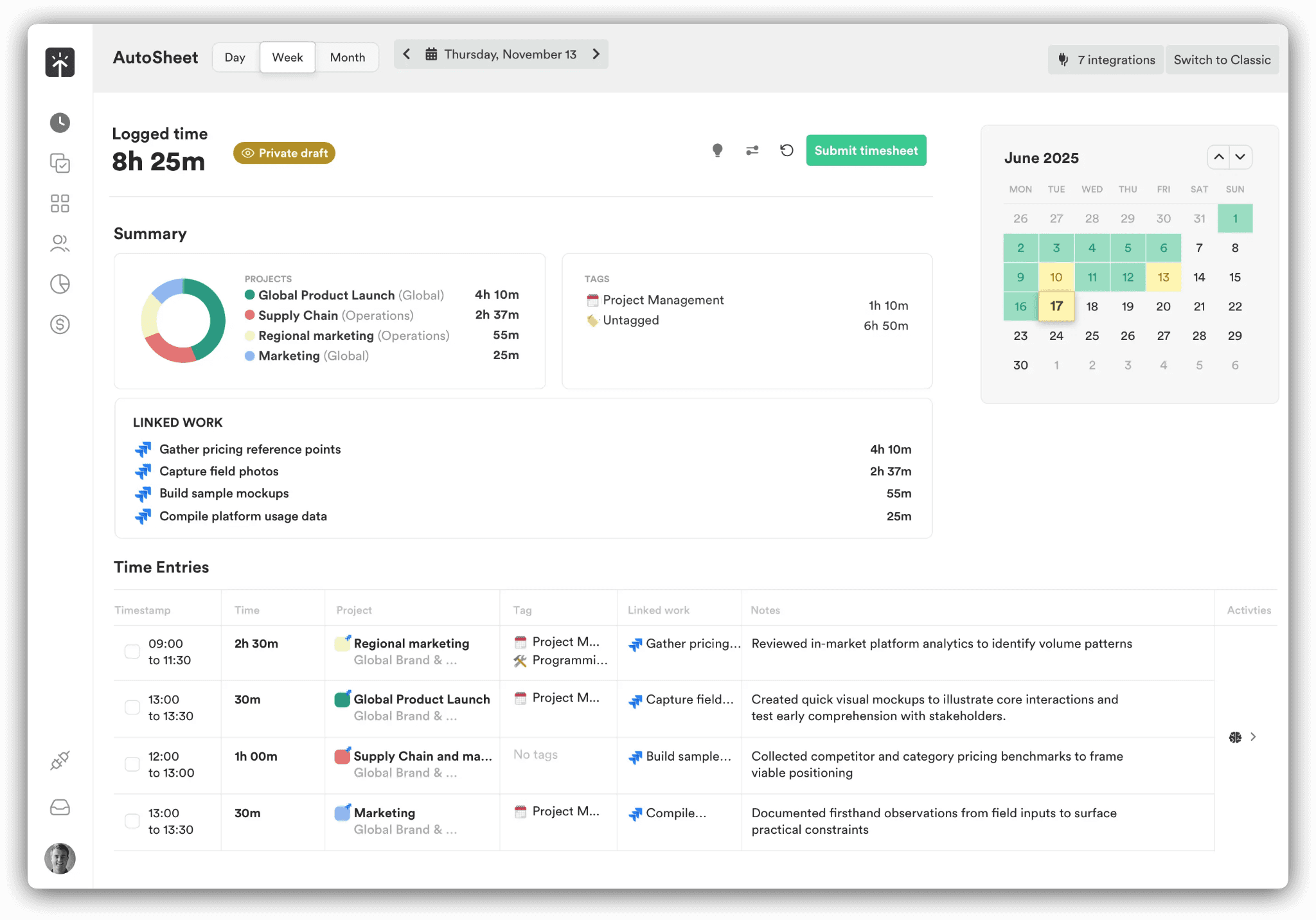
Memory tracker and AutoSheet: the Memory tracker records each app and website a person uses, with durations, and AutoSheet sorts the result into projects and clients. By Timely's own figure, finishing a timesheet takes under two minutes.
Visibility: entries reach a manager only after the individual approves them, and Timely puts in writing that it captures no screenshots and no keystrokes.
Budgets and reporting: cost rates tracked with billable rates, recurring project budgets that alert at milestones, billable hours reporting and project health monitoring from Starter, and capacity reporting with overtime and undertime on Unlimited.
Planning and tasks: planned time, locked periods on higher plans, sync with project management and accounting tools from Premium, and a Tasks add-on for assigning and scheduling deliverables.
Pricing
Timely's per-user price climbs from $9 to $22 a month on yearly billing as the user cap lifts, and Enterprise is negotiated with sales.
Starter ($9 yearly, $11 monthly; 5 users and 20 projects at most): AI categorization of automatically tracked time, project health monitoring, billable hours reporting, and the API.
Premium ($16 yearly, $20 monthly; up to 50 users and any number of projects): team management, planning, budgets and costs, and syncing with project management and accounting tools.
Unlimited ($22 yearly, $28 monthly; no limit on users): overtime and undertime, capacity reporting and management, more than 50 currencies, Azure user management, and premium customer success.
Enterprise (through sales): priority support, tailored onboarding, team training, and reviews each month or quarter.
Tasks add-on (from $5 per person on any plan): deliverables can be assigned, scheduled, and tracked to completion.

Pros and cons
✅ Monthly or quarterly reviews come with Enterprise.
✅ Azure user management is part of Unlimited.
✅ API access is included from Starter, the entry plan.
✅ Unlimited supports more than 50 currencies.
❌ Assigning and scheduling tasks needs the Tasks add-on, from $5 per person.
#9: Everhour
Best for: Teams running projects in Asana, ClickUp, Basecamp, Monday, or Notion that want the timer and budgets on the task itself, with invoices sent on to Xero or QuickBooks.
Similar to: Harvest, Toggl Track.

Everhour sells one published paid plan, Team, at $8.50 per seat per month on yearly billing, and the full feature set comes with it.
Its timer and budget bars appear inside ten project management and development tools, from Asana and Jira to Notion and Wrike.
Features

Inside the task: a Start Timer button on tasks in Asana, ClickUp, Basecamp, Jira, Monday, GitHub, Trello, Linear, Notion, and Wrike, with estimate against actual beside it and a budget bar on the project.
Project finances: time or money budgets with email alerts at thresholds you set, such as 75%, 90%, and 100%, timers that stop once a budget is spent, monthly resets for recurring work, and invoices grouped by member, project, and period, exported to Xero or QuickBooks with payment status followed.
Data: time records are stored in Everhour, separate from the project management tool's fields, so they outlast a switch of project management software, and data export is available on the free plan.
Pricing
Up to five seats use Everhour for free, and organizations of 50 seats or more can ask for a Custom quote.
Free ($0 for as many as 5 seats): projects, tasks, time tracking, reports, and data export, with all paid features open for a 14-day trial.
Team ($8.50 per seat per month, billed yearly; five-seat minimum): the full feature set, from native integrations, budgeting, billing, and invoicing to advanced permissions and SSO.
Custom (quote from 50 seats): discounts at volume, priority support, a dedicated manager, and personalized demos.

Pros and cons
✅ Approved timesheets are locked against later edits.
✅ SSO and advanced permissions come with the single $8.50 plan.
✅ Time off accrues automatically, and leave requests are approved in Everhour.
✅ Volume discounts are available on Custom, from 50 seats.
❌ The native integrations and invoicing are paid features, available on Team.
#10: DeskTime
Best for: Teams that want time recorded from the moment a computer starts, plus shift planning and an absence calendar in the same product.
Similar to: Timely, Hubstaff.

DeskTime's tracking starts when a computer powers on, and an AI Summary writes up each day's activity from the tracked data.
The company has been building automatic tracking since 2011.
Features

Recording: tracking from power-on with idle detection, plus proof-of-work screenshots on Premium and above.
Activity detail: the apps, URLs, and document titles in use, email subject lines included, scored as productive or unproductive for each person and team, with the AI Summary written from that data.
Time and shifts: projects and tasks to log time against, a calendar of absences, and shift plans on Premium.
Security: two ISO certifications (27001 and 27701), 2FA, and encryption at rest and in transit.
Integrations: Google and Outlook calendars on Pro, with Jira, Asana, Zapier, and the API on Premium.
Pricing
Pro costs $6.42 and Premium $9.17 per user per month, billed annually and before VAT, while Enterprise is quoted for 200 users and up.
Pro ($6.42 annually), pitched at small teams and startups: productivity calculations, document title tracking, and calendar integrations for Google and Outlook.
Premium ($9.17 annually): screenshots, shift scheduling, the API, and integrations with Jira, Asana, Zapier, and other tools.
Enterprise (custom, 200-plus users): an account manager, employee training, and a custom API on request.

DeskTime can be trialled for 14 days with no credit card.
Pros and cons
✅ Meetings and video calls are tracked, so a long call doesn't register as idle time.
✅ Paying annually adds a free month.
✅ Offline time can be added for work done away from the computer.
✅ Enterprise includes training for employees.
❌ Prices are listed before VAT, so the total is higher in countries that charge it.
Trial Reflow alongside Timesheet
The cleanest way to trial Reflow is beside Timesheet, on one high-volume process, with both datasets compared before anything changes.
Timesheet continues to handle invoices and working-time rules while Reflow maps the workflow.
The trial starts with one repeatable, computer-based process the team runs at volume, such as refund requests or chargeback dispute triage.
Our team configures Reflow, and the Mac and Windows agent starts capturing with no timers to set up and no integrations to connect.
Timesheet stays in place for client billing and leave throughout the trial.
Reflow then reports total runs, average run time, average deviation time, and potential savings for that process, along with the steps it recommends automating.
With Timesheet's hours for the same period beside the readout, the first automation can be chosen on evidence from both tools.
➡️ Book a demo to see your own operation mapped, or read how Collective turned that visibility into $3.1M in annual cost savings.
⚠️ Disclaimer: This article was last updated on October 9, 2026. If you spot any inaccuracies, contact us, and we'll fact-check it.
See Reflow in action
A short demo, tailored to your operations.